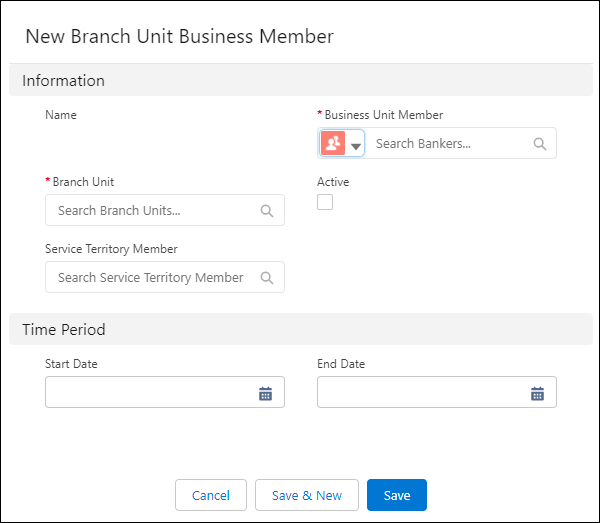
A branch unit business member links a branch unit and a banker. It enables a banker to select the branch where they’re working that day so their customer interactions are associated with the correct branch.
Required Editions
| Available in: Lightning Experience |
| Available in: Professional, Enterprise, and Unlimited Editions where Financial Services Cloud is enabled |

Tip Salesforce creates a Branch Unit Business Member record automatically when you
add a banker with a branch assignment. Make sure your Banker record page layout includes Current
Branch Start Date and Current Branch fields. Then, on the Bankers tab or the Bankers related
list of a Branch Unit record, click New. Specify a branch in the Current
Branch field.
-
Select Branch Unit Business Member from the navigation bar.
If you don't see Branch Unit Business Member, click Edit in the navigation bar menu, and then search for and add Branch Unit Business Member.
- Click New.
- Select the Banker icon from the Business Unit Member dropdown. Then search for and select a user.
- Select a Branch Unit.
- Select Active and save your changes.

Note A branch unit can be selected by a banker only if the branch unit business member and
branch unit are set to active.