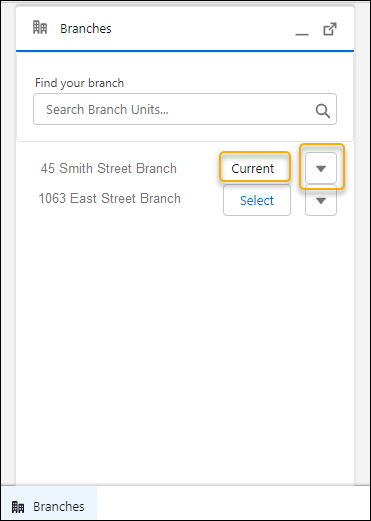
The branch selector allows you to select a current branch to associate your customer interactions. You can view branch details, search for, add, and remove branches from the branch selector without contacting your Salesforce admin.
Required Editions
| Available in: Lightning Experience |
| Available in: Professional, Enterprise, and Unlimited Editions where Financial Services Cloud is enabled |
| User Permissions Needed | |
|---|---|
| To use the Branch Selector: |
Financial Services Cloud Extension OR FSC Sales AND Read, Create, and Delete on Branch Unit Business Member AND Read on Branch Unit AND Read and Edit on Banker |

Note When a user adds themselves to a branch where they don’t have an active branch unit
business member record, it is automatically created and set to active.
- From the App Launcher, select Branch Management app, or another app your Salesforce org uses.
-
Click Branches utility bar component.
A list of branches displays. Current indicates the branch you’re assigned to. All record interactions are attributed to your current branch.
- Click the actions menu to remove a branch from the selector or view branch details.
- Click Search Branch Units... and enter the name of a branch to search for and add a new branch to the branch selector.
-
Click Select to choose a new current branch.