
Gain insights into productivity and performance by including branch management reportable objects in Lightning Reports.
Required Editions
| Available in: Lightning Experience |
| Available in: Professional, Enterprise, and Unlimited Editions where Financial Services Cloud is enabled |
Standard report types for Branch Management include Branches with Bankers with Opportunities. Branch Unit Related Record report types with Lead, Account, Contacts, and Opportunities.
Bankers with Branches with Opportunities, Accounts, Leads, and Contacts report types are now available for creating reports with Branch Unit Related Record.
Most of the key branch management objects can be used in reports. First, define a report type that references branch-related objects, and then create reports using that type. The reportable objects include Banker, Branch Unit, Branch Unit Related Records, and Branch Unit Customer.
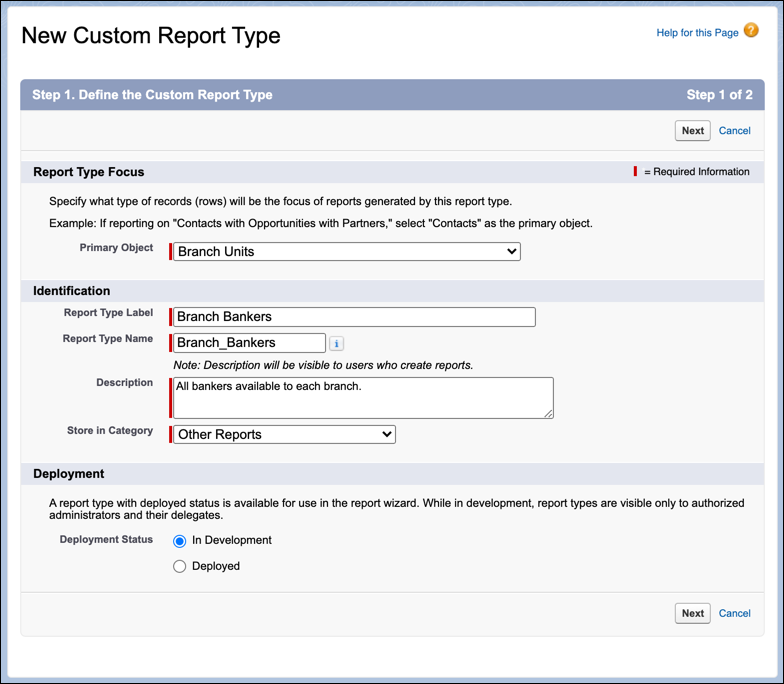
To create a custom report type for Branch Management:
- From Setup, enter report in Quick Find, then select Report Types.
- Click New Custom Report Type.
- In the Primary Object picklist, select Branch or one of the other branch management objects.
- Fill in additional information about the report type, then click Next.
-
(Optional) On the Step 2 page, select an object in the B object
dropdown. Some branch management objects such as Branch Unit Customers and Branch Unit Related
Records don’t appear as related objects when Branch Unit is the primary object. To report on
those objects, create a report type with Branch Unit Customer or Branch Unit Related Record as
the primary object. You can then group the resulting report data by Branch Unit Name if
desired.
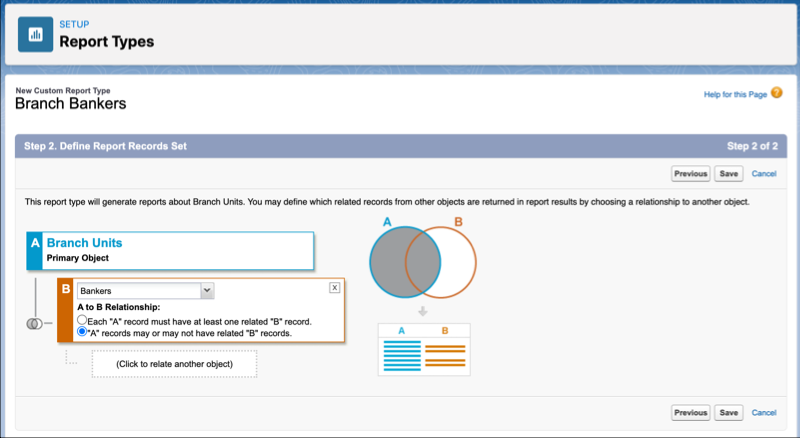
- Save your work.
-
To use the new report type, select it when creating a report. Then change the filters and
outline details to customize your report.
 Note If you are unable to see Related Record Association Criteria in your Branch Unit Related Record report, create a new Custom Report Type that references the Association Criteria object. Then use that report type to generate reports that include Association Criteria fields.