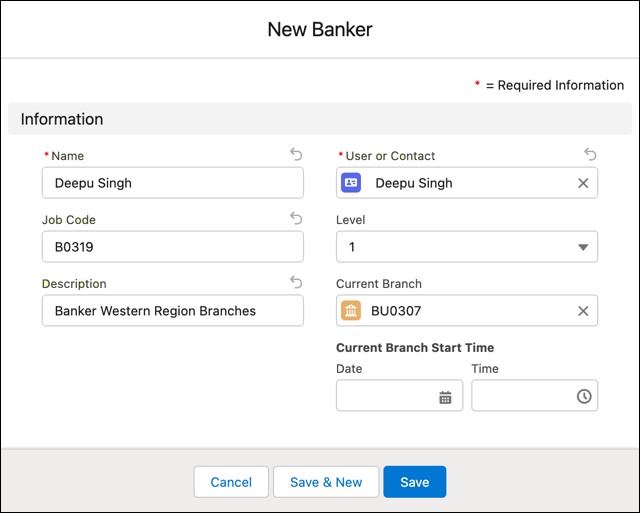
The Banker object represents users or contacts who are authorized to work in a banking
capacity for one or more branches over time. Add banker records to let users view the branches
they can work with, and choose their current branch for work attribution purposes.
Required Editions
| Available in: Lightning Experience |
| Available in: Professional, Enterprise, and Unlimited Editions
where Financial Services Cloud is enabled |
Before you begin, verify these details:
- Know the user’s current branch assignment.
- Make sure that your Banker record page layout includes Current Branch Start Date and Current
Branch fields.
- Make sure that your Branch Unit record page layout includes the Bankers related list.
-
From the Branch Management Console app, select Bankers or
Branch Units from the dropdown menu.
-
From Bankers, click New.
-
From Branch Units, click a branch unit. Then, on the Bankers related list, click
New.
-
A banker record represents a user or contact assignment to a specific branch unit. In the
Name field, enter the name of the banker user, or a combination of the banker’s name and the
branch name.
-
In the New Banker window, select a record type from the User or
Contact dropdown. Then search for and select a person.
-
(Optional) Enter more details about the banker.
If you specify a branch in the Current Branch field, Salesforce creates a Branch Unit
Business Member record for you automatically. If you add a banker without a branch assignment,
create a Branch Unit Business Member and assign the Current Branch manually later.
-
Click Save.