
Lists contacts that fulfill a specified role for the selected person account. The relationship (association type) is contact-contact relationship.
Required Editions
| Available in: Lightning Experience |
| Available in: Professional, Enterprise, and Unlimited Editions |
| User Permissions Needed | |
|---|---|
| To create an ARC Relationship Graph: |
Financial Services Cloud Extension OR FSC Sales AND Customize Application |

Note This card doesn’t display standard contacts that look up to accounts. To view
contacts that look up to accounts in ARC, add the Contacts related list to the page layout that
you use to display Account (Business) objects.
- From Setup, in the Quick Find box, enter Actionable Relationship Center, and then select Actionable Relationship Center.
-
Click New Relationship Graph or edit an existing graph.
 Important The Root Node object must be Person Account to configure the Related Contacts Node.
 - Click the plus icon to add a child node.
-
On the Properties tab, configure the node properties as follows:
Field Name Field Value Object Contact Relationship Type Many-to-Many Junction Object Contact-Contact Relationship Parent Node Lookup Field Contact Object Lookup Field Contact 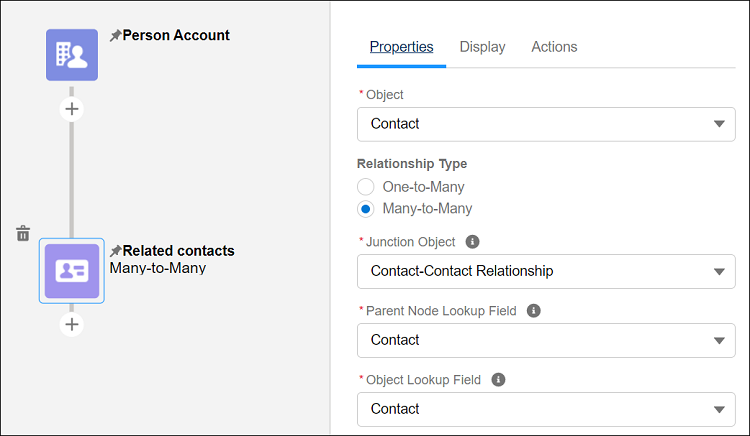
- Click Done. Configure the node Display and Actions tabs.
- Save your graph.
After saving your graph, verify that the Related Contacts node appears correctly. To confirm, go to a person account and click the ARC tab. Click the Related Contacts node to check that the related contact details appear correctly.
Note If related contacts don't appear, verify these requirements:
- Contact-to-contact relationships exist between the person accounts. To check, go to a person account and click the Related Contacts tab.
- The Root Node field is set to person account.
- You have Read permission on the related contact records and their fields.