---
schema_version: "1"
id: 18dd72dc960ffd08abbe03322f1c3a79abf1aac480b456fc1dc15965129a874f
title: Configure a Members Node in Actionable Relationship Center
collection: admin
version: current
locale: en-us
portal_url: https://docs.salesforce.com/admin/current/en-us/ind/264-0-0/fsc_admin_arc_create_members_node.md
canonical_url: https://help.salesforce.com/s/articleView?id=ind.fsc_admin_arc_create_members_node.htm&release=264.0.0&type=5
source_site: help.salesforce.com
content_type: documentation
content_hash: 49435f083375651104de95ba63a31f3ce40d32ff3f8a0ec8ef707ec4c9ecb2a4
description: Lists person accounts that fulfill a specified role for the selected account. For example, a person account can have a member relationship to a household account. The relationship (association type) is account-contact relationship, where the contact is a Person Account record.
products:
- Financial Services
release: "264"
---
# Configure a Members Node in Actionable Relationship Center
Lists person accounts that fulfill a specified role for the selected account. For example, a person account can have a member relationship to a household account. The relationship (association type) is account-contact relationship, where the contact is a Person Account record.
### Required Editions
Available in: Lightning Experience
Available in: Professional, Enterprise, and Unlimited Editions
User Permissions Needed
To create an ARC Relationship Graph:
Financial Services Cloud Extension OR FSC Sales
AND
Customize Application
1. From Setup, in the Quick Find box, enter Actionable Relationship Center, and then select **Actionable Relationship Center**.
2. Click **New Relationship Graph** or edit an existing graph.

Important The Root Node object must be Account to configure the Member Node.
3. Click the plus icon to add a child node.
4. On the Properties tab, configure the node properties as follows:
| Field Name | Field Value |
| --- | --- |
| Object | Person Account |
| Relationship Type | Many-to-Many |
| Junction Object | Account-Contact Relationship |
| Parent Node Lookup Field | Account |
| Object Lookup Field | Contact |
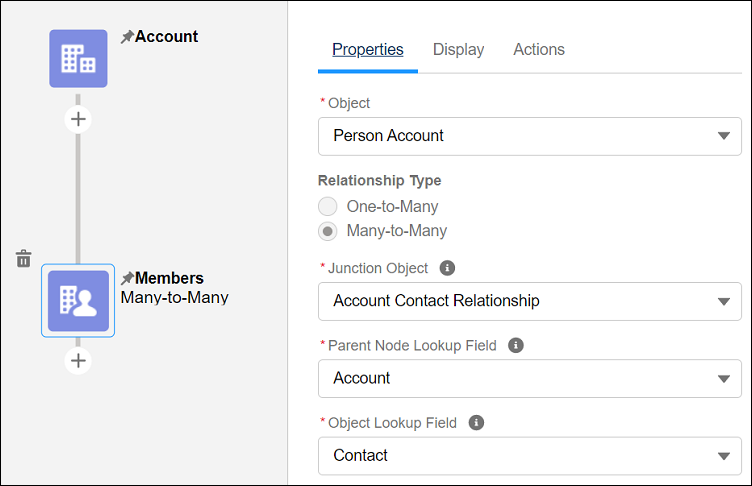
5. Click **Done**. Configure the node Display and Actions tabs.
6. Save your graph.
#### See Also
- [Create a Relationship Graph in ARC](https://help.salesforce.com/s/articleView?id=ind.fsc_admin_arc_create_relationship_graph.htm&type=5&language=en_US)