A service point is an entry point for services to a premises. The service provided to each service point is separately metered (or measured). Therefore, each opportunity or quote relating to the sale of the commodity product should have one or more service points attached to it.
After you create an opportunity, the next step is to add service points to the opportunity. Large Account Sales Management allows you to upload multiple service points or locations using a CSV file. You can also create service points one at a time by entering the details directly in the Salesforce Service Point record page UI. You can do this to incrementally add members to the opportunity or if you just want to add a few members.
Bulk Upload Service Points for Energy & Utilities
To use the upload feature to add multiple service points to an opportunity, create a CSV file with the details of the service points.
Before You Begin
-
You must have an open opportunity for which you want to generate Quote.
-
Prepare a CSV file containing a list of service points to be uploaded for the opportunity.
To create the upload file, download a sample service point file in CSV format. To ensure that the service point details that you provide can be mapped to the appropriate fields in Large Account Sales Management, check that your CSV file includes columns with the same headings as the fields in the corresponding fieldset.

Your CSV file should contain the following columns, at a minimum:
|
Meter Type |
Status |
Market Identifier |
Premises |
Average Monthly |
Load Profile |
|---|---|---|---|---|---|
|
Standard Load Profile |
Connected |
664043575 |
a3E5f000000x2noEAA |
100 |
Residential Low |
If you want to include additional columns in your service point details files, you can add them as additional columns. When you upload the file, the fields are mapped based on the column heading.
-
On the Opportunities tab, click the opportunity name that you want to modify.
The Opportunity record page is displayed.
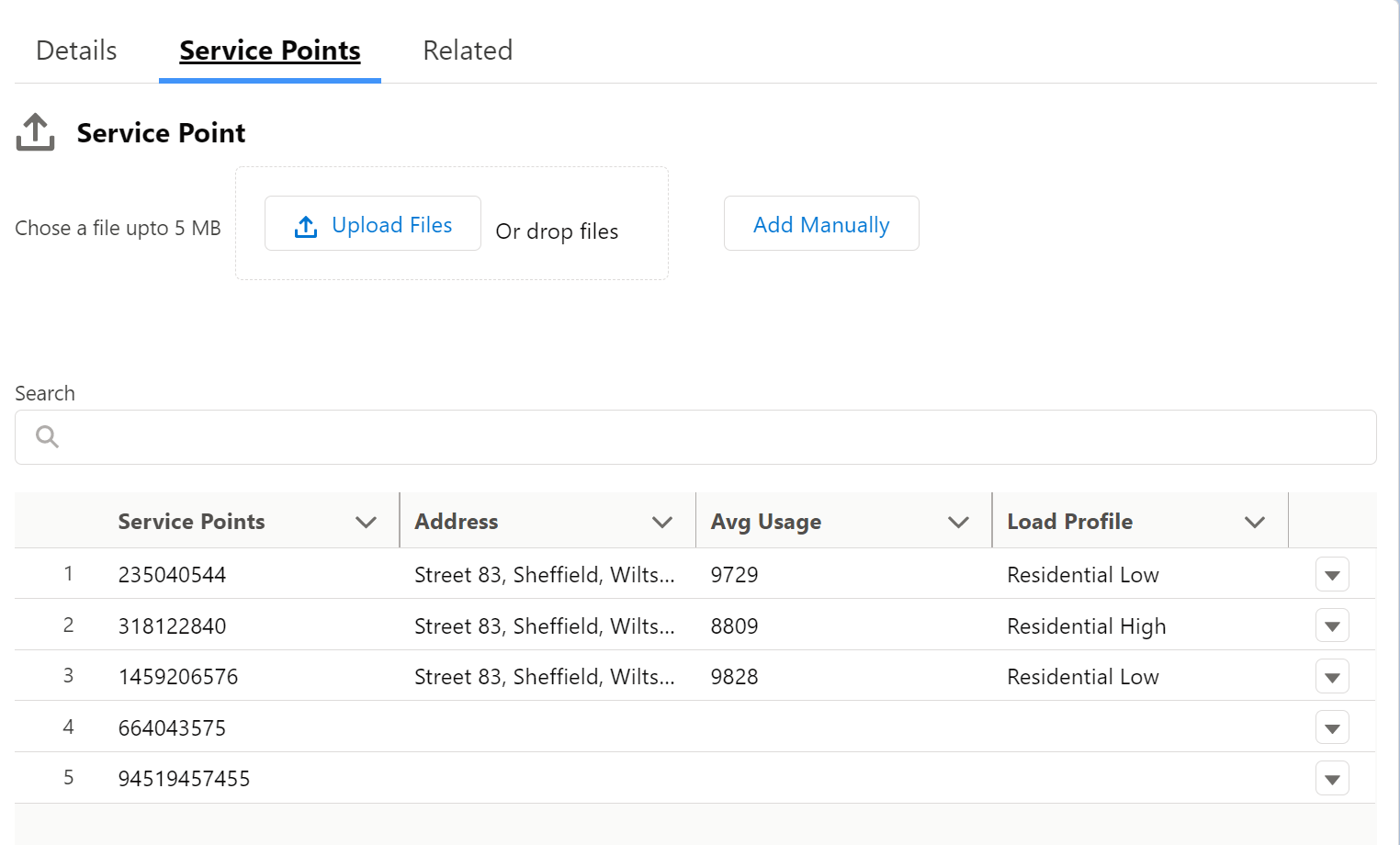
- Select the Service Point tab.
- Click Choose File, and select the file that you want to upload.
- Click Import.
Manually Upload Service Points for Energy & Utilities
If you only need to add a few service points to an opportunity, consider adding them manually instead of in a bulk upload.
Before You Begin
-
Create a new or open existing opportunity for which you want to generate Quote.
-
Prepare a list of service points that you want to add to the opportunity.
To create a service point:
- Log in to your Large Account Sales Management org.
- On the Opportunities tab, click the opportunity name that you want to modify.
- Select the Service Point tab.
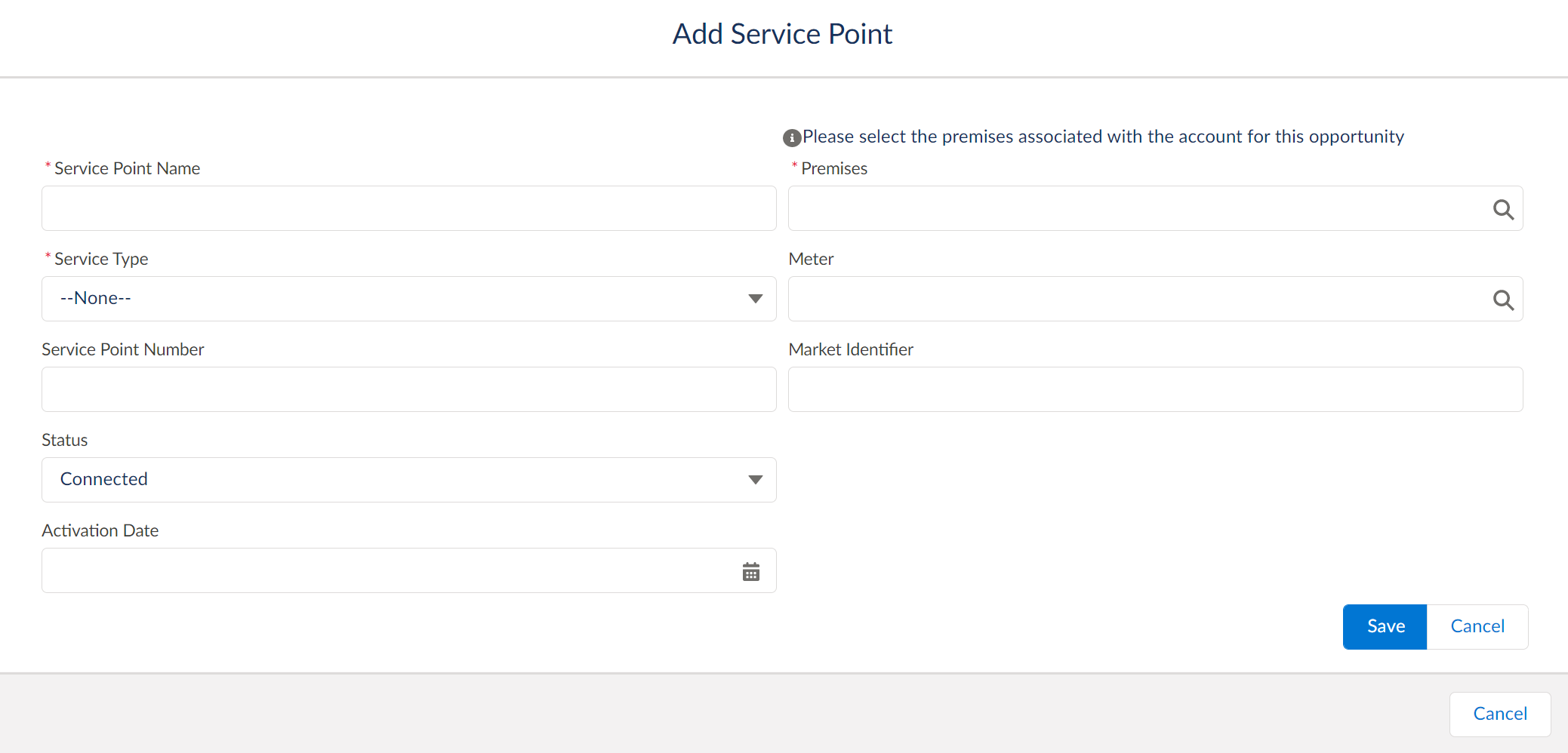
- Click Add Manually.
- Enter the required information and click Save.