---
schema_version: "1"
id: acbb89a743c5fb155c2dc34d6d82e8d6ecd77d0b5d064822273f1d8cfeb62f0a
title: Deploy Salesforce Datapacks for Contact Center Console
collection: admin
version: current
locale: en-us
portal_url: https://docs.salesforce.com/admin/current/en-us/ind/264-0-0/energy_console_deploy_salesforce_datapacks.md
canonical_url: https://help.salesforce.com/s/articleView?id=ind.energy_console_deploy_salesforce_datapacks.htm&release=264.0.0&type=5
source_site: help.salesforce.com
content_type: documentation
content_hash: 7ea50aa897df46e67db8f68ca71ef7b93403748c27e1ddbd8cd0d7c69ce83889
description: After you download Contact Center Console SFDX datapacks, deploy them to your Salesforce org.
products:
- Energy and Utilities
release: "264"
---
# Deploy Salesforce Datapacks for Contact Center Console
After you download Contact Center Console SFDX datapacks, deploy them to your Salesforce org.
Before you begin:
- For orgs that use Standard OmniStudio Content and Runtime extract EUC\_Console\_OSRT\_Sfdx\_Datapacks to the Console\_SFDX folder, and the EUC\_Console\_OSRT\_IDV\_Sfdx\_Datapacks to the Console\_SFDX\_IDV folder. Create the folders if they don't already exist.
- For orgs that use Standard OmniStudio Content, extract EUC\_Console\_Sfdx\_Datapacks to the Console\_SFDX folder, and the EUC\_Console\_IDV\_Sfdx\_Datapacks to the Console\_SFDX\_IDV folder. Create the folders if they don't already exist.
1. For each folder, create the file **sfdx-project.json** which contains the following code:
```
{
"packageDirectories": [
{
"path": "salesforce_sfdx",
"default": true
}
],
"namespace": "",
"sfdcLoginUrl": "https://login.salesforce.com",
"sourceApiVersion": "59.0"
}
```
2. Move the **package.xml** files from salesforce\_sfdx/main/default to the Console\_SFDX folder and the Console\_SFDX\_IDV folder.
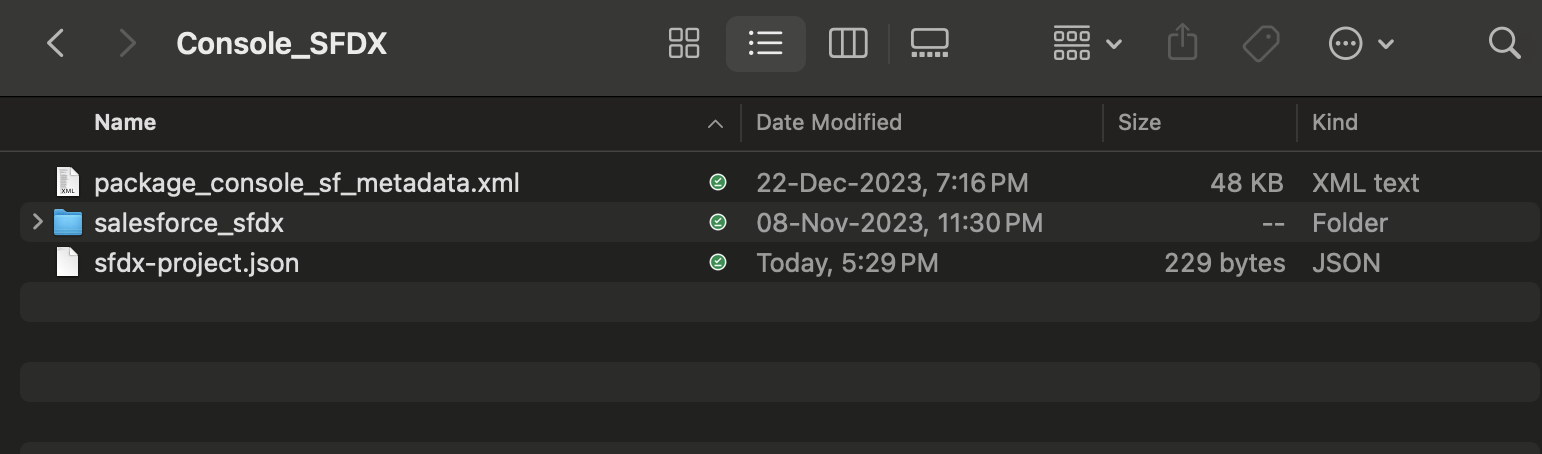 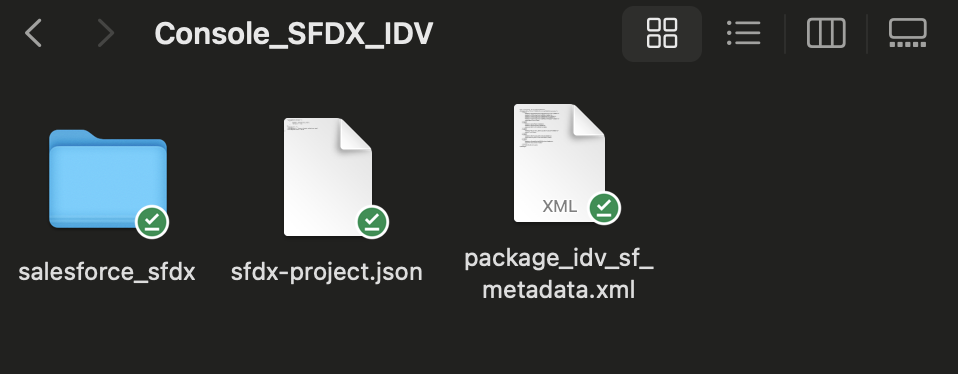
3. If you are deploying Contact Center Console WITHOUT Field Service, make these adjustments to the files:
1. Remove these files from the salesforce\_sfdx/main/default/classes folder:
- SfiEnergyConsoleFSAPIFactory.cls
- SfiEnergyConsoleFSAPIFactory.cls-meta.xml
- SfiEnergyConsoleFSAPIFactoryTest.cls
- SfiEnergyConsoleFSAPIFactoryTest.cls-meta.xml
2. Delete these entries from package.xml and save:
- `SfiEnergyConsoleFSAPIFactory`
- `SfiEnergyConsoleFSAPIFactoryTest`
3. Delete these entries from the salesforce\_sfdx\\main\\default\\profiles\\EU Minimum Access.profile-meta.xml file and save:
- ```xml
SfiEnergyConsoleFSAPIFactory
false
```
- ```xml
SfiEnergyConsoleFSAPIFactoryTest
false
```
- ```
true
FieldServiceAccess
```
4. Open Console\_SFDX in Visual Studio Code.
5. Authenticate your org if you have not already done so. See [Prepare Your Org for Contact Center Console Static Resources](https://help.salesforce.com/s/articleView?id=ind.energy_console_prepare_the_target_org_for_static_resources.htm&release=264.0.0&type=5 "Configure your org and install desktop utilities to prepare for the download and deployment of Contact Center Console resources.").
6. Deploy components from to your target org.
1. In VSCode, in the left panel, right-click the salesforce-sfdx folder.
For Mac devices, CMD + click the salesforce-sfdx folder.
2. Click **SFDX: Deploy Source to Org**.
If you see errors during deployment, you must deploy all the components again. If deployment fails for any component, select the components that failed and deploy them individually.
After the datapacks are deployed, perform the post-deployment steps:
- See [Post Deployment Steps for Contact Center Console](https://help.salesforce.com/s/articleView?id=ind.energy_staticresources_post_deployment_steps_for_contact_center_console.htm&release=264.0.0&type=5 "After downloading and deploying the Contact Center Console static resources, complete these post-deployment steps.").
- For Contact Center Console with Field Service, see [Post Deployment Steps for Contact Center Console with Field Service](https://help.salesforce.com/s/articleView?id=ind.energy_staticresources_post_deployment_steps_for_contact_center_console_with_field_service.htm&release=264.0.0&type=5 "After installing Contact Center Console through Static Resources, complete the post-deployment steps on your org.").
After you complete the post-deployment steps, you can deploy the sample data for Contact Center Console. See [Deploy Sample Data for Contact Center Console](https://help.salesforce.com/s/articleView?id=ind.energy_console_deploy_sample_data.htm&release=264.0.0&type=5 "Deploy sample data to test the features of Contact Center Console in your org.").