
After a user submits an order to Dynamic Revenue Orchestrator (DRO), you can see how products decompose and can spot issues right away.
Required Editions
| Available in: Enterprise, Unlimited, and Developer Editions |
| User Permissions Needed | |
|---|---|
| To monitor decomposition: |
DRO Admin User OR Fulfillment Manager/Operator |
The Decomposition Viewer shows how fulfillment order items decompose, so you can validate the correctness of order decomposition and troubleshoot fallout.
- From the App Launcher, find and select Dynamic Revenue Orchestrator.
- From the app navigation menu, select Orders.
-
Click an order, then on the order page, click the Fulfillment
Lines tab.
The list of order and decomposed products appears. When time-awareness is turned on, the items are sorted by product and time segment. Child products grouped under their parent in the bundle hierarchy. The Subaction column identifies the operation applied to an order or decomposed product during decomposition, such as Rollback, Field Amendment, or Start Date Adjustment.
-
To find the product that you want, scroll or enter a term in the Search field, and then
perform one of these actions:
- To see how the product decomposes, or what products decompose to the one you
selected, click
 .
. - To see the decomposition rule that's in effect, as well as the product's attribute
names and field values, click
 .
.
- To see how the product decomposes, or what products decompose to the one you
selected, click
-
To understand the reason for the action on the decomposed product, click
 in the Action column of a Decomposed Product.
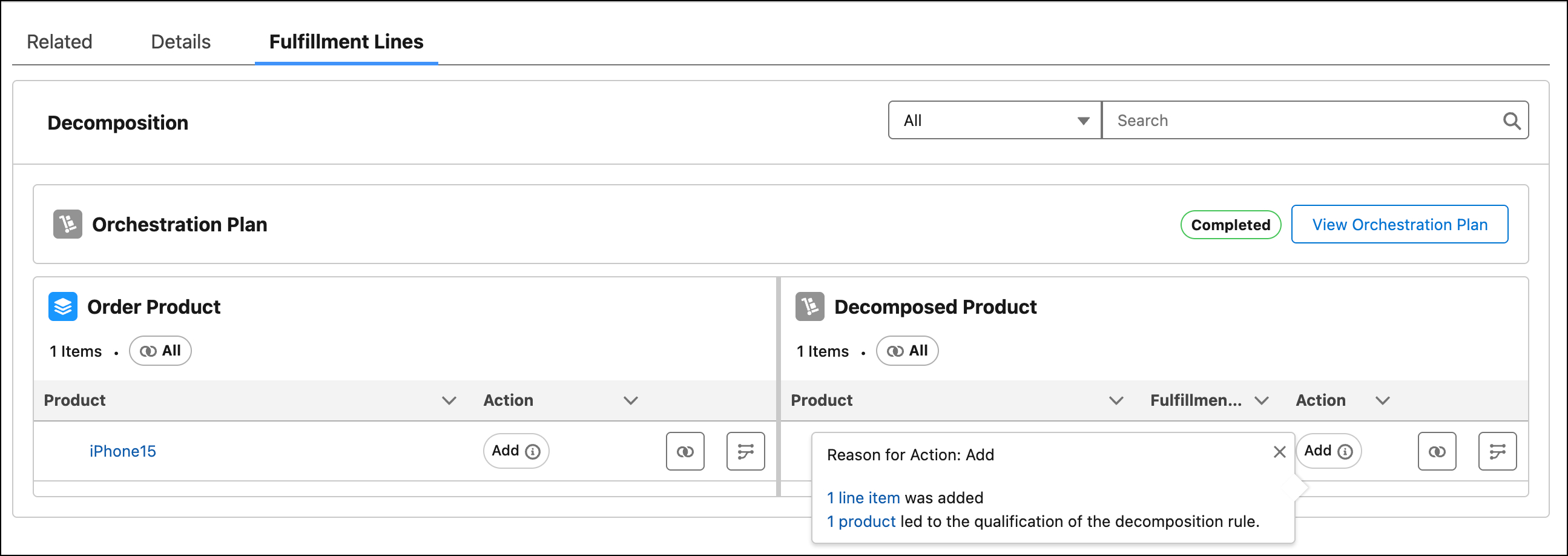 Actions are assigned to order products when an order is submitted. The actions required to fulfill the order are listed in the corresponding decomposed product actions. The reasons explain the impact of order products on related decomposed product actions and why decomposition is proceeding in a particular way.
 -
To view the order products and enrichment rules that led to the action on the
decomposed product, click the links on the Reason for Action window.
Use this information to troubleshoot and optimize your decomposition process.
- Click View Orchestration Plan to see the orchestration plan.