
To help scale your fulfillment plans, and ensure consistency across plans, you can import your existing fulfillment step definition groups directly from a fulfillment workspace.
Required Editions
| Available in: Enterprise, Unlimited, and Developer Editions |
| User Permissions Needed | |
|---|---|
| To import a fulfillment step definition group: |
Fulfillment Designer OR DRO Admin User |
From the Fulfillment Workspace, import groups that contain fulfillment step definitions. You can either import a group based on its name, or import the group based on its associated fulfillment scenario.
- From the App Launcher, find and select Fulfillment Workspaces.
- Click the workspace that you want to import a group to.
-
Click Import Step Group.
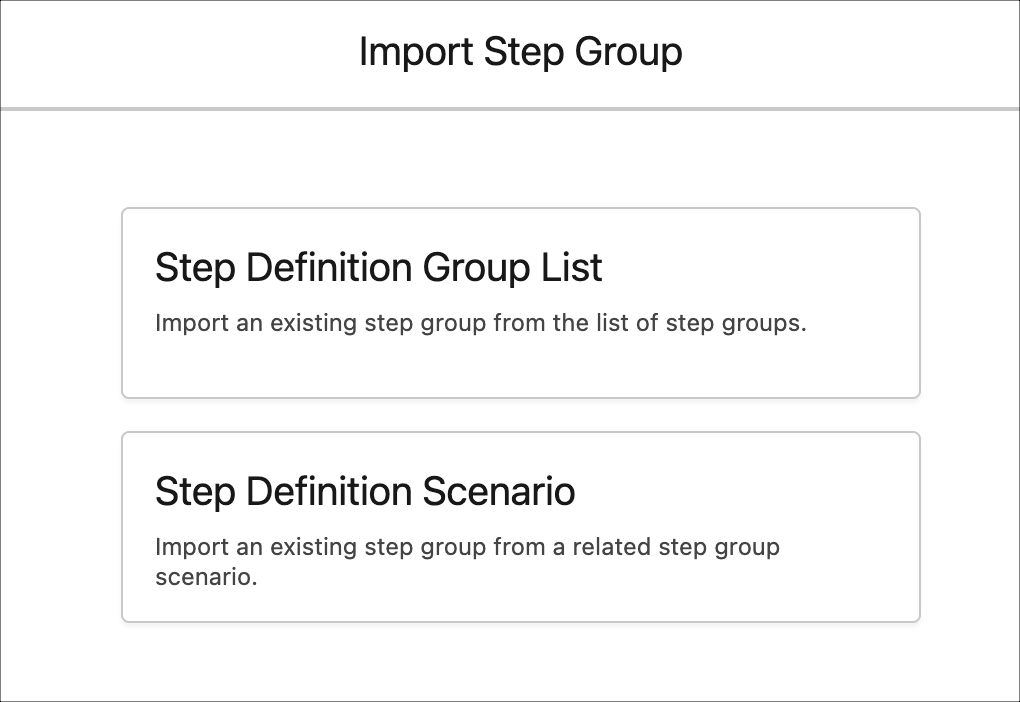
The Import Step Group pane opens.
-
From the Import Step Group pane, click one of these options and click
Next:
- Step Definition Group List: Search from a list of step definition groups, select the step definition goups that you want to add to the workspace, then save your work.
- Step Definition Scenario: Search from a list of product fulfillment scenarios. Each scenario is associated with a step definition group. Select the scenarios that are associated with the groups that you want to add to the workspace, then save your work.
 Note Regardless of the option that you choose, one or more step definitions groups are added to the workspace. If the group is associated with a product fulfillment scenario, then that relationship is maintained.