Use technical product attribute scopes to define the role of product attributes in decomposition and assetization. The scope determines whether attribute changes trigger fulfillment or supplemental actions on decomposed line items, or impact fulfillment assets. Defining these scopes at design time optimizes orchestration by processing only relevant updates and keeping asset data lean.
Required Editions
| Available in: Both Salesforce Classic (not available in all orgs) and Lightning Experience |
| Available in: Enterprise, Unlimited, and Developer Editions |
| User Permissions Needed | |
|---|---|
| To define how a product decomposes: |
Fulfillment Designer OR DRO Admin User |
Dynamic Revenue Orchestrator provides these three predefined opt-out scopes.
| SCOPE NAME | ACTION | EFFECT |
|---|---|---|
| Decomposition Action Opt-Out Scope | It determines if an attribute influences fulfillment actions during order decomposition. | Use the new product attribute scope to prevent technical attribute changes from affecting fulfillment line actions. When you define an attribute with this scope, technical values don’t influence fulfillment actions during order decomposition. |
| Supplemental Action Opt-Out Scope | It determines if an attribute influences supplemental actions during order decomposition. | Use the new product attribute scope to prevent technical attribute updates from affecting supplemental actions. When you define an attribute with this scope, technical changes don’t influence supplemental actions during order decomposition. |
| Assetization Opt-Out Scope | It determines if an attribute value a part of the fulfillment assets. | If you define an attribute with this scope, the attribute is excluded from the fulfillment asset. |
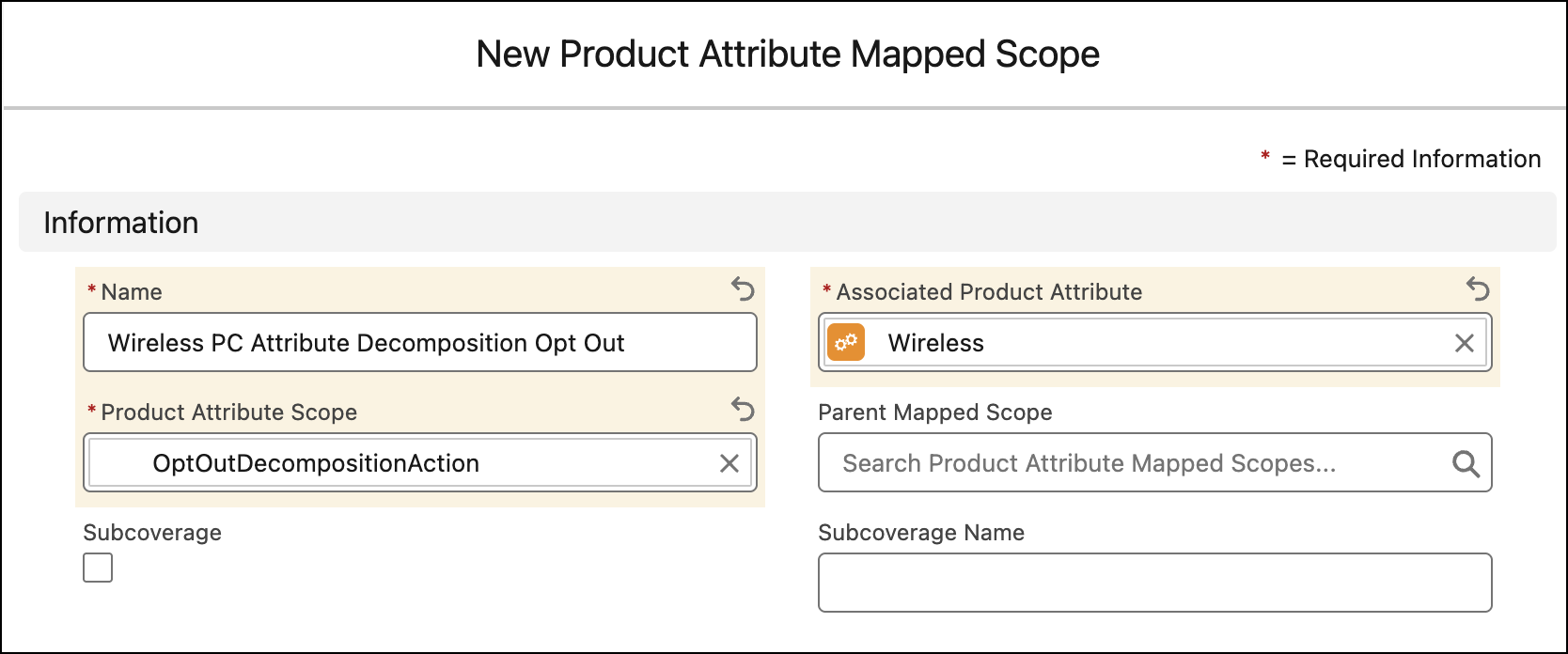
Define a product attribute mapped scope to associate one of the opt-out scopes to a product attribute. Note these considerations while creating product attribute mapped scopes.
- Create a decomposition action opt-out mapped scope for a product attribute before you create an assetization opt-out mapped scope.
- Delete the assetization action opt-out mapped scope for a product attribute before you delete the associated decomposition opt out mapped scope.
- Create and delete the supplemental action opt-out scope independent of the other two scopes.
- A product attribute can have only one mapped scope record per scope, allowing a maximum of three records—one for each predefined opt-out scope.
To create a product attribute mapped scope, perform these steps:
- From the App Launcher, find and select Dynamic Revenue Orchestrator.
- From the app navigation menu, select Product Attribute Mapped Scopes.
- Click New.
- Select Associated Product Attribute from the Product Attribute Definition or Product Classification Definition dropdown list.
- Select a scope from the Product Attribute Scope dropdown list.
-
Save your work.