
To create technical products in Dynamic Revenue Orchestrator (DRO), follow these instructions.
Required Editions
| User Permissions Needed | |
|---|---|
| To create a technical product: |
Fulfillment Designer OR DRO Admin |
- In Setup, find and select Dynamic Revenue Orchestrator.
- Select Products.
- Click New.
- Enter a descriptive name for the Product.
- Select the product type.
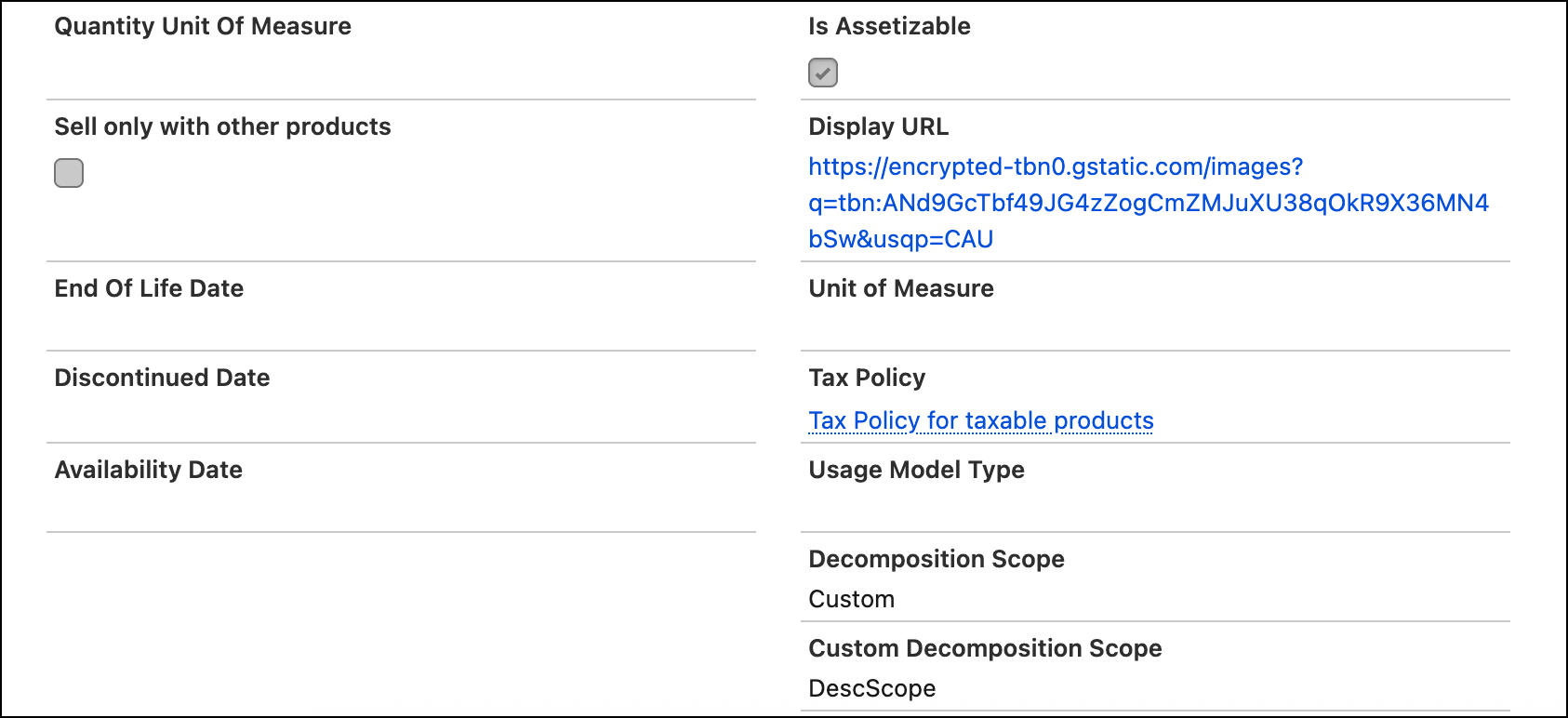
- To manage the product as an asset, mark the product as assetizable.
-
Select the decomposition scope. To set the default order decomposition to line
item, select None.
- To set a custom decompostion scope, select Custom in the Decomposition Scope dropdown list.
-
Select from the list of custom fulfillment scope configs available in
the org. To create a custom fulfillment scope, see Create Custom Fulfillment Scope Configuration.
If the product is marked as assetizable, also select a custom fulfillment scope configuration that is assetizable.
- Select the fulfillment quantity calculation method. Selecting None defaults to Aggregate.
- To begin decomposition, mark the product as activate.
- Save your changes.