---
schema_version: "1"
id: bf8ddfb3b7915f638f6c780b0f7244055a73c416922faa6373e96ae1806dc713
title: Create Custom Fulfillment Scope Configuration
collection: admin
version: current
locale: en-us
portal_url: https://docs.salesforce.com/admin/current/en-us/ind/264-0-0/dro_create_custom_scope_config.md
canonical_url: https://help.salesforce.com/s/articleView?id=ind.dro_create_custom_scope_config.htm&release=264.0.0&type=5
source_site: help.salesforce.com
content_type: documentation
content_hash: 18beaeebe59ccd144e849e30526cb384e71ee22990ab2d7225dfde9a770c234b
description: Custom scopes use a configurable field in the line item or product object as the scope identifier. This identifier defines how fulfillment line items and steps are instantiated. During decomposition and orchestration, custom scopes group fulfillment order line items and steps according to the scope identifier.
products:
- Revenue Cloud
release: "264"
---
# Create Custom Fulfillment Scope Configuration
Custom scopes use a configurable field in the line item or product object as the scope identifier. This identifier defines how fulfillment line items and steps are instantiated. During decomposition and orchestration, custom scopes group fulfillment order line items and steps according to the scope identifier.
### Required Editions
Available in: Enterprise, Unlimited, and Developer Editions
User Permissions
Needed
To create custom fulfillment scope configuration:
DRO Admin User
To create a custom scope, define a custom scope configuration with a context tag mapped to a scope identifier field in the order product or a sales transaction item. Configure the custom scope as the custom decomposition scope in the technical product and the custom fulfillment scope in the fulfillment step definition. Update the scope identifier field in the configured order line item and order product. During decomposition, fulfillment order line items are grouped per scope identifier and during orchestration, fulfillment steps are grouped per scope identifier.
1. From Setup, in the Quick Find box, enter Dynamic Revenue Orchestrator Settings and select it.
2. Click **Custom Fulfillment Scope Config**.
3. Click **New Custom Fulfillment Scope Config**.
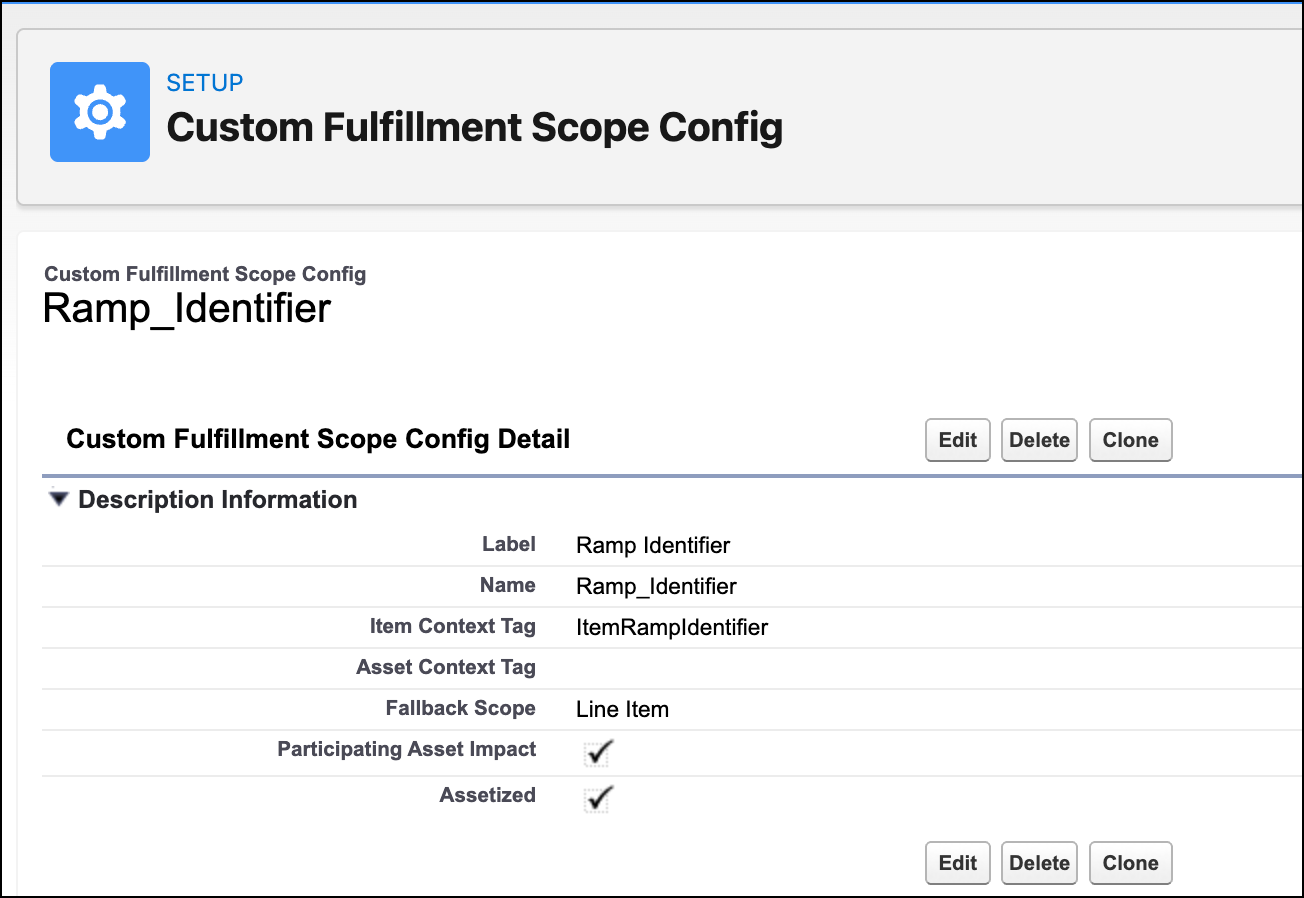
4. Enter a label for the Custom Fulfillment Scope Config.
5. Enter the item context tag.
This tag in the Sales Transaction Context Definition points to the field in Order Product or Fulfillment Order Line Item that specifies the custom scope identifier. Where you define and map the tag depends on how you use it.
Decomposition
Define the tag in the Context Node for Sales Transaction Item, and map it to the custom scope identifier field in Order Product.
Plan Generation
Define the tag in the Context Node for Sales Transaction Item, the Context Node for Fulfillment Transaction Item, or both. Map the tag in the Context Node for Sales Transaction Item to the custom scope identifier field in Order Product, and map the tag in the Context Node for Fulfillment Transaction Item to the custom scope identifier field in Fulfillment Order Line Item.
Restriction
The item context tag must use the `String` data type.
6. Select the **Participating Asset Impact** checkbox if you want technical assets related to sales transactions to affect the decomposed line item actions.
When the Participating Asset Impact checkbox is selected, adding a product with the same scope identifier as an existing asset to the order will amend the existing asset. If the Participating Asset Impact checkbox isn't selected, adding any products to the order will create a new fulfillment asset, regardless of the scope identifier.
7. Select the **Assetized** checkbox to assetize the decomposed line items.
8. Save your work.

Note Line Item scope is the default fallback scope and is used when no custom scope is derived.
#### See Also
- [Apply Custom Scopes to Fulfillment Steps and Dependencies](https://help.salesforce.com/s/articleView?id=ind.dro_custom_scope_step_dependencies.htm&release=264.0.0&type=5 "Use custom scopes to group fulfillment steps and resolve step dependencies based on a business value that you define, such as a tenant group, ramp segment, service location, or sales transaction item group. Standard scopes use a fixed level, such as Plan, Bundle, or Line Item.")