---
schema_version: "1"
id: 9656c2bc75beb7dd808067e3aa8269417ab428e595ea3a781a93b098d21f90e3
title: Configure List Mapping
collection: admin
version: current
locale: en-us
portal_url: https://docs.salesforce.com/admin/current/en-us/ind/264-0-0/dro_configure_list_mapping.md
canonical_url: https://help.salesforce.com/s/articleView?id=ind.dro_configure_list_mapping.htm&release=264.0.0&type=5
source_site: help.salesforce.com
content_type: documentation
content_hash: 310cb522f3c3edee68064fb7575bd60b385c608c41e8837c32e2e7148b3f8427
description: Use list mapping to set up pairs of source and destination values. For example, a list of cities that pair with post code values. When the source value is a city name, the target receives the post code of that city. Configure list mapping from the Fields & Attribute Mapping section of a decomposition rule.
products:
- Revenue Cloud
release: "264"
---
# Configure List Mapping
Use list mapping to set up pairs of source and destination values. For example, a list of cities that pair with post code values. When the source value is a city name, the target receives the post code of that city. Configure list mapping from the Fields & Attribute Mapping section of a decomposition rule.
### Required Editions
Available in: Salesforce Classic (not available in all orgs) and Lightning Experience
Available in: Enterprise, Unlimited, and Developer Editions
User Permissions
Needed
To configure a list mapping:
Fulfillment Designer
OR
DRO Admin
Before you begin, review the initial mapping set up steps in [Define Field and Attribute Mapping](https://help.salesforce.com/s/articleView?id=ind.dro_define_field_and_attribute_mapping.htm&release=264.0.0&type=5 "Define how Dynamic Revenue Orchestrator (DRO) maps fields and attribute data between products. DRO uses this mapping to copy or transform commercial order data to the data that fulfillment systems or processes require.").
1. Create a Field & Attribute Mapping within a Decomposition Rule.
2. For Mapping Type, select **List Mapping**.
3. Select **New List**.
You can also use an existing list.

Note If you use an existing list, then any change you make for this mapping affects all other mappings that use the same list.
4. Name the list and click **Add Row**.
5. In the source product column, click  and enter a value that you expect to be in the source product.

Note Boolean attribute types don't work with list mapping.
6. Add more rows as required. Don't add duplicate source values to a list.
7. Save your work.

Example
A source commercial product has the attribute Speed with two values: Fast and Ultra Fast.
The target technical product has a Bandwidth attribute with two values: `50 Mbps` and `100 Mbps`.
Create a mapping so that if the source product has a Speed value of Fast, then the target product has a Bandwidth value of 50 Mbps. And if the Speed is Ultra Fast, then the Bandwidth is 100 Mbps.
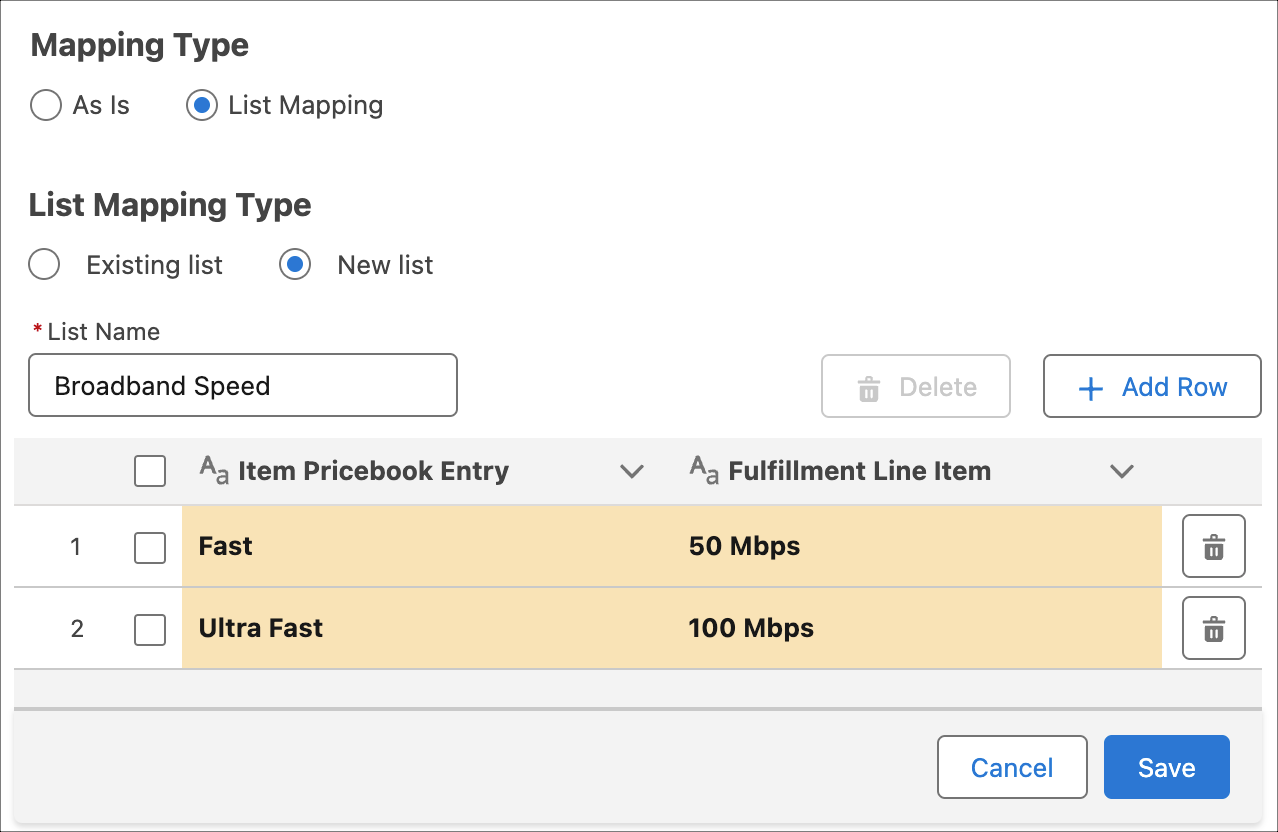
When a user submits an order with a speed attribute of Fast, the Broadband attribute gets the value of `50 Mbps`.