---
schema_version: "1"
id: b56b6074c03a56e97c0edf9b1c91c273ece4fa0d2b72f15f57aa5b6996bc75d1
title: Configure Inflight Plan Settings for a Fulfillment Step
collection: admin
version: current
locale: en-us
portal_url: https://docs.salesforce.com/admin/current/en-us/ind/264-0-0/dro_configure_inflight_plan_settings.md
canonical_url: https://help.salesforce.com/s/articleView?id=ind.dro_configure_inflight_plan_settings.htm&release=264.0.0&type=5
source_site: help.salesforce.com
content_type: documentation
content_hash: 4daec092f81803863494797cdf500d12d0bb73edc2760f8e0b63d899b7fd9cf5
description: As part of creating fulfillment steps, you can configure inflight plan settings to handle customer requests to add, amend, cancel, or otherwise change their order before the order is committed by a sales rep.
products:
- Revenue Cloud
release: "264"
---
# Configure Inflight Plan Settings for a Fulfillment Step
As part of creating fulfillment steps, you can configure inflight plan settings to handle customer requests to add, amend, cancel, or otherwise change their order before the order is committed by a sales rep.
### Required Editions
Available in: Enterprise, Unlimited, and Developer Editions
User Permissions
Needed
To configure inflight plan settings:
Fulfillment Designer
OR
DRO Admin User
To configure inflight plan settings, first create a fulfillment step using the fulfillment workspace. For more information, see [Define Orchestration Plan Components](https://help.salesforce.com/s/articleView?id=ind.dro_define_orchestration_components.htm&release=264.0.0&type=5 "Create and organize fulfillment steps, their dependencies, and fulfillment processes in fulfillment workspaces.").
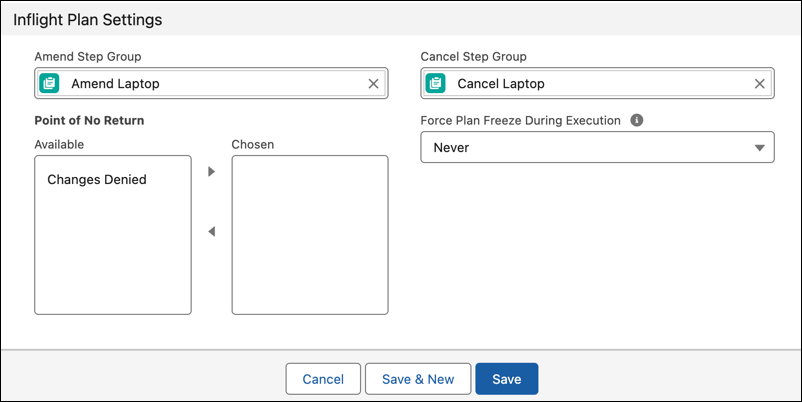
1. Select an Amend Step Group.
2. Select a Cancel Step Group.
To apply the cancel step groups in reverse order of execution, see [Set Dependencies Between Fulfillment Steps](https://help.salesforce.com/s/articleView?id=ind.dro_set_dependencies_between_fulfillment_steps.htm&release=264.0.0&type=5 "Connect fulfillment step definitions to create a dependency between them. When an order is submitted, the steps run in the order that you define.").
3. Configure the Point of No Return behavior. In the Available pane, select the type of source change (Changes Denied) to be applied to the line item, then click  to move the source change to the Chosen field. This selection ensures that when the fulfillment plan reaches this step, no changes to the order items in the bundle are allowed.
4. Optional: Force Plan Freeze During Execution. Select an option other than the default option to allow order representatives to forcefully freeze the plan. Specify how to complete the step before resuming the plan. Choose an action to apply to the In Progress step:
- Never: The plan freezes only after the step is completed. Until then, the plan is in a Freezing state. This is the default option.
- Yes But Forcefully Complete the Step: Moves the plan to a Frozen state, forcefully completes the step, and then resumes the plan if the related line item is amended or canceled.
5. Save your work.