
Use expression sets to perform complex transformations on the source product's fields and attributes and use the output variables of the expression sets to enrich the target product's fields and attributes. For example, set delivery priority in the target product based on the order value and the delivery zipcode.
Required Editions
| Available in: Salesforce Classic (not available in all orgs) and Lightning Experience |
| Available in: Enterprise, Unlimited, and Developer Editions |
| User Permissions Needed | |
|---|---|
| To configure an expression set based mapping: |
Fulfillment Designer OR DRO Admin |
Consider these recommendations for expresssion set mapping.
- Reuse expression sets for multiple mappings: To reduce performance impact during order submission, implement multiple transformations in a single expression set and reuse for multiple mappings.
- Simulate expression sets before use: To validate the expected output and achieve accurate data transformation during fulfillment, simulate the expression set in Business Rules Engine's Expression Builder with sample data before using it in mapping. See Simulate and Activate Your Expression Set Version.
Before you begin, review the initial mapping set up steps in Define Field and Attribute Mapping.
- Create a Field & Attribute Mapping within a Decomposition Rule.
- For Mapping Type, select Expression Set Based Mapping.
- Select the expression set.
- To view or edit the expression set in Business Rules Engine's Expression Builder, click Source.
- In the Input Variables section, map at least one input variable of the expression set to a source field or attribute.
- In the Output Variables section, map one output variable of the expression set to a target field or attribute.
- Save your work.

Consider a source commercial product that has attributes ProductType, CustomerAccount, and Price.
The target technical product has a Commission Amount attribute.
An expression set, CommissionCalculation is designed to calculate the commission amount by taking in ProductType, CustomerAccount, and Price as inputs variables.
Configure the mapping from the source to the target mapping by using the CommissionCalculation expression set. Map the input variables of the expression set to the source product attributes ProductType, CustomerAccount, and Price. Map the output variable of the expression set to the Commission Amount attribute of the target product.
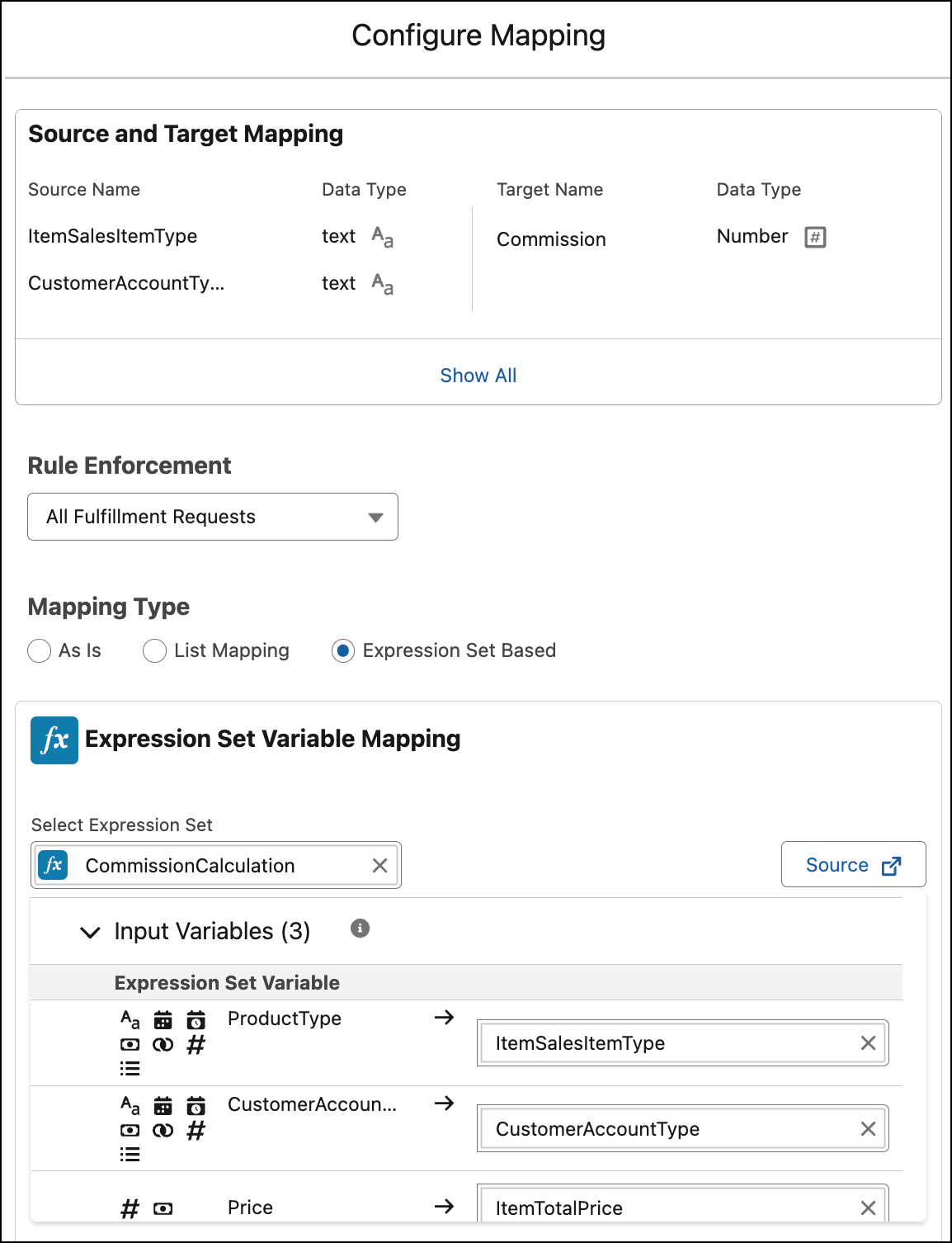
When a user submits an order with ProductType as Advanced, CustomerAccount as Priority, and Price as $12000, the target product is set with Commission Amount as $1000.
When the user submits an order with ProductType as Basic, CustomerAccount as Regular, and Price as $1200, the target product is set with Commission Amount as $100.