---
schema_version: "1"
id: 4d9317dfa7dfcac213fbbccee82e3b7ff4ab9f813c193ab8c19ecd3b90dc44aa
title: Use Salesforce Object as Data Source
collection: admin
version: current
locale: en-us
portal_url: https://docs.salesforce.com/admin/current/en-us/ind/264-0-0/dpe_salesforce_object_as_data_source.md
canonical_url: https://help.salesforce.com/s/articleView?id=ind.dpe_salesforce_object_as_data_source.htm&release=264.0.0&type=5
source_site: help.salesforce.com
content_type: documentation
content_hash: 3a09a397dd5af558a8b892084d562c826a25dacef8a79767337793359a12faff
description: Learn how to use Salesforce objects as data sources in the CRMA runtime.
products:
  - Cross Cloud
release: "264"
---
# Use Salesforce Object as Data Source

Learn how to use Salesforce objects as data sources in the CRMA runtime.

### Required Editions

<table class="slds-table slds-table_bordered slds-max-medium-table_stacked slds-m-bottom_small edition"><colgroup><col></colgroup><tbody><tr class=""><td class="slds-cell-wrap" style="vertical-align:top;"><a href="https://help.salesforce.com/s/articleView?id=ind.dpe_editions.htm&amp;release=264.0.0&amp;type=5" title="Review the supported editions and availability for Data Processing Engine (DPE).">View supported editions</a>.</td></tr></tbody></table>

<table class="slds-table slds-table_bordered slds-max-medium-table_stacked slds-m-bottom_small permission">
        <colgroup>
          <col style="width:50%">
          <col style="width:50%">
        </colgroup>
        <thead class="slds-text-title_caps ">
          <tr class="">
            <th scope="colgroup" class="slds-cell-wrap" colspan="2" style="text-align:center;vertical-align:top;" id="d7465e60">User Permissions
              Needed</th>
          </tr>
        </thead>
        <tbody>
          <tr class="">
            <td data-label="User Permissions Needed" class="slds-cell-wrap" style="vertical-align:top;" headers="d7465e60 ">To configure a datasource node:</td>

            <td class="slds-cell-wrap" style="vertical-align:top;" headers="d7465e60 "><span>
                <a href="https://help.salesforce.com/s/articleView?id=ind.dpe_setup.htm&amp;release=264.0.0&amp;type=5" title="Assign users system permissions, object access, and permission sets that they require to manage, run, and monitor Data Processing Engine (DPE) definitions. User permissions for Data Processing Engine vary based on the runtime platform your company uses to run definitions.">View permissions information.</a>
              </span></td>

          </tr>
        </tbody>
      </table>

1. In the Configuration section, select **Object** as the data source.
    
    ![\[Data source node configuration section in CRMA runtime\]](https://sf-zdocs-cdn-prod.zoominsoftware.com/tdta-ind-data_processing_engine-264-0-0-production-enus/80e06924-e6c0-4b82-81cf-e99ccd77d857/data_processing_engine/images/dpe_datasource_node.png)
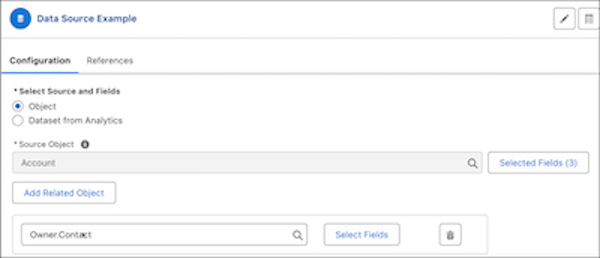
2. In the Source Object field, select an object, and then click **Select Fields** to add fields to be used from the source object. The aliases of the selected fields are automatically filled. The field is then referred to by its alias in the nodes that reference the field.
    
    ![Data source node with Salesforce object selected as the source type.](https://sf-zdocs-cdn-prod.zoominsoftware.com/tdta-ind-data_processing_engine-264-0-0-production-enus/80e06924-e6c0-4b82-81cf-e99ccd77d857/data_processing_engine/images/dpe_datasource_sobject.png)
3. Click **Add Related Object** to select a related object and then click **Select Fields** to add its fields as data sources.
    
    The objects listed as related objects have a lookup relationship with the data source object. For related object fields, always specify an alias.
    
    ![Tip](https://sf-zdocs-cdn-prod.zoominsoftware.com/tdta-ind-data_processing_engine-264-0-0-production-enus/80e06924-e6c0-4b82-81cf-e99ccd77d857/images/icon_tip.png)
    
    Tip An alternative to adding related objects from a data source in a single Data Source node is to create separate Data Source nodes for each related object. After you've created nodes for all the objects, use Join nodes to join their records using lookup ID fields.
4. Save your node configuration.

![Example](https://sf-zdocs-cdn-prod.zoominsoftware.com/tdta-ind-data_processing_engine-264-0-0-production-enus/80e06924-e6c0-4b82-81cf-e99ccd77d857/images/icon_example.png)

Example If you select Account as a data source and want the data source to contain information about contacts, select Contact as the related object. Or, create a separate data source with Contact as the source object.