
Before you run a definition from the builder to test how a definition transforms data and writes back results, understand how each debug mode works and what to expect from the debug modes after a definition's run completes. You can run a definition with multiple debug modes selected.
- Debug Mode: Save Recipe and Its Output Records (for CRM Analytics Runtime Only)
This debug mode helps you get a visual representation of how data has moved across the various definition nodes during a run. - Debug Mode: Save Count of Node Records
Save record counts for up to 20 transformation nodes to identify where records are unexpectedly filtered or where record volume changes abruptly. Compare node-level counts to find misconfigured stages in the definition. - Debug Mode: Save Node Output Without Writing Back Results (for CRM Analytics Runtime Only)
Use debug mode to validate node logic and calculations on a limited dataset without updating production records. To support temporary review, DPE converts writeback nodes to temporary CRM Analytics datasets instead of writing results to production targets and automatically deletes them after the run.
Debug Mode: Save Recipe and Its Output Records (for CRM Analytics Runtime Only)
This debug mode helps you get a visual representation of how data has moved across the various definition nodes during a run.
How It Works
After you start a run with this debug mode, the CRM Analytics recipe that gets records for the run and then transforms the data is saved for seven days. You can access the recipe from Data Manager. The name of the recipe is the same as the ID of the batch job created for the run. You can locate the 18 character alphanumeric ID of the batch job from the URL of the batch job record page.
Analyze Recipes Created by Save Recipe and Its Output Records Debug Mode
Like a Data Processing Engine definition, a recipe also provides a visual representation of how data is synced and transformed across the different stages of the recipe.
| Recipe Stages | How It Helps |
|---|---|
| Input nodes | There’s an input node for each data source node of the definition. Each input node contains the details of the records and fields that are synced in the recipe for transformation. |
| Transformation nodes | Each each transformation node of the definition, there is a set of transformation nodes in a recipe. Each transformation node in the recipe contains the details of what the node does and a preview of how the data has changed after transformation. |
| Output nodes | There’s an output node for each writeback object node in the definition, and there’s an output node that stores the count of records that have been transformed and sent back to the batch job for write back. These nodes help out review the final state of the records that were written back and tally the count of records that were written back against the count of records the run was expected to write back. |
Debug Mode: Save Count of Node Records
Save record counts for up to 20 transformation nodes to identify where records are unexpectedly filtered or where record volume changes abruptly. Compare node-level counts to find misconfigured stages in the definition.
How It Works
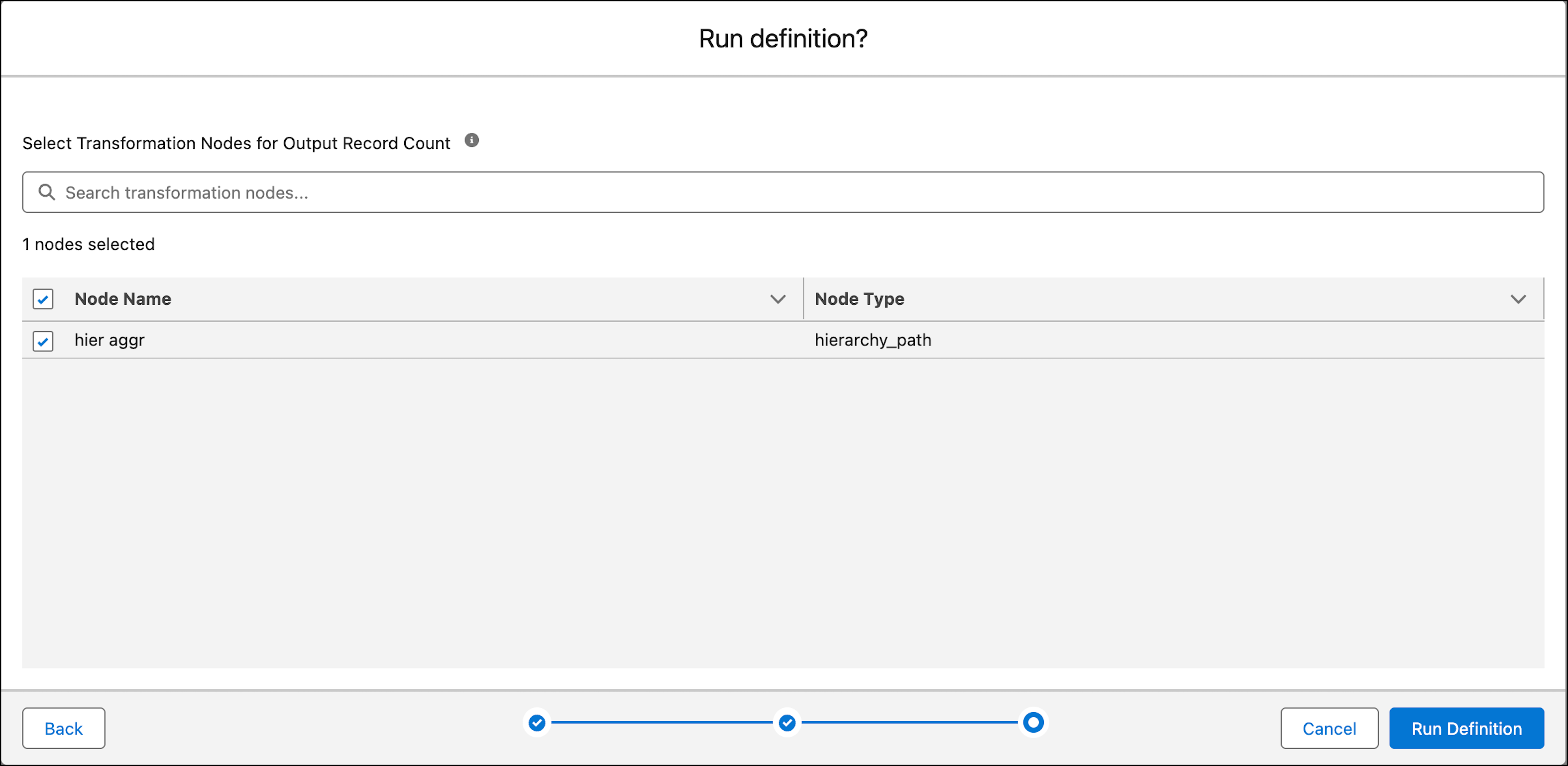
When you run a definition from the builder in this debug mode, select the nodes to track. For smaller definitions, track all nodes. For larger definitions, track crucial nodes where records are filtered, grouped, or sliced.
After the run completes, the batch job's Tasks tab shows a separate task for each selected node, named after that node. Each task stores the record counts before and after the transformation.
Analyze Record Counts
Review node counts (input and output) in sequence to track record-volume changes across the definition. For example, if a Formula node outputs 500 records but the subsequent Filter node outputs only 10, the filter configuration may be more restrictive than intended.
Debug Mode: Save Node Output Without Writing Back Results (for CRM Analytics Runtime Only)
Use debug mode to validate node logic and calculations on a limited dataset without updating production records. To support temporary review, DPE converts writeback nodes to temporary CRM Analytics datasets instead of writing results to production targets and automatically deletes them after the run.
How It Works
When running a definition from builder in this mode:
- Select and Filter Data Sources: Select at least one data source node. Filter records from the data source by using up to five fields with filter conditions. Filter operators change dynamically based on the data type of the selected field, such as Text, Numeric, Date, or DateTime.
- Select Checkpoints: Select up to 20 transformation nodes to track.
Analyze Run Results
Review run results in Monitor Workflow Services to validate data manually without using Data Manager.
- Monitor results in the Details tab:
- Additional Fields shows details for the selected ID field.
- Filters show conditions used for checkpointed transformation nodes.
- Output Nodes lists selected transformation nodes.
- Save Node Output Without Writing Back Results is set to true.
- Monitor results in the Task tab: For each selected node, the batch job creates a task that stores the output and the input and output record counts. These batch job tasks use the Output Record Nodes task type.
- Download data: From the Tasks tab, download output records in CSV format. You can view or download up to 10,000 records per dataset.