
On Monitor Workflow Services, each definition run gets a unique Batch Job record. Use the run's batch job to track every aspect of the run while it is in progress and after the run ends. The batch job provides key insights about data transformed during the run, performance, and issues.
Required Editions
The page layout of batch jobs is designed to provide an overview and then to provide a detailed understanding of how the run has processed data. If the run fails, you can also review the reason for the failure and possible next steps.
Highlights Component | Details Tab | Tasks Tab | Failed Writeback Records Tab | Analysis Tab | Steps to Navigate to a Run
Highlights Component

On the Highlights component, you can see:
- Current run status, such as In Process, Completed, Completed with Failures, Canceled, or Failed. The status Completed with Failures is only available with a limited set of process types.
- Time taken for the run to complete
- Count of records not written back
Details Tab
| Callout | Details |
|---|---|
| 1 |
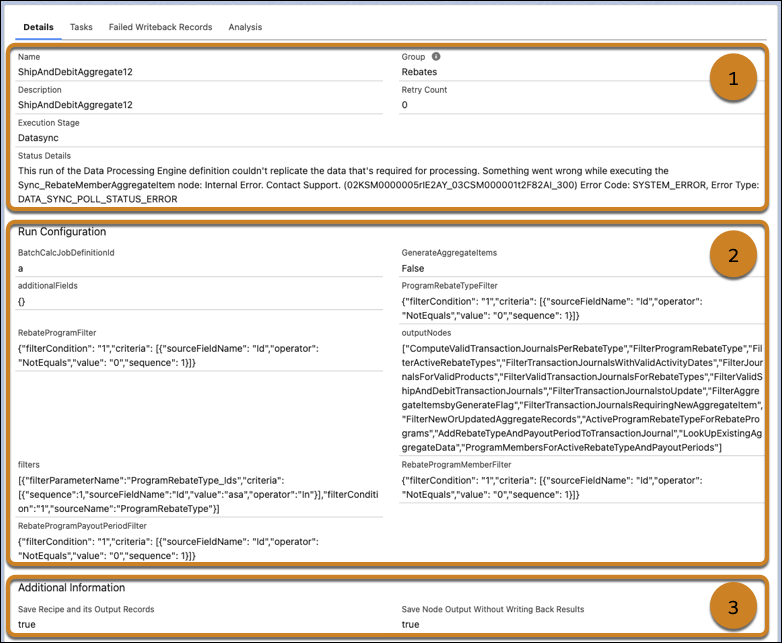
View details of the run, such as API name and group, and review key information about failed runs:
|
| 2 | Review the input variable values, datasource filters, and filter criteria used for the run. If the writeback results don't match your expectations, the input variable values to identify how data was filtered and the values that were used to compute formula outputs. |
| 3 |
Verify which debug nodes were selected for the run. If Save Count of Node Records or Save Node Output Without Writing Back Results debug modes were selected, review the nodes with output record counts on the Tasks tab. |
Tasks Tab
When a definition is run, each stage of the run is broken down in to one or more tasks. The tasks are performed sequentially and the number of tasks differ based on the definition's runtime platform, data sources, and writeback configuration. To learn about the workflow of runs, see Workflow of Data Processing Engine Definition Runs.
| Callout | Details |
|---|---|
| 1 |
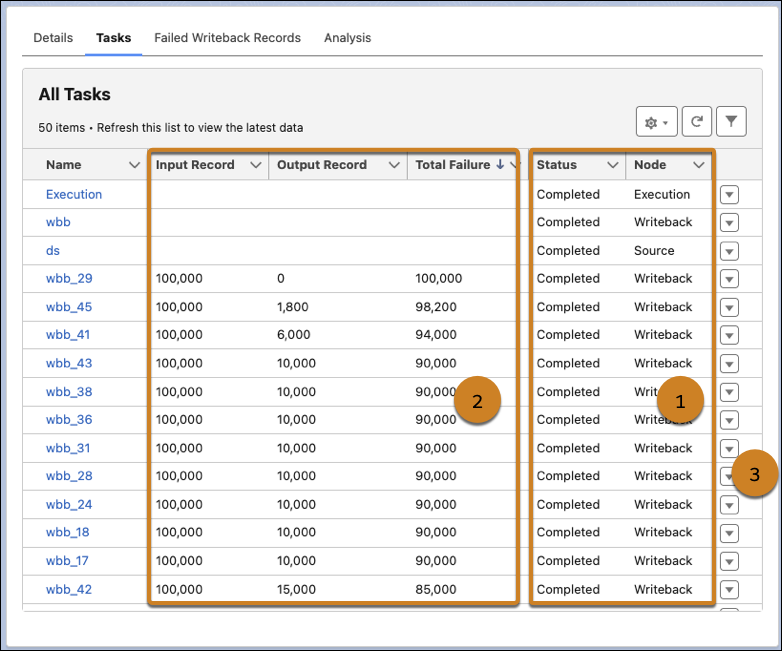
Identify each task with the execution stage or the definition node that it represents. For example, Source type tasks represent the process of syncing data from a definition's data source to the definition's runtime platform. The Execution task represents the stage when the run transforms data across the definition's nodes and Writeback type tasks represents the process of writing back results to the definition's target objects. In Save Node Output Without Writing Back Results debug mode, batch job tasks use the Output Record Nodes task type. If Save Count of Node Records or Save Node Output Without Writing Back Results debug mode is selected for the run, a separate task of the Output Record Nodes task type is generated for each selected transformation node, including input and output record counts. For more information, see Debug Mode: Save Count of Node Records. |
| 2 |
Review the count of records that were provided as input to every writeback task and the count of records that were written back by the task to the target objects. The total failures help you find the count of records that were eligible for write back but the run failed to write back. These counts help you identify Writeback Object nodes that have configuration issues and proceeding nodes whose configuration filters data that must be written back. If the definition consists of a Composite Writeback node, the grouped input, output, and failed counts are provided for the related Writeback Object nodes. For each Writeback Object node, records are grouped by the ID of a unique related record. For example, two contacts that are associated with the same account are grouped together. A separate task is created for the Composite Writeback node, and its counts are calculated by aggregating the group counts of the related Writeback Object nodes. If a Writeback Object node writes back to 20 Contact records and the records are grouped by their related Account records, the grouped count represents the number of unique Account records across the 20 contacts. And if the grouped counts of Writeback Object nodes are 10 and 15, the aggregated count for the Composite Writeback node is 25. The total input and output record counts for a composite writeback task are the sums of the corresponding record counts from all child writeback nodes. When a data source uses a CRM Analytics dataset, CRM Analytics provides the input and output record counts for the Execution task. If filters on the data source result in 0 records, the CRMA API gives both the input and output record counts for the Execution task as 0. For Source tasks, Data Processing Engine fetches the record count directly from the CRM Analytics dataset. To improve the stability and reliability of Data Processing Engine (DPE) runs, DPE automatically retries tasks when an intermediate issue occurs. This retry behavior applies to applies to all batch job tasks and the data source is Data 360 objects, Salesforce objects, and CSV files, but doesn't apply to CRM Analytics. Additionally, Data Processing Engine internally retries three times to retrieve the input and output record counts if the initial retrieval fails. If Data Processing Engine can't retrieve the record counts after three attempts, it proceeds to the next batch job task without failing the current task. |
| 3 |
Use the Download Failed Records quick action on Writeback tasks to download a CSV file containing the details of all records that weren't written back for the node. This option is only available for CSV ingestion, Writeback, and Composite Writeback tasks that have failed records. The CSV file contains the failure reason and the data that must be written back for each record. Use this data to debug errors related to node configuration, user access, and runtime platform setup. If the count of failed records is small, you can also updated the impacted required with the transformed data. |

Failed Writeback Records Tab
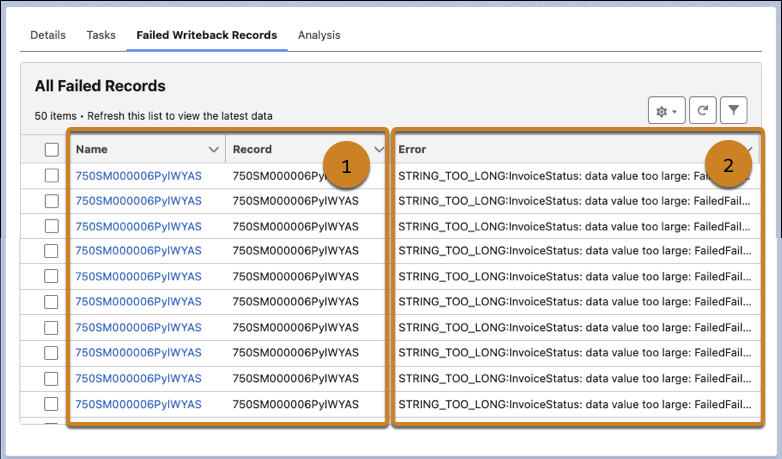
This tab consists of the details of up to 50 records that were eligible for write back but a Writeback Object node failed to write back. If two Writeback Nodes consist of records that it failed to write back, then up to 50 records for each node is shown on the tab. If the definition consists of a Composite Writeback node, then the tab shows the details of all records that failed writeback.
| Callout | Details |
|---|---|
| 1 |
Get the IDs of the records to which data wasn't written back. The information shown for failed records depends on the definition’s runtime platform.
|
| 2 | Review the reason due to which the run failed to write back to the record. |

Analysis Tab
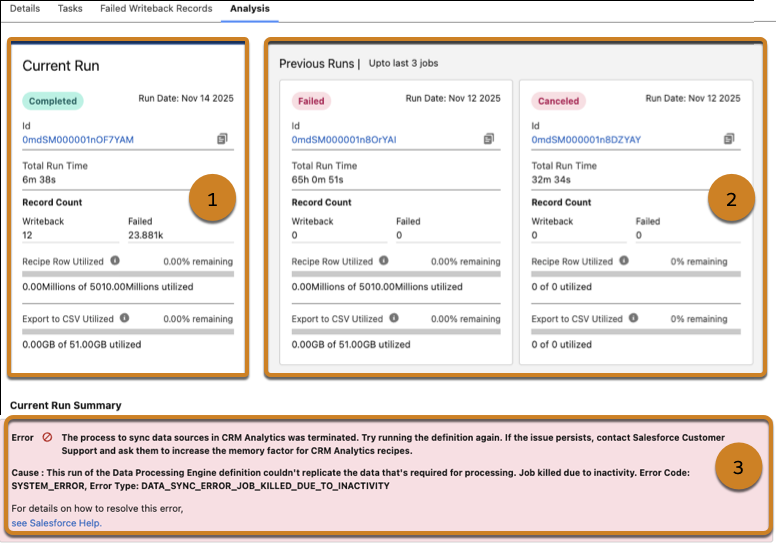
On this tab, get a snapshot of the performance metrics of the current run and the previous three runs of the definition. Along with performance, you can review your org's Data Pipeline resource utilization and make an informed decision about future resource requirements. For failed runs, you get recommendations about how to fix errors related to node configuration, user access, and runtime platform setup. The Analysis tab is available only for definitions run on CRM Analytics (CRMA).
| Callout | Details |
|---|---|
| 1 |
Review these key details about the definition's latest run:
The Recipe Rows Out and the Output to CSV utilization helps you calculate your org's Data Pipelines add-on requirements. |
| 2 | Compare the performance of the current run with previous runs to validate whether any incremental changes to the definition's configuration has helped improve its performance. |
| 3 | Get recommendations about how to debug and fix the issues due to which the current run failed. |
View a Definition's Run
- From Setup, find and select Monitor Workflow Services.
-
From the list, open the batch job that represents the definition run you want to
view.
The names of Batch Job records are the same as the definition’s name. Use the run's status and start and end date times to identify the run that you’re looking for.