
In the Data 360 runtime, you can writeback transformed results to new DLOs and DMOs or existing ones.
Required Editions
On home orgs, you can writeback to existing or new DLOs and DMOs in home orgs and connected companion orgs. In contrast, companion orgs support writeback only to DLOs and DMOs within that companion org.
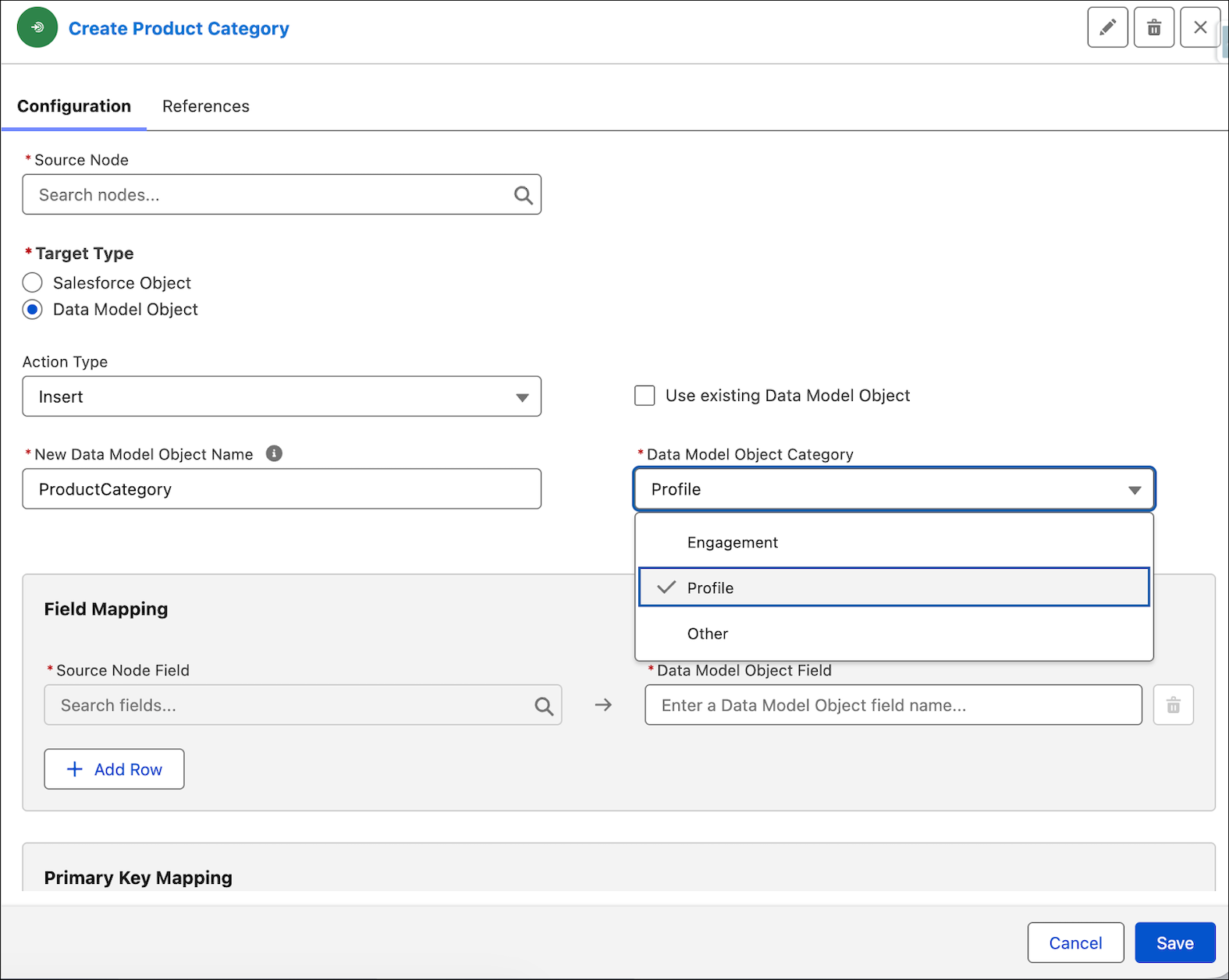
Review these considerations when selecting the DMO category during writeback.
- DMO category selection applies only to DMOs, not DLOs.
- You can select a DMO category only when creating a DMO. You can’t change the category for an existing DMO.
- The selected DMO category must align with the process type selected when creating the Data Processing Engine (DPE) definition.
- You can’t create a DMO with a name that already exists under a different category.
- For the Engagement category, mapping an Event Time field is required. The event time field must be of type Date or DateTime.
Review these considerations when selecting the operation (action) type during writeback:
- For the upsert and overwrite action types, existing DMOs require mapping for both the primary Key and qualifier key. For the insert action type, only primary key mapping is required.
- DLOs require mapping only for primary key.
Steps to write back to a DLO or DMO:
-
In the Writeback object configuration, select the source node, then for the Target
Type, select Data Lake Object, or Data Model
Object.
 Note The Target Type object options vary based on what Data 360 object type you chose when first creating your definition. For example, when creating your definition, if you selected data model object, you'll see Data Model Object as a Target Type option in the configuration, but not Data Lake Object.
 -
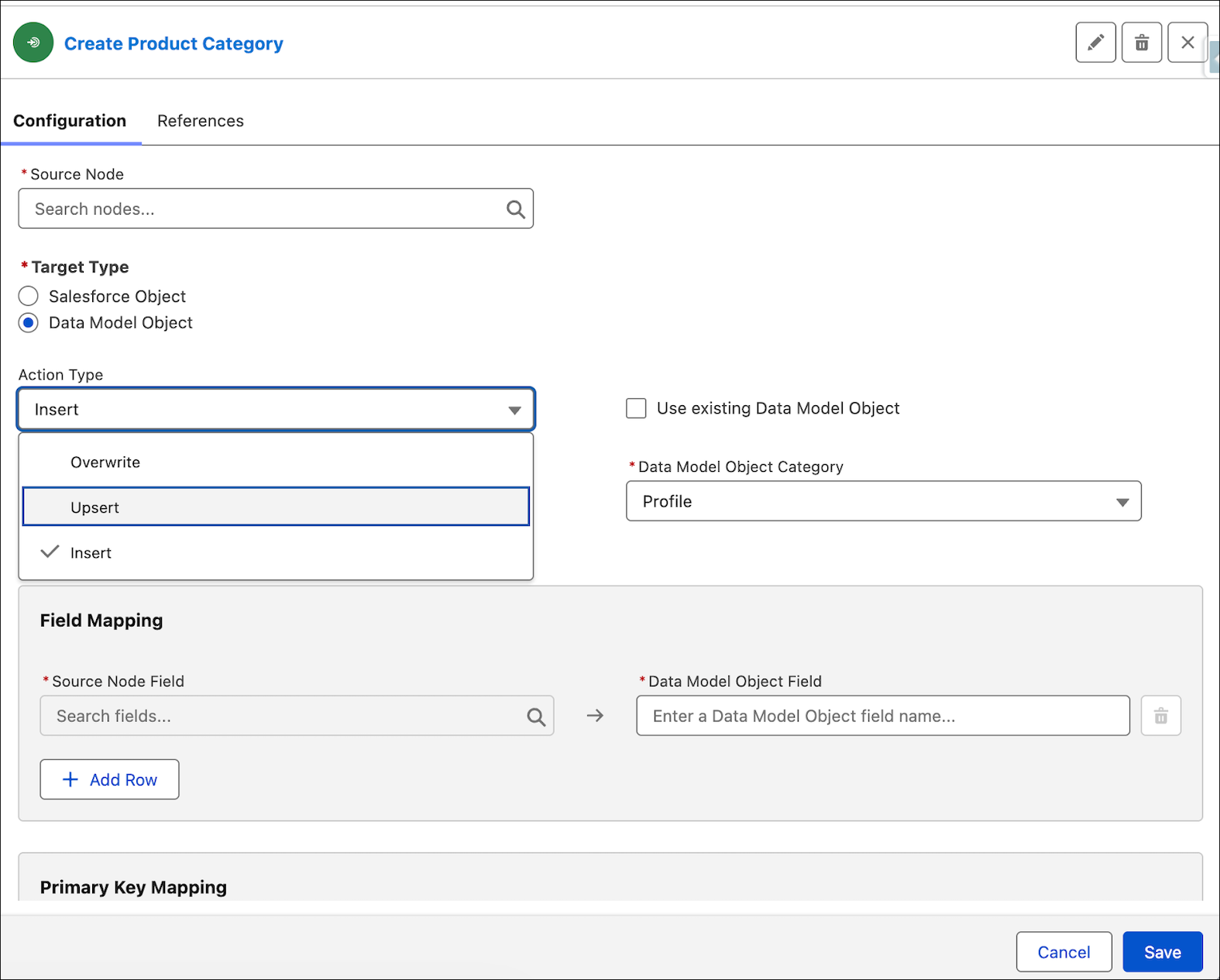
In the Action Type dropdown, select one of these action types:
- Insert: Add new records to the target object by mapping required target fields to source node fields.
- Upsert: Update existing records or insert new records by using a Salesforce ID or external ID for matching.
- Overwrite: Replace target data according to the overwrite behavior for the selected target object.
-
Select whether you want to write back to an existing DLO or DMO, or create an
object:
- Use an existing object: select Use existing Data Lake Object, or Use existing Data Model Object checkbox, then search and select the object name.
- Create an object: Deselect Use existing Data Lake Object or Use existing Data Model Object checkbox, then enter a name for the new object.
-
If you’re writing to a DMO, select Data Model Object Category
based on the segmentation required.
-
In the Field Mapping section, map source node fields with target object fields. The
field mappings determine the values to be added to the new or updated target object
records. To delete records from the target object, map the source node field and the
target object field that uniquely identify the records that you want to delete.
To simplify the field mapping process, use Einstein generative AI to generate field mapping suggestions.
- In the Primary Key Mapping section, enter or select a value to serve as the unique identifier for records. If you're writing back to a data model object, to avoid potential identical key value errors, select a qualifier key.
- Save your node configuration.