
Validate definitions in increments as you keep adding nodes to it. Preview how data is transformed and passed on from one node to another without saving, activating, or running definitions multiple times to make them work as per your expectations. If nodes don't transform data as expected, use the data preview results to find and fix node configuration issues. You can simulate different runtime settings to verify whether the definition works for different data.
Required Editions
| View supported editions. |

Explore Data Preview Settings
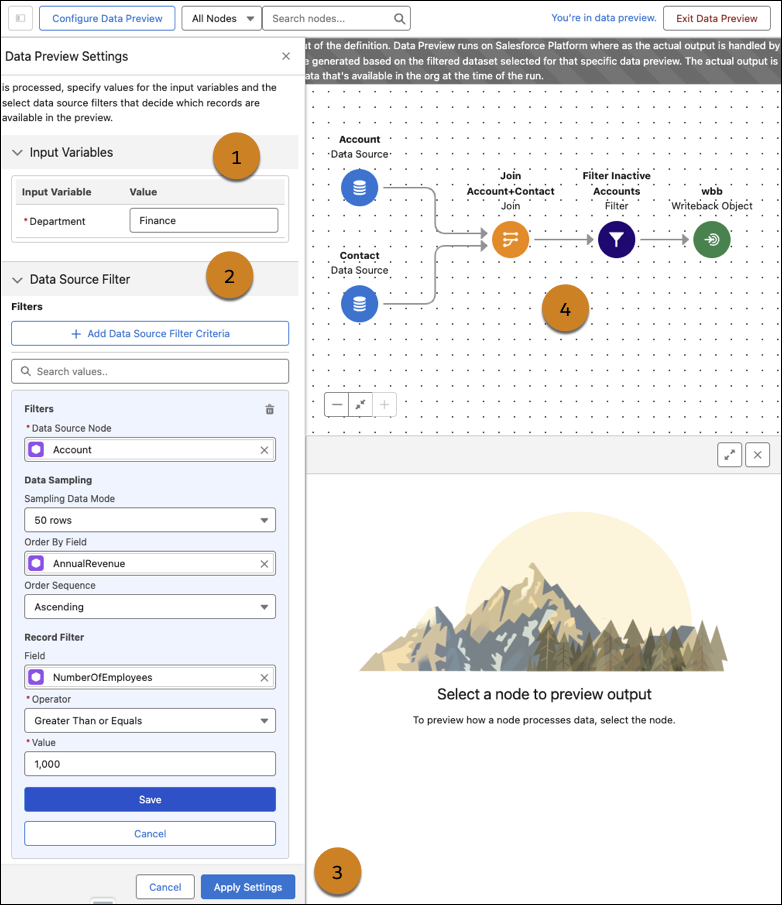
| Callout | What It Does |
|---|---|
| 1 | Enter different input variable values to simulate different runtime scenarios. |
| 2 |
Use data source filters to decide:
Based on your preview requirements, you can either add filters for all the data sources or specific data sources. |
| 3 |
Apply the data preview setting to generate the data preview results. After the results are generated, you can start viewing the results on the canvas. You can change the settings and apply them to review the data preview results for different scenarios and datasets. |
| 4 | After data preview results are generated, click the nodes to review the data preview results. |

To view results for contacts who work in the finance department of companies with more than 1,000 employees ordered by company revenue.
- Input variable value: Finance
The input variable is used in the Filter node of the definition to filter contacts.
- Data source filter:
- Data source: Account
- Order: Ascending order by annual revenue
- Record filter: Number of employees is greater than or equal to 1,000
Review Data Preview Results
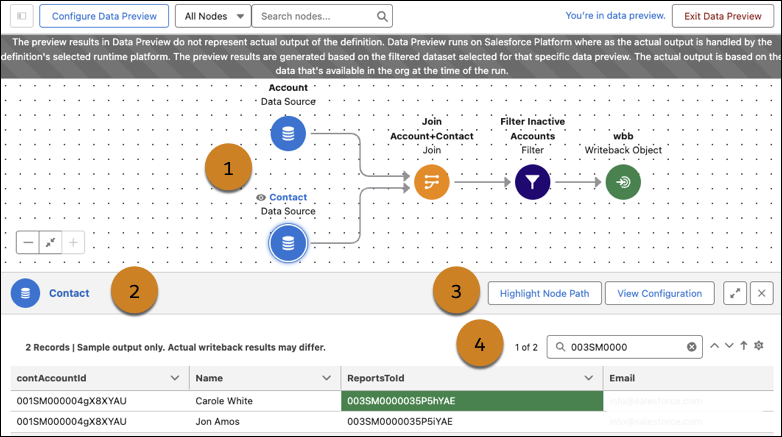
| Callout | What You Can Do |
|---|---|
| 1 | Click each node on the canvas to view the transformed results for each node. |
| 2 |
Review the results for the selected node.
|
| 3 |
Use these node-level quick actions to:
|
| 4 |
Use these result-level quick actions to:
The preview generates results with 20 columns by default, with options to swap or add more. You lose your search results and column selections when you move to the results of another node. |
Data Preview Considerations and Limitations
- Data preview results show 50 data source rows by default when no sampling mode or record filter criteria are selected. You can choose to preview the latest 50, 100, or 200 records from a data source after filtering to validate your configuration.
- Data Preview doesn't generate results for nodes of these types and their succeeding
connected nodes:
- Forecast
- Custom
- Data Preview doesn't generate results for composite writeback nodes.
- Data Preview doesn't generate results for group and aggregate nodes and their succeeding
connected nodes when the node's aggregate function is:
- Std
- StdP
- Var
- VarP
- Data Preview doesn't generate results for formula nodes and their succeeding connected nodes when the node consists of formulas with these functions: SUM, COALESCE, or ARRAYJOIN.
- Data Preview doesn’t generate results for DLO, DMO, and CIO data sources and any downstream nodes connected directly to them. You can, however, still preview the output of other supported nodes within the same Data 360 definition.
- If an unsupported node in data preview exists in a definition, you can’t preview any of its downstream connected nodes.
- Data preview generation isn’t possible if the DPE definition is in an error state.
- Data preview for file-based data source with up to 10K records and a maximum file size of 6MB.
- Data preview isn’t possible for nodes having the Contains operator for multi-select picklist fields.
Data Preview Configuration and Setup Considerations
- All input variables defined in the definition must be configured before you select a node for preview.
- You can only add one filter condition per data source.