---
schema_version: "1"
id: 17133f0cc3535c174d1db5d7aac4a6bd2a1cd142de4ec88ff8f498a6f31daf5e
title: Use Analytics Dataset as Data Source
collection: admin
version: current
locale: en-us
portal_url: https://docs.salesforce.com/admin/current/en-us/ind/264-0-0/dpe_analytics_dataset_as_data_source.md
canonical_url: https://help.salesforce.com/s/articleView?id=ind.dpe_analytics_dataset_as_data_source.htm&release=264.0.0&type=5
source_site: help.salesforce.com
content_type: documentation
content_hash: 54fea8da7f28fc2e7cd29c014cde80a980d32665a21f578582b662c10f90930c
description: Let's learn how to configure Analytics datasets as data sources in the CRMA runtime. You can add a maximum of 200 Analytics datasets as source in the Data Source node of a Data Processing Engine definition.
products:
- Cross Cloud
release: "264"
---
# Use Analytics Dataset as Data Source
Let's learn how to configure Analytics datasets as data sources in the CRMA runtime. You can add a maximum of 200 Analytics datasets as source in the Data Source node of a Data Processing Engine definition.
### Required Editions

Note By default, CRM Analytics replaces blank numeric values with 0. If null measure handling isn't enabled in CRM Analytics, Data Processing Engine receives 0 instead of null for blank numeric fields in the dataset, which can affect formula outputs and filter results. Null measure handling is enabled by default in Salesforce orgs created in Spring '17 and later and can't be disabled. If your org was created earlier than Spring '17, [enable null measure handling in CRM Analytics](https://help.salesforce.com/s/articleView?language=en_US&id=analytics.bi_integrate_enable_null_measures.htm) before configuring the dataset as a data source. For more information about how CRM Analytics handles numeric values, see [Null Measures in CRM Analytics](https://help.salesforce.com/s/articleView?id=analytics.bi_integrate_null_measures.htm&type=5&language=en_US). To detect and substitute null values in numeric fields in Data Processing Engine, use the [ISNULL, NULLVALUE, or COALESCE formula functions](https://help.salesforce.com/s/articleView?id=ind.dpe_formula.htm&release=264.0.0&type=5 "Use the formula node to create multiple formulas and store the results of each formula in a new field. Create multiple formulas in a single node and use the formula results in subsequent nodes. Order the formulas within a node so that a formula can use the result of an earlier formula. Use the compute relative transformation option to determine the trends of specific fields.").
1. In the Configuration section, select **Dataset from Analytics** as the data source.
2. Click **Source Dataset** to select a source dataset, and then click **Select Fields** to add fields to be used in the source dataset. The aliases of the selected fields are automatically filled. The field is then referred to by its alias in the nodes that reference the field.
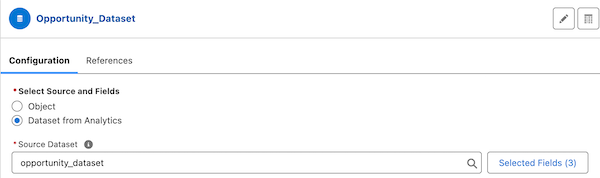
3. Save your node configuration.
You are now ready to [add and configure transformation nodes.](https://help.salesforce.com/s/articleView?id=ind.dpe_create_transformation_nodes.htm&release=264.0.0&type=5 "After you create and configure the source and target nodes, add additional nodes that specify how the source data in the data source node must be processed before the results are written to the writeback object node.")