The condition element in expression sets has two modes: default and advanced. When you
add a condition element to an expression set, the condition opens in the default mode. The default
mode has a no-code user interface to build your condition expression. You can also switch to the
Advanced mode in the condition element to enter your expression manually.
Required Editions
| Available in: Lightning Experience |
| Available in: Enterprise, Unlimited, and Developer
Editions for clouds that have Business Rules Engine enabled |
To add a condition to an expression set, open the expression set in the Expression Set
Builder, click  , and then
select Condition.
, and then
select Condition.
The condition element opens in default mode.
Default Mode
Select a condition requirement from the dropdown
menu.
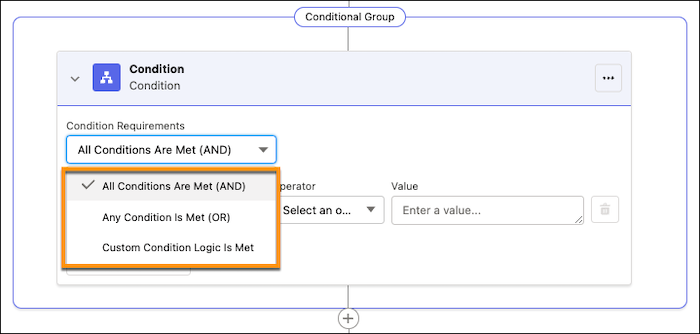
To add more
conditions to the conditional group, click Add Condition.
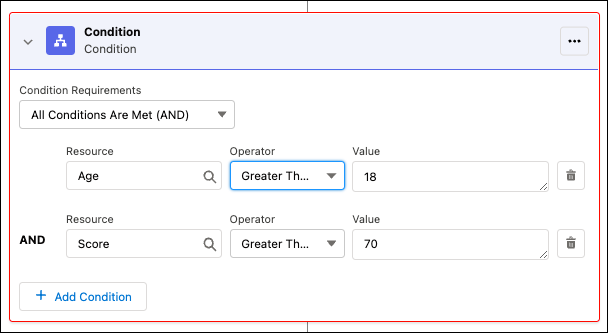
In
the Resource field, select a variable or a constant from the list of resources that you
created for the expression set. Next, select an operator, and then enter a value for the
variable or the constant that you selected.
Advanced Mode
To switch to the Advanced mode, click the show actions
menu for the condition, and then select Switch to Advanced
Mode.
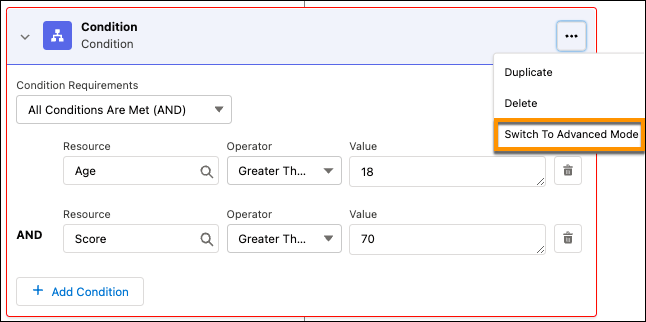
The advanced mode automatically converts the selections you made in the default mode to an
expression. If needed, you can manually modify the expression.

