---
schema_version: "1"
id: c365c33742b6d7034424d3673ac9f1c755841243767a746552c0ffa4efb26ba2
title: Show Attachments on a New Tab on the Displays Detail Page
collection: admin
version: current
locale: en-us
portal_url: https://docs.salesforce.com/admin/current/en-us/ind/264-0-0/custom_sync_show_tab_for_attachments_display_detail.md
canonical_url: https://help.salesforce.com/s/articleView?id=ind.custom_sync_show_tab_for_attachments_display_detail.htm&release=264.0.0&type=5
source_site: help.salesforce.com
content_type: documentation
content_hash: d57878b9c0a3315253cb01a69166166af2f1985cb515f3f904b6a19390b776a5
description: Add a tab in the Display master detail dialog in Visual Studio Code base Modeler. Create a MediaList UI control in the tabbed area to show the list of synced attachments.
products:
  - Consumer Goods
release: "264"
---
# Show Attachments on a New Tab on the Displays Detail Page

Add a tab in the Display master detail dialog in Visual Studio Code base Modeler. Create a MediaList UI control in the tabbed area to show the list of synced attachments.

### Required Editions

<table class="slds-table slds-table_bordered slds-max-medium-table_stacked slds-m-bottom_small edition">
        <colgroup>
          <col>
        </colgroup>
        <tbody>
          <tr class="">
            <td class="slds-cell-wrap" style="vertical-align:top;">
              <p>Available in: Lightning Experience </p>
              <p style="margin-bottom:0;">Available in: <strong>Enterprise</strong> and
                <strong>Unlimited</strong> Editions where Consumer Goods Cloud is enabled
              </p>
            </td>

          </tr>
        </tbody>
      </table> <table class="slds-table slds-table_bordered slds-max-medium-table_stacked slds-m-bottom_small permission">
        <colgroup>
          <col style="width:50%">
          <col style="width:50%">
        </colgroup>
        <thead class="slds-text-title_caps ">
          <tr class="">
            <th scope="colgroup" class="slds-cell-wrap" colspan="2" style="text-align:center;vertical-align:top;" id="d65646e62">User
              Permissions Needed</th>
          </tr>
        </thead>
        <tbody>
          <tr class="">
            <td data-label="User Permissions Needed" class="slds-cell-wrap" style="vertical-align:top;" headers="d65646e62 ">To add a tab and the MediaList UI control</td>

            <td class="slds-cell-wrap" style="vertical-align:top;" headers="d65646e62 ">
              <p style="margin-bottom:0;">Developer, Customizer</p>
            </td>

          </tr>
        </tbody>
      </table>

1. To add a tab, in Visual Studio Code base Modeler, in MyDisplay\_DisplayDetailsUI.userinterface.xml, change the `SectionPattern` attribute of the `detailSection` to `TabbedViewAreaSection`. Then, add an `Area` node as the first sub element of the detail section. This area defines the tabs to be displayed.
    
    The `tabArea` section in this code snippet defines a tab selector with two tabs: `detailArea` and `Attachments`. Each tab has bindings for an image and a label, with default values and a one-time binding mode to ensure they're set correctly when the tab is initialized.
    
    ```
    <Area areaName="tabArea" areaPattern="TabElementArea">
       <TabSelector name="TabSelector">
          <Items>
             <Tab tabName="detailArea">
                <Bindings>
                   <Resource target="image" type="Image" id="MainGrey24" defaultImage="MainGrey24" bindingMode="ONE_TIME" />
                   <Resource target="text" type="Label" id="MainId" defaultLabel="Main" bindingMode="ONE_TIME" />
                </Bindings>
             </Tab>
             <Tab tabName="Attachments">
                <Bindings>
                   <Resource target="image" type="Image" id="ClipGrey24" defaultImage="ClipGrey24" bindingMode="ONE_TIME" />
                   <Resource target="text" type="Label" id="AttachmentsId" defaultLabel="Attachments" bindingMode="ONE_TIME" />
                </Bindings>
             </Tab>
          </Items>
          <Events/>
       </TabSelector>
    </Area>
    ```
2. Create a new area as the last element of the detail section.
    
    ```
    <Area areaName="Attachments" areaPattern="SingleElementArea" lazyLoading="true"> </Area>
    ```
3. Configure `MediaListControl` to show the attachments
    1. In the new `Attachments` area implement the `MediListControl` with the relevant bindings:
        
        The `MediaListControl` named `PromotionAttachment` is bound to the `loAttachment.Items[]` data source from the `ProcessContext::CurrentDisplay`. It includes one-way bindings for the media path, description, and type, ensuring that these properties are displayed correctly in the control.
        
        ```
        <MediaListControl name="PromotionAttachment" dataSource="ProcessContext::CurrentDisplay.loAttachment.Items[]">
           <Bindings>
              <Binding target="MediaPath" type="Text" binding=".mediaPath" bindingMode="ONE_WAY" />
              <Binding target="IsTagged" type="Text" bindingMode="ONE_WAY" />
              <Binding target="Description" type="Text" binding=".description" bindingMode="ONE_WAY" />
              <Binding target="Type" type="Text" binding=".type" bindingMode="ONE_WAY" />
           </Bindings>
        </MediaListControl>
        ```
        
        The `detailSection` of this code snippet contains a tab selector with two tabs: `detailArea` and `Attachments`. The Attachments tab includes a `MediaListControl` named `PromotionAttachment` that binds to the `loAttachment.Items[]` data source, and shows the media path, description, and type with one-way bindings.
        
        ```
        <Section sectionName="detailSection" sectionPattern="TabbedViewAreaSection">
        <Area areaName="tabArea" areaPattern="TabElementArea">
           <TabSelector name="TabSelector">
              <Items>
                 <Tab tabName="detailArea">
                    <Bindings>
                       <Resource target="image" type="Image" id="MainGrey24" defaultImage="MainGrey24" bindingMode="ONE_TIME" />
                       <Resource target="text" type="Label" id="MainId" defaultLabel="Main" bindingMode="ONE_TIME" />
                    </Bindings>
                 </Tab>
                 <Tab tabName="Attachments">
                    <Bindings>
                       <Resource target="image" type="Image" id="ClipGrey24" defaultImage="ClipGrey24" bindingMode="ONE_TIME" />
                       <Resource target="text" type="Label" id="AttachmentsId" defaultLabel="Attachments" bindingMode="ONE_TIME" />
                    </Bindings>
                 </ Tab>
              </Items>
              < Events/>
        </TabSelector>
        </Area>
        <Area areaName="detailArea" areaPattern="GroupedElementsArea">
              </Area>
              <Area areaName="Attachments" areaPattern="SingleElementArea" lazyLoading="true">
                 <MediaListControl name="PromotionAttachment" dataSource="ProcessContext::CurrentDisplay.loAttachment.Items[]">
                    <Bindings>
                       <Binding target="MediaPath" type="Text" binding=".mediaPath" bindingMode="ONE_WAY" />
                       <Binding target="IsTagged" type="Text" bindingMode="ONE_WAY" />
                       <Binding target="Description" type="Text" binding=".description" bindingMode="ONE_WAY" />
                       <Binding target="Type" type="Text" binding=".type" bindingMode="ONE_WAY" />
                    </Bindings>
                 </MediaListControl>
              </Area>
           </Section>
        ```
4. Save all the contracts.
5. To clean all contracts, run `sf mdl cleanup`.
6. To build your contracts, run `sf mdl build`.
7. To stop the back-end server and restart the simulator app, run `sf mdl simulate`.
8. To test the implementation, close the incognito browser of the simulator app and restart it.
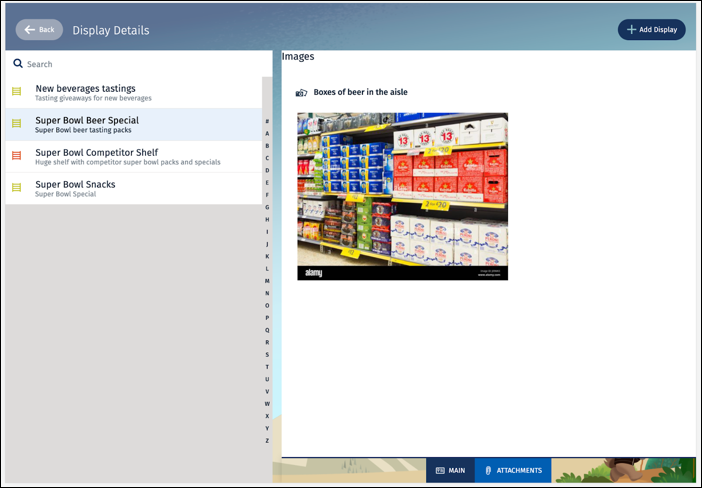
![The image attachment for one of the sample display records, Super Bowl Beer Special, in the new tab in the details page called Attachments.](https://sf-zdocs-cdn-prod.zoominsoftware.com/tdta-ind-consumer_goods_retail_vscode_modeler-264-0-0-production-enus/87cab158-9245-45b0-9080-f17a57d69ec9/consumer_goods_retail_vscode_modeler/images/custom_modeler_show_attachment_tab_display_detail_page.png)