---
schema_version: "1"
id: 4695f49d36e3ff0da1403aa463a8289ff46421831f9c40f5acb2a0a1249e88f7
title: Integrate Customer Lookup on Display Card
collection: admin
version: current
locale: en-us
portal_url: https://docs.salesforce.com/admin/current/en-us/ind/264-0-0/custom_sync_integrate_customer_lookup_to_display_card.md
canonical_url: https://help.salesforce.com/s/articleView?id=ind.custom_sync_integrate_customer_lookup_to_display_card.htm&release=264.0.0&type=5
source_site: help.salesforce.com
content_type: documentation
content_hash: c5007fc486ed89d855d9cc4b15ec023caedaef73fe69bd70014046c3b6b1cb09
description: To show the current account in Displays, configure the BoMyDisplay business object and DsBoMyDisplay datasource contracts in Visual Studio Code based Modeler. To create a wizard to select a different account, add an action to the MyDisplay_DisplayDetailsProcess process contract. Lastly, test the configuration in the simulator app.
products:
  - Consumer Goods
release: "264"
---
# Integrate Customer Lookup on Display Card

To show the current account in Displays, configure the BoMyDisplay business object and DsBoMyDisplay datasource contracts in Visual Studio Code based Modeler. To create a wizard to select a different account, add an action to the MyDisplay\_DisplayDetailsProcess process contract. Lastly, test the configuration in the simulator app.

### Required Editions

<table class="slds-table slds-table_bordered slds-max-medium-table_stacked slds-m-bottom_small edition">
        <colgroup>
          <col>
        </colgroup>
        <tbody>
          <tr class="">
            <td class="slds-cell-wrap" style="vertical-align:top;">
              <p>Available in: Lightning Experience </p>
              <p style="margin-bottom:0;">Available in: <strong>Enterprise</strong> and
                <strong>Unlimited</strong> Editions where Consumer Goods Cloud is enabled
              </p>
            </td>

          </tr>
        </tbody>
      </table> <table class="slds-table slds-table_bordered slds-max-medium-table_stacked slds-m-bottom_small permission">
        <colgroup>
          <col style="width:50%">
          <col style="width:50%">
        </colgroup>
        <thead class="slds-text-title_caps ">
          <tr class="">
            <th scope="colgroup" class="slds-cell-wrap" colspan="2" style="text-align:center;vertical-align:top;" id="d5976e62">User
              Permissions Needed</th>
          </tr>
        </thead>
        <tbody>
          <tr class="">
            <td data-label="User Permissions Needed" class="slds-cell-wrap" style="vertical-align:top;" headers="d5976e62 ">To configure customer look-up to a display record</td>

            <td class="slds-cell-wrap" style="vertical-align:top;" headers="d5976e62 ">
              <p style="margin-bottom:0;">Developer, Customizer</p>
            </td>

          </tr>
        </tbody>
      </table>

1. In Visual Studio Code based Modeler, adapt business object and datasource to load the customer ID from the database.
    1. Add this snippet to the `Attributes` node in DsBoMyDisplay\_sf.datasource.xml contract.
        
        This snippet defines an attribute named `customer` that maps to the `Account__c` column in the `Display__c` table.
        
        ```
        <Attribute name="customer" table="Display__c" column="Account__c" />
        ```
    2. Add this snippet to the `SimpleProperties` node in BoMyDisplay.businessobject.xml contract.
        
        This code snippet defines a simple property named `customer` with the type `DomPKey` and links it to the `customer` data source property.
        
        ```
        <SimpleProperty name="customer" type="DomPKey" dataSourceProperty="customer"/>
        ```
    3. Add this snippet to the `ObjectLookups` node in BoMyDisplay.businessobject.xml contract.
        
        This code snippet defines the `luCustomer` object lookup that references the `LuCustomer` object class, links it to the `customer` data source property and uses the `pKey` property for the lookup.
        
        ```
        <ObjectLookup name="luCustomer" objectClass="LuCustomer" dataSourceProperty="customer" lookupProperty="pKey" />
        ```
2. Create a lookup control in the Detail area of the Display module.
    1. In MyDisplay\_DisplayDetailsUI.userinterface.xml, add a lookup control in the `Info` group.
        
        This code snippet defines the `Customer` lookup with bindings for a label and a two-way value binding to the current display's customer name. It also defines an event for the customer lookup.
        
        ```
        <Lookup name="Customer">
           <Bindings>
              <Resource target="Label" type="Label" id="CustomerId" defaultLabel="Customer" />
              <Binding target="Value" binding="ProcessContext::CurrentDisplay.luCustomer.name" bindingMode="TWO_WAY" />
           </Bindings>
           <Events>
              <LookupEvent event="CustomerLookup" />
           </Events>
        </Lookup>
        ```
        
        This snippet shows the position of the `Lookup` code block in the `Area` section.
        
        ```
        <Area areaName="detailArea" areaPattern="GroupedElementsArea">
           <GroupElement name="Info">
              <Bindings>
                 <Resource target="Title" type="Label" id="DisplayDetailInfoGroup" defaultLabel="Info" />
              </Bindings>
              <InputArea name="Name">
                 <Bindings>
                    <Resource target="Label" type="Label" id="DisplayName" defaultLabel="Name" />
                    <Binding target="Value" binding="ProcessContext::CurrentDisplay-name" bindingMode="TWO_WAY" />
              </Bindings>
              </InputArea>
              <InputAreaMultiLine name="Description" no0fRows="3">
                 <Bindings>
                    <Resource target="Label" type="Label" id="DisplayDescription" defaultLabel="Description" />
                    <Binding target="Value" binding="ProcessContext: :CurrentDisplay.description" bindingMode="TWO_WAY" />
                 </Bindings>
              </InputAreaMultiLine>
              <Lookup name="Customer">
                 <Bindings>
                    <Resource target="Label" type="Label" id="CustomerId" defaultLabel="Customer" />
                    <Binding target="Value" binding="ProcessContext:: CurrentDisplay. luCustomer.name" bindingMode="TWO_WAY" />
                 </Bindings>
                 <Events>
                    <LookupEvent event="CustomerLookup". />
                 </Events>
              </Lookup>
        ```
    2. Save all the contracts.
3. To change the account for an existing display, call an existing wizard to select a customer.
    1. To trigger the lookup wizard of the customer module in Displays, in MyDisplay\_DisplayDetailsProcess.processflow.xml, configure the event handler for the UI action. Add this snippet to the `View Action Events` node.
        
        This code snippet defines the `CustomerLookup` event that triggers the action `OpenCustomerNameLookup`.
        
        ```
        <Event name="CustomerLookup" action="OpenCustomerNameLookup"/>
        ```
    2. To create an action to call a lookup process to retrieve an account ID, add this `Action` code to the `Actions` node.
        
        This code snippet defines the `OpenCustomerNameLookup` action that triggers the `Customer::LookupProcess` process, returns a customer primary key value to the current display's customer context, and transitions to the `LoadCustomerLookup` action.
        
        ```
        <Action actionType="PROCESS" name="OpenCustomerNameLookup" process="Customer::LookupProcess">
           <ReturnValues>
              <Return name="ProcessContext::CurrentDisplay.customer" value="customerPKey" />
           </ReturnValues>
           <TransitionTo action="LoadCustomerLookup" />
        </Action>
        ```
    3. To load the lookup object for a given account ID, create an action. Add this `Action` snippet to the `Actions` node.
        
        This code snippet defines the `LoadCustomerLookup` load action that loads a customer lookup of type `LuCustomer` using the customer primary key from the current display's context and returns the loaded customer lookup to the current display's context.
        
        ```
        <Action actionType="LOAD" name="LoadCustomerLookup" type="LuCustomer">
           <Parameters>
              <Input name="pKey" value="ProcessContext::CurrentDisplay.customer" />
           </Parameters>
           <Return name="ProcessContext::CurrentDisplay.luCustomer" />
        </Action>
        ```
    4. Save all the contracts.
4. To verify the changes, test the app with the customer lookup.
    1. To build your contracts, run `sf mdl build`.
    2. To test the changes, restart the simulator app.
        
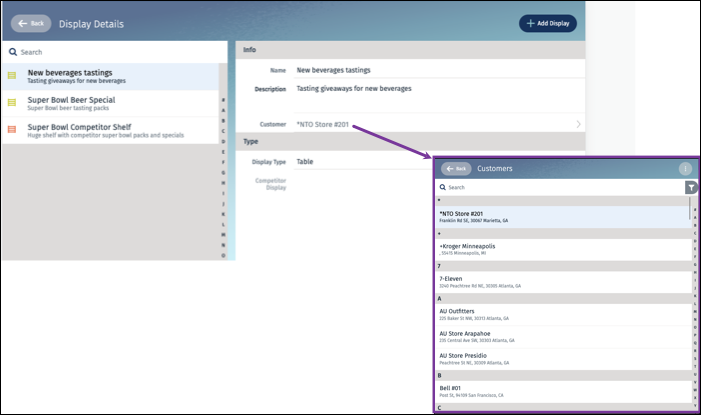
        In the simulator app, open a display record. In the display details page, tap the arrow in the **Customer** field. The app launches the customer list, as shown in this image.
        
        ![This image shows the customer look-up list for a display record.](https://sf-zdocs-cdn-prod.zoominsoftware.com/tdta-ind-consumer_goods_retail_vscode_modeler-264-0-0-production-enus/87cab158-9245-45b0-9080-f17a57d69ec9/consumer_goods_retail_vscode_modeler/images/custom_modeler_sync_add_customer_lookup.png)