---
schema_version: "1"
id: de74e1319c92d791ef9e0db5b09fa06907938bb1f59ff06b54f57956b168d1f6
title: Sync Display Data by Using a Named Query
collection: admin
version: current
locale: en-us
portal_url: https://docs.salesforce.com/admin/current/en-us/ind/264-0-0/custom_sync_create_named_query.md
canonical_url: https://help.salesforce.com/s/articleView?id=ind.custom_sync_create_named_query.htm&release=264.0.0&type=5
source_site: help.salesforce.com
content_type: documentation
content_hash: 07493a559aa0c106f44cc260b1e8cfbe2e0fb85b6dc43440d22941c53b57332b
description: After adding an account lookup field to the Display object, use a named query from Sync Configuration to ensure that sales reps see only the displays related to their accounts. The named query filters data and shows information relevant to the user's account in the offline mobile app.
products:
- Consumer Goods
release: "264"
---
# Sync Display Data by Using a Named Query
After adding an account lookup field to the Display object, use a named query from Sync Configuration to ensure that sales reps see only the displays related to their accounts. The named query filters data and shows information relevant to the user's account in the offline mobile app.
### Required Editions
Available in: Lightning Experience
Available in: Enterprise and
Unlimited Editions where Consumer Goods Cloud is enabled
User
Permissions Needed
To create a named query
CGCloud Sync Admin
"
1. From the App Launcher, find and select **Sync Configuration**.
2. Click **Named Queries**.
3. Add a named query.
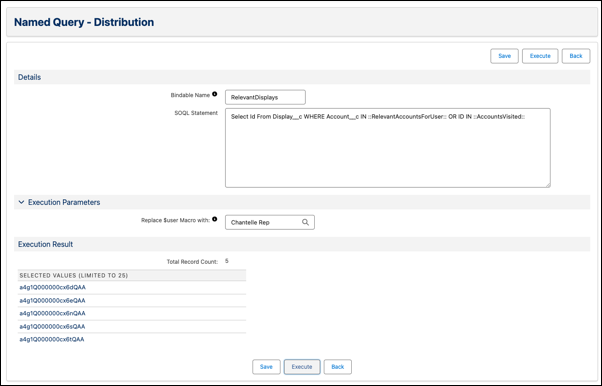
1. On the Named Queries page, click **New**and enter these details:
| Field | Value |
| --- | --- |
| Bindable Name | RelevantDisplays |
| SOQL Statement | `Select Id From Display__c WHERE Account__c IN ::RelevantAccountsForUser:: OR Account__c IN ::AccountsVisited::` |
| Replace $user Macro with | Browse and select your sales rep user |
2. Click **Execute**.
The query result shows a list of display records that will be synced for the sales rep user.
4. Use a named query in a tracked object configuration.
1. In Sync Configuration, click **Tracked Objects**.
2. Open the Display tracked object in edit mode.
3. In Where, add this query: `Sales_Org__c = $User.cgcloud__Sales_Org__c AND Id IN ::RelevantDisplays::`
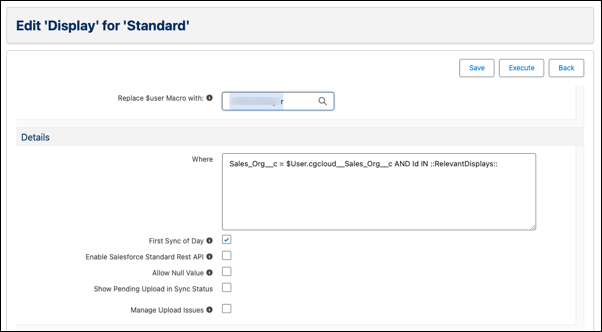
4. To test the tracked object, in Replace $user Macro with, select a sales rep user.
5. Click **Execute**.
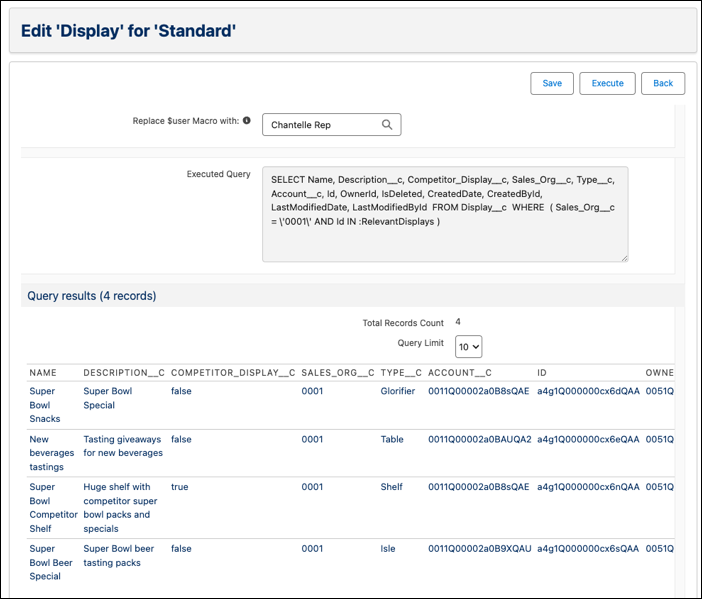
5. To fetch the Account column and its data, perform a sync on the simulator app.
6. Verify the Account table in the offline mobile app database.
1. In VS Code based Modeler, stop the backend server. Press `CTRL+C` (Windows) or `control+C` (Mac).
2. Run this command in Modeler CLI: `sf mdl cleanup`.
3. To build your contracts, run `sf mdl build`.
4. To ensure that the local storage has no outdated sync status, close the incognito browser window of your simulator app.
5. To restart the server, run `sf mdl simulate`.
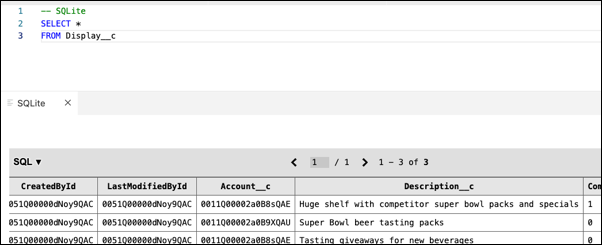
Verify that the `Account__c` column is created in the database and that the displays for relevant accounts are synced.