---
schema_version: "1"
id: 7eedda5da52cfb851c90f21ca6f9cc50e4ea4c2490e052a51de7692593e23163
title: Turn On Context Service
collection: admin
version: current
locale: en-us
portal_url: https://docs.salesforce.com/admin/current/en-us/ind/264-0-0/context_service_turn_on_context_service.md
canonical_url: https://help.salesforce.com/s/articleView?id=ind.context_service_turn_on_context_service.htm&release=264.0.0&type=5
source_site: help.salesforce.com
content_type: documentation
content_hash: 39f9217758738645c40ab4ab0c7a7559453773e72230cf4f867a7e97e3310127
description: Grant users access to Context Service objects and features.
products:
- Industry Solutions
- Cross Cloud
release: "264"
---
# Turn On Context Service
Grant users access to Context Service objects and features.
### Required Editions
Available in: Lightning Experience
Available in: Developer, Enterprise, Professional, and Unlimited editions for Industries clouds where Context Service is enabled
User Permissions Needed
To turn on Context Definitions:
Customize Application
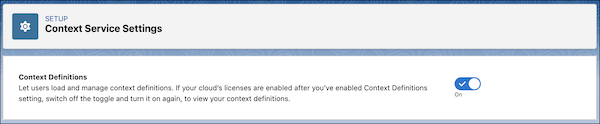
1. From Setup, in the Quick Find box, enter Context Service, and then select **Context Service Settings**.
2. Turn on **Context Definitions**.
- **[Permissions for Context Service Users](https://help.salesforce.com/s/articleView?id=ind.context_service_permissions.htm&release=264.0.0&type=5)**
You can create and manage context definitions easily and efficiently by using permission set licenses assigned to your users. Permissions are added to specific user personas to complete work assigned to their role. System admin users have default access to Context Service without requiring any specific permission set licenses.