---
schema_version: "1"
id: ba58aa670ba34137da905f4c2a9edd2b47ec1afd0361c8154f04199e3e6677e3
title: Add Context Mapping
collection: admin
version: current
locale: en-us
portal_url: https://docs.salesforce.com/admin/current/en-us/ind/264-0-0/context_service_add_context_mapping.md
canonical_url: https://help.salesforce.com/s/articleView?id=ind.context_service_add_context_mapping.htm&release=264.0.0&type=5
source_site: help.salesforce.com
content_type: documentation
content_hash: 4ac36d76d1fb177d0e6ce980a21142c2cbb587d3c06ee263e772877718a0e77c
description: To make sure that your nodes and attributes are updated with the right input data, Salesforce objects, or context definition objects, create a mapping structure for your context definition.
products:
- Industry Solutions
- Cross Cloud
release: "264"
---
# Add Context Mapping
To make sure that your nodes and attributes are updated with the right input data, Salesforce objects, or context definition objects, create a mapping structure for your context definition.
### Required Editions
Available in: Lightning Experience
Available in: Developer, Enterprise, Professional, and Unlimited editions for Industries clouds where Context Service is enabled
User Permissions
Needed
To create context mappings:
Context Service Admin

Important
- You can add a mapping to only an inactive context definition. We recommend that you create a context definition, define its structure, set its mapping, and only then make the context definition active.
- To make a context definition active, you must set up a default mapping.
- You must map the nodes first and then map all the attributes.
- To save a context map, map at least one attribute and a node.
- The Profile, UserRole, RecordType, and Permission Set Assignment entities aren’t available for mapping.
1. From Setup, in the Quick Find box, find and select Context Definitions.
2. On the Custom Definitions tab, select the context definition that you want to add a mapping to.
3. On the Context Definition Details page, select the **Map Data** tab.
4. Click **Add Mapping**.
5. Specify the mapping details.
1. Give your mapping a name.
2. Provide a description. Enter additional details about the context mapping, if necessary.
3. To automatically map your definition to standard objects, select **Automatic Salesforce Object Mapping**.
4. To set this mapping as your default mapping, select **Mark as default**.

Note To manually map your context definition, deselect the Automatic Salesforce Object Mapping checkbox.
6. Click **Next**.
7. On the Mapping Intent Details tile, select at least one Mapping Intent operation. For more information, see [Mapping Intent Types](https://help.salesforce.com/s/articleView?id=ind.context_service_mapping_intent_type.htm&release=264.0.0&type=5 "Context mapping connects your context structure (a logical data model) with real data. Mapping Intent specifies what you intend to do with this context mapping.").
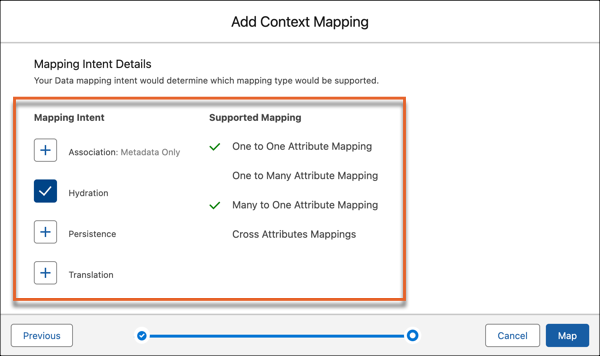
8. To begin the mapping, click **Map**.

Note The Context Mapping’s builder page opens so you can begin to map your nodes and attributes.
9. To map a node to an object, click **Select Object**.
10. To select an sObject or to retrieve data from a Data Model Object (DMO),
1. Click the **sObjects & DMO** tab, then search for the object or DMO you want to connect with the node.
2. Select the objects you want to connect with the node, then click **Save**.

Note You can map to only one type of object in a single context mapping.
11. To select a context definition,
1. Click the **Context Definition** tab, then click Proceed.
2. Select a definition from the list of available context definitions for mapping.
3. Click **Confirm**.
The mapped reference context definition is displayed in the attribute mapping screen for all nodes.
4. To change the mapped reference context definition, click **Change**.
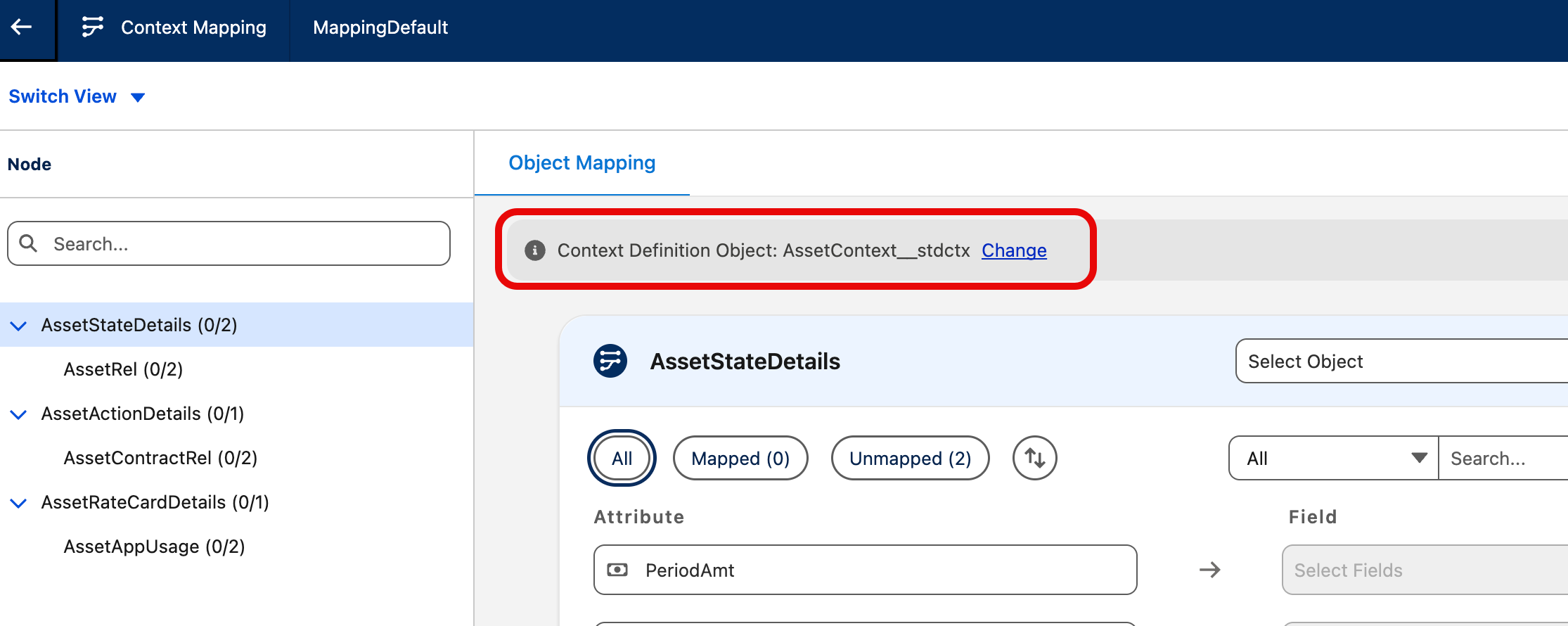

Note You can map to only one type of object in a single context mapping.
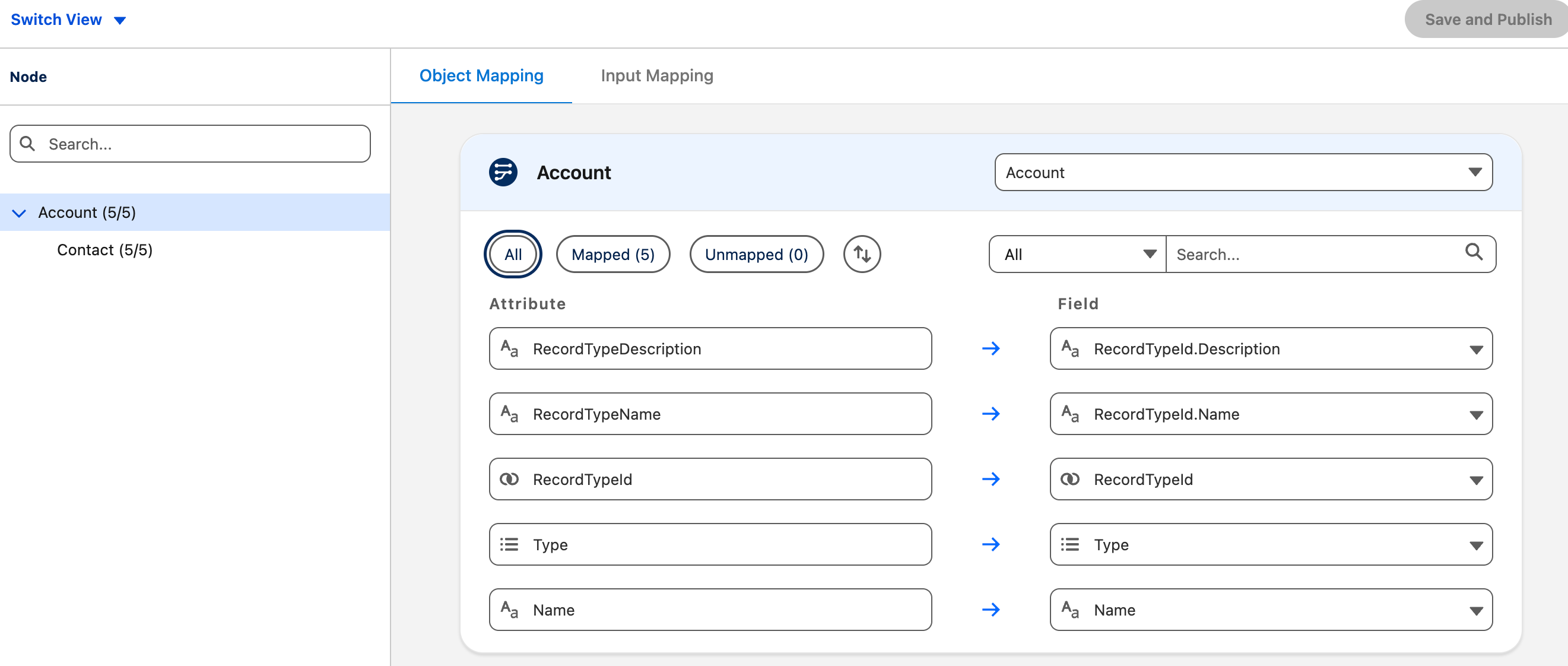
12. To map an attribute,
1. In **Select Fields**, search for the field you want to map it to.
2. Select the fields and save your changes.

Note You can map attributes to fields that have a matching or supported data type.
13. After you create all your mappings, save your changes.
After you define your context definition, its structure, and its mapping, activate it. Your consuming application can now use the context definition to perform application processes with improved performance.
To remove a mapping, select the node, click the mapped object, click **Clear All**, and save your changes.
To remove an attribute mapping, click the mapped field, click **Clear All**, and save your changes.
#### See Also
- [Create a Context Definition](https://help.salesforce.com/s/articleView?id=ind.context_service_create_context_definitions.htm&release=264.0.0&type=5 "Create a context definition by choosing nodes, defining their relationship, adding attributes, and applying context tags.")
- [Activate a Context Definition](https://help.salesforce.com/s/articleView?id=ind.context_service_activate_context_definition.htm&release=264.0.0&type=5 "To start using the context definition, you must first activate it. After it’s activated, your consuming application can execute various procedures using context definitions.")
- [Object Field Data Types Mapping to Attribute Data Types](https://help.salesforce.com/s/articleView?id=ind.context_service_attribute_data_type_to_object_field_data_type_mapping.htm&release=264.0.0&type=5 "When you map nodes and attributes in a context definition to their source data using a mapping structure, you can map the fields only when the data type of the attribute matches with the supported data type of the object's field.")
- [Context Service Developer Guide](https://developer.salesforce.com/docs/atlas.en-us.industries_reference.meta/industries_reference/context_service_overview.htm)
- [Context Service API (DELETE, GET)](https://developer.salesforce.com/docs/atlas.en-us.industries_reference.meta/industries_reference/connect_resources_context_service_runtime.htm?q=context+service)