---
schema_version: "1"
id: 7856de6e2b5d321fc0ce577ed7b2950243979319e6b6d907b5e6d572287592b8
title: Verify the Member’s Identity and Capture Engagement Details in the Contact Center
collection: admin
version: current
locale: en-us
portal_url: https://docs.salesforce.com/admin/current/en-us/ind/264-0-0/contact_center_verify_identity_and_capture_engagement_details.md
canonical_url: https://help.salesforce.com/s/articleView?id=ind.contact_center_verify_identity_and_capture_engagement_details.htm&release=264.0.0&type=5
source_site: help.salesforce.com
content_type: documentation
content_hash: a4c6690521370fd3846b6ad267508e12a590dbd412c661e1b4c3720e8fbaf378
description: When you accept a member’s call in the Contact Center, capture the reason for the call and validate the member’s identity.
products:
- Health
release: "264"
---
# Verify the Member’s Identity and Capture Engagement Details in the Contact Center
When you accept a member’s call in the Contact Center, capture the reason for the call and validate the member’s identity.
### Required Editions
Available in: Lightning Experience
Available in: Enterprise and Unlimited Editions with Health
Cloud
User Permissions Needed
To use the Contact Center for Health Cloud
Manage Contact Center for Health Cloud
1. From the App Launcher, find and click **Contact Center**.
2. From the navigation menu, click **Engagement Interactions**.
3. Go to the Identity Verification tab.
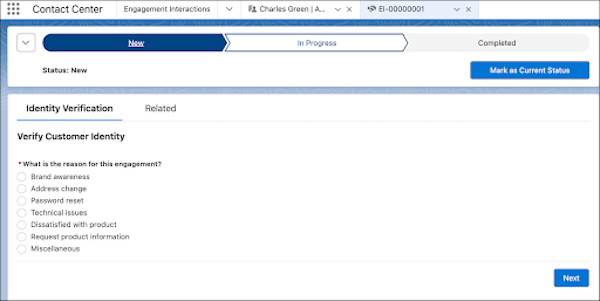
4. Select a reason for the interaction.
5. Select who the interaction is about.

Note If you select Someone Else, enter keywords to search for the user, then click Next. Choose the user from search results and click Next.
6. Verify the account name and number with the caller. Then, click  next to the account name and account number.
7. Under Additional Verification Information, verify either the phone number or the postal code.
After you verify the member’s identity, you automatically view the member’s details in the Contact Center.
#### See Also
- [_Salesforce Help_: Identity Verification and Engagement Details in the Contact Center](https://help.salesforce.com/s/articleView?id=ind.admin_contact_center_identity_verification_and_engagement_details.htm&type=5&language=en_US)