---
schema_version: "1"
id: acbd2309494e799323de1c14c0b159129b5405b04f1c6bda41eca9c350cfc592
title: Create an Integration Definition
collection: admin
version: current
locale: en-us
portal_url: https://docs.salesforce.com/admin/current/en-us/ind/264-0-0/consumption_framework_integration_definitions.md
canonical_url: https://help.salesforce.com/s/articleView?id=ind.consumption_framework_integration_definitions.htm&release=264.0.0&type=5
source_site: help.salesforce.com
content_type: documentation
content_hash: 0925b5fa337e632fd47b37ce010e4e68dcd28a45a77c14f8108aa09b4888c778
description: To connect Salesforce with an external system, create integration definitions. APIs work with the integration definitions to perform operations in both Salesforce and the external system. You can create Apex, External Services, or Standard integration definitions.
products:
- Industry Solutions
- Cross Cloud
release: "264"
---
# Create an Integration Definition
To connect Salesforce with an external system, create integration definitions. APIs work with the integration definitions to perform operations in both Salesforce and the external system. You can create Apex, External Services, or Standard integration definitions.
### Required Editions
Available in: Lightning Experience
Available in: Professional, Enterprise, and Unlimited Editions
User Permissions Needed
To create Apex Defined integration definitions:
Customize Application
Before your begin:
- Turn on the OmniStudio Metadata setting.
- Turn off the OmniStudio Managed Package Runtime setting.
- Implement the [Service Integration Provider Interface](https://help.salesforce.com/s/articleView?id=ind.consumption_framework_service_integration_provider_interface.htm&type=5&language=en_US) or the [Process Integration Provider Interface](https://help.salesforce.com/s/articleView?id=ind.consumption_framework_process_integration_provider_interface.htm&type=5&language=en_US) based on your requirement.
You can define an integration definition with various external endpoints and for different use cases and then use the integration definition in a larger process orchestration. For example, you can use an integration definition in an invocable action within a Salesforce Flow or from an integration procedure in an OmniScript or FlexCard. You can also use integration definitions with Lightning Web Components.
1. In Setup, in the Quick Find box, enter Integration Definitions, and then select **Integration Definitions**.
2. Click **New**.
3. From the **Type** list, select the integration type.
Apex Defined: This approach gives you greater control over the API call out. The endpoint configuration and the input and output processors are handled in an Apex class.
External Services Defined: A low-code, declarative approach to connect Salesforce with an external endpoint. You can define the input processor that prepares the input to the external service and the output processor to handle the response from the external service. The input and output processors are integration procedures.
Standard: This approach offers a no-code, declarative way to connect Salesforce with an external endpoint by using the prebuilt components. You can't customize these components by adding custom logic, but you can configure them by adding values. In a Standard integration, the endpoint, as well as the input and output configurations, are managed directly within the integration definition.
4. Enter the integration definition name, developer name, and description.
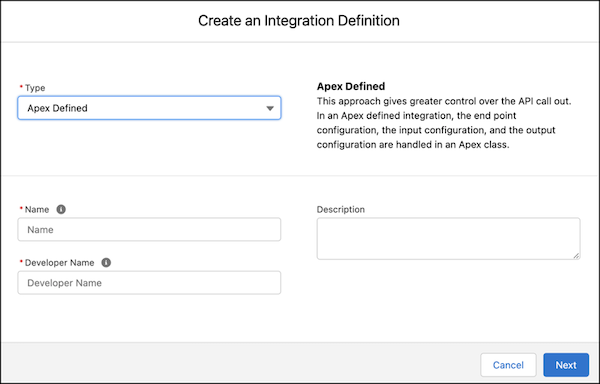
5. Click **Next**.
6. If you're using the Apex Defined integration type, enter this information:
1. Search for the Apex class that you want to use to connect to an external endpoint.
2. Provide values to the attributes in the Apex class.
The Attribute Name and Attribute Value fields are autopopulated. To point to a different named credential, enter an attribute name and attribute value.
3. Click **Save**.
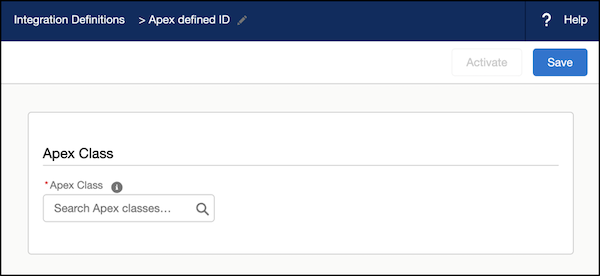
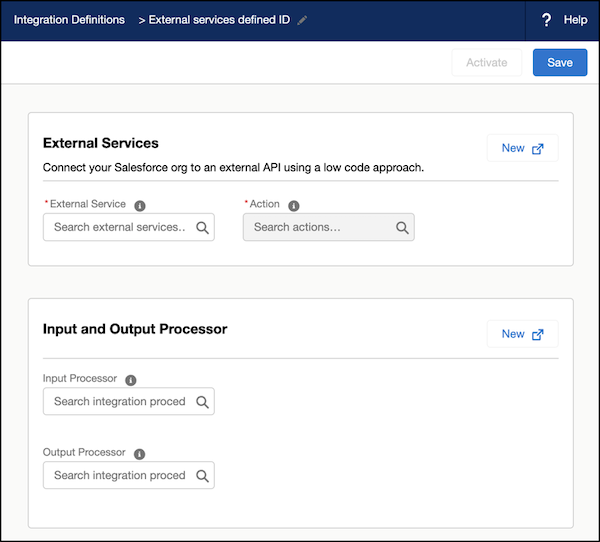
7. If you're using the External Services Defined integration type, enter this information:
1. Search for the registered external service that you want to use to connect to an external API.
2. For the Input Processor, select the integration procedure that you want to use to format the input for the selected external service.
3. For the Output Processor, select the integration procedure that you want to use to handle the response from the external service.
4. Click **Save**.
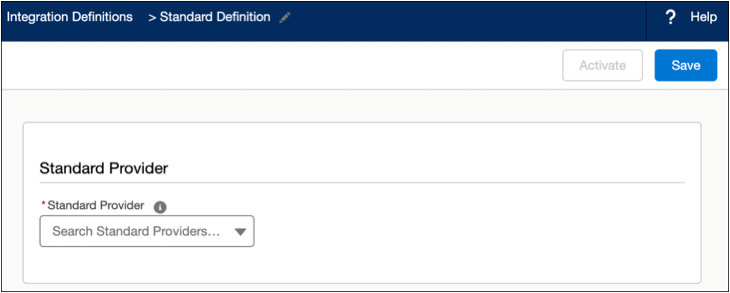
8. If you're using the Standard integration type, enter this information:
1. Search for the Standard Provider that you want to use to connect to an external endpoint.
2. Provide values for the attributes of the Standard Provider.
The attribute names are autopopulated. You can't modify the attribute names.
3. Click **Save**.
9. Activate the definition.
From the integration definition’s quick action menu, click **Activate**.
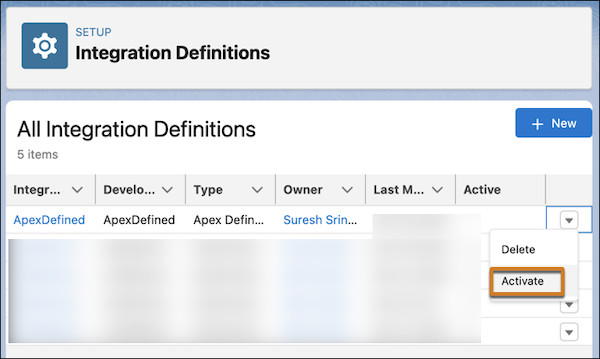
10. Save and activate the integration definition.