Depending on which release you've upgraded from, you must either activate or delete this bundle from the Custom Settings. If you've been directed to this page, then follow the appropriate instructions. Otherwise, you can ignore this page.
If you're already viewing the Custom Settings list, then skip to step 4.
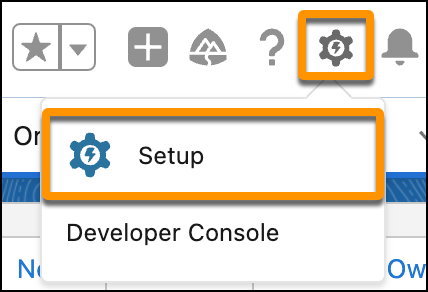
- Click the Setup button at the top right of your org. If you're already in Setup, then you can skip this step.
- In the Quick Find box, type Custom Settings, then click Custom Settings.
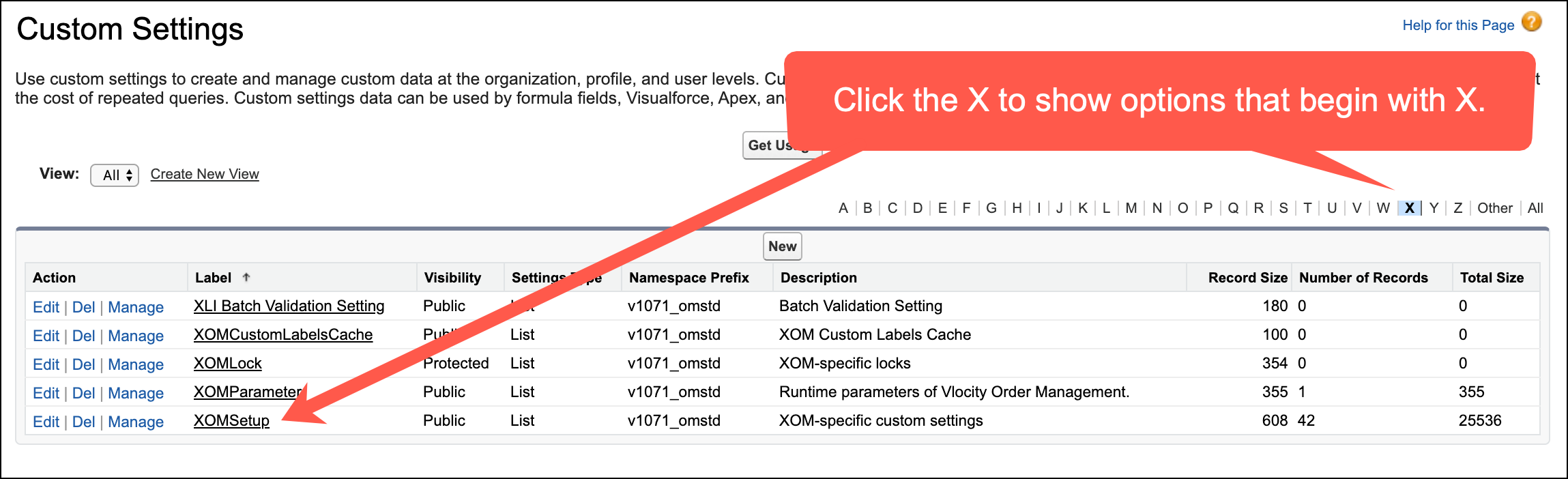
- Find XOMSetup, and click the Manage link next to it. If you don't see XOMSetup, then click the X from among the letters at the top of the screen to filter out most of the options.
- Check whether the following item appears in the list (which is alphabetical): OMStdBundleActivationBackCompatibility. Do one of the following things, depending on whether that item is there:
-
If it's there: You must either delete it or edit it, depending on what you've been instructed to do. Click either the Del or the Edit link to the left of OMStdBundleActivationBackCompatibility.
-
If it's not there: If you've been instructed to delete it, then you're done! Otherwise click the New button at the top of the list, and then move on to the next step.
-
- Verify that the following information is in the fields, or enter them yourself:
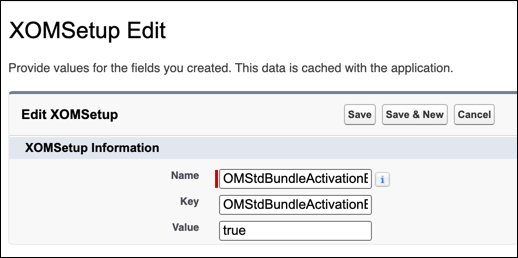
- Click Save, then return to the steps for upgrading Order Management.