You must install the Industries Applications package to upgrade to the latest generally available (GA) release for an existing sandbox or production org.
For Order Management Plus customers, part of upgrade planning requires a discussion between the customer, Engineering, and Services and Support to determine what package to upgrade to and to ensure all required fixes on the current release are implemented in the target release.
-
Click the installation URL for the major release
package.
Release
Version
Date
Installation URL
Installation Assistant
Release Notes
Installation Instructions
Upgrade Instructions
Spring '22
236.0.900.452
March 11, 2022
Post-Install steps for CME Spring '22Post-Install Manual Configuration Steps for Salesforce Industries Communications, Media, and Energy Spring '22
Winter '22
234.0.900.444
November 10, 2022
Summer '21
232.0.900.434
July 7, 2021
Post-Install steps for CME Summer '21Post-Install Manual Configuration Steps for Salesforce Industries Communications, Media, and Energy Summer '21
Upgrade Salesforce Industries Communications, Media, and Energy Applications Package to Summer '21
Spring '21
230.0.900.408
March 9, 2021
Post-Install steps for CME Spring '21Post-Install Manual Configuration Steps for Salesforce Industries Communications, Media, and Energy Spring '21
Winter '21
109.1.1.1.900.393.3
January 15, 2021
Post-install steps for CME Winter '21Post-Install Manual Configuration Steps for Salesforce Industries Communications, Media, and Energy Winter '21
You can also open the org you are upgrading in a new incognito window in your browser. In Google Chrome, the command is File → New Incognito Window. This ensures that the upgrade process won’t interfere with other Salesforce orgs that you might have open in other browser windows.
You can also right-click the Installation URL, select Copy link address from the context menu, and paste the bolded portion of the URL containing the package ID as shown in the example below after the domain name in your URL, replacing the rest of your URL.
https://login.salesforce.com/packaging/installPackage.apexp?p0=04t1J000000mAMeComplete index of Industries CME package downloads, including patch releases:
Communications, Media, and Energy & Utilities (CME) Patch Links
-
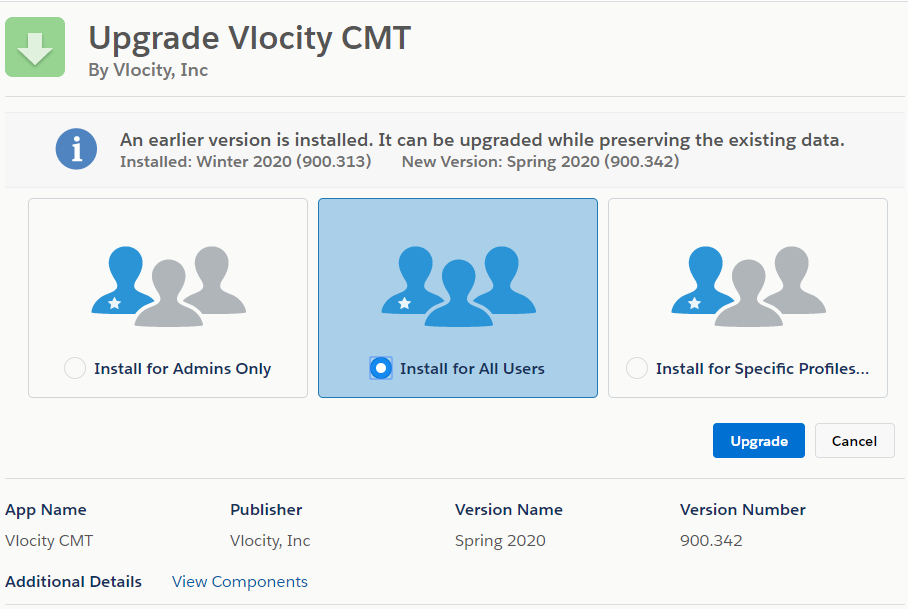
Select a Salesforce install option. Salesforce
recommends Install for All
Users.
If you selected Install for Select Specific Profiles, scroll down to the Select Specific Profiles section. Next to the user profiles that should have access to Industries Applications, change No Access to Full Access.
This step maps Vlocity preconfigured profiles to your existing profiles. Mapping profiles grants additive access to the new Vlocity objects, page layouts, record types, and fields—it does not overwrite any existing access on your existing profiles. If you skip this step, you must manually configure your profiles. There is no post-install option to apply Vlocity profiles; it must be done at this stage of installation.
If you chose the wrong install setting, wait for the package installation to complete, then install the same package again using the correct install setting. When prompted to select Profiles, you will have the opportunity to set these manually again. Salesforce recommends installing for All Profiles and limiting Profile access post-upgrade.
- Click Upgrade.
-
If you see the Approve Third Party Access window,
select the option to grant access and click Continue.
Salesforce Industries packages are large and take longer to install than Salesforce's timeout window allows.
-
Click Done.
When the Salesforce Industries installation is finished, you will receive an email informing you that the upgrade was successful.
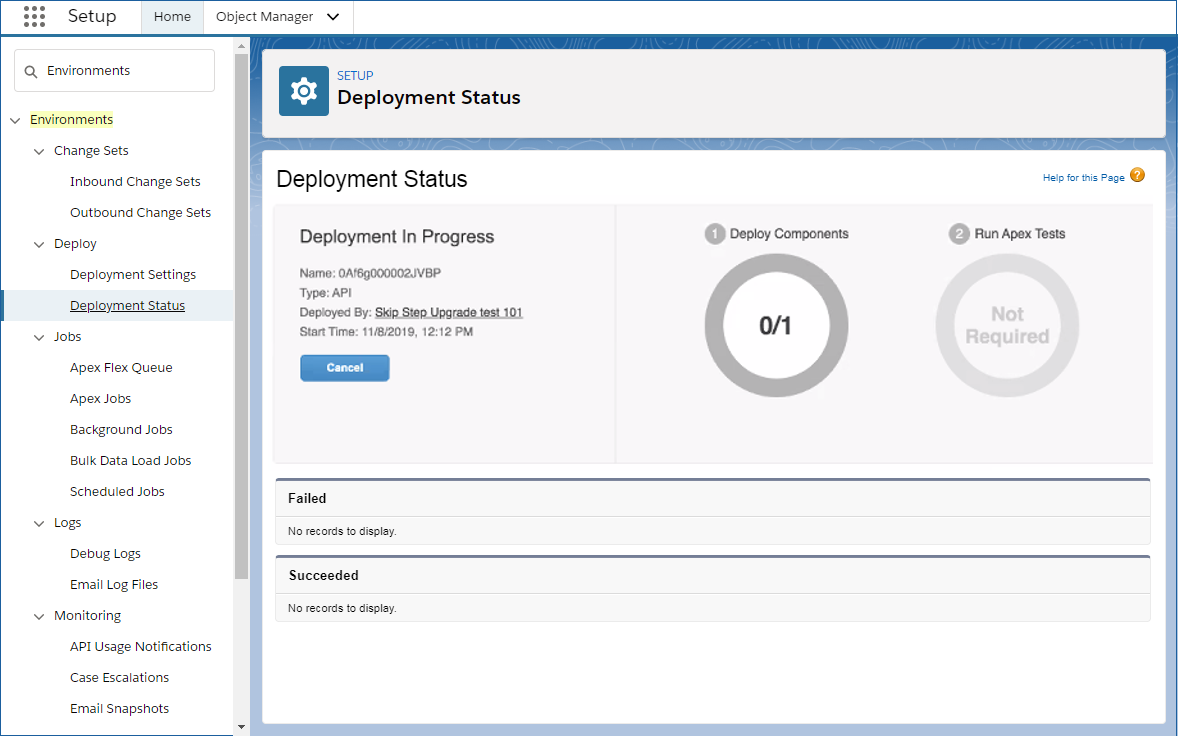
You can check the progress of your deployment:
-
Click Setup.
-
Type Environments in the Quick Find field.
-
From the search results, click Deployment Status.
Once the deployment is complete, the status automatically turns green and the version number updates. You do not have to refresh your browser.
-