
Order Management generates a number of Fulfillment Request Lines (FRL) for downstream order items as a result of the decomposition process. Sometimes there is a need to merge several instances of the same technical product into the same FRL on the downstream order item.

For example, assume the following structure: One bundle breaks down to two commercial products, and each of those decompose to the same technical product.
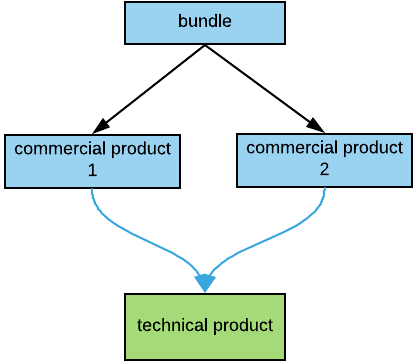
where:
-
Blue boxes represent commercial (orderable) products
-
The green box represents a technical product
-
Black lines represent parent-child relationships
-
Blue lines represent decomposition relationships
Based only on this information, it is not clear how many instances of a technical product are required to generate for a given order. To configure the proper behavior, you use a field on the Vlocity product (Product2) object named Scope.
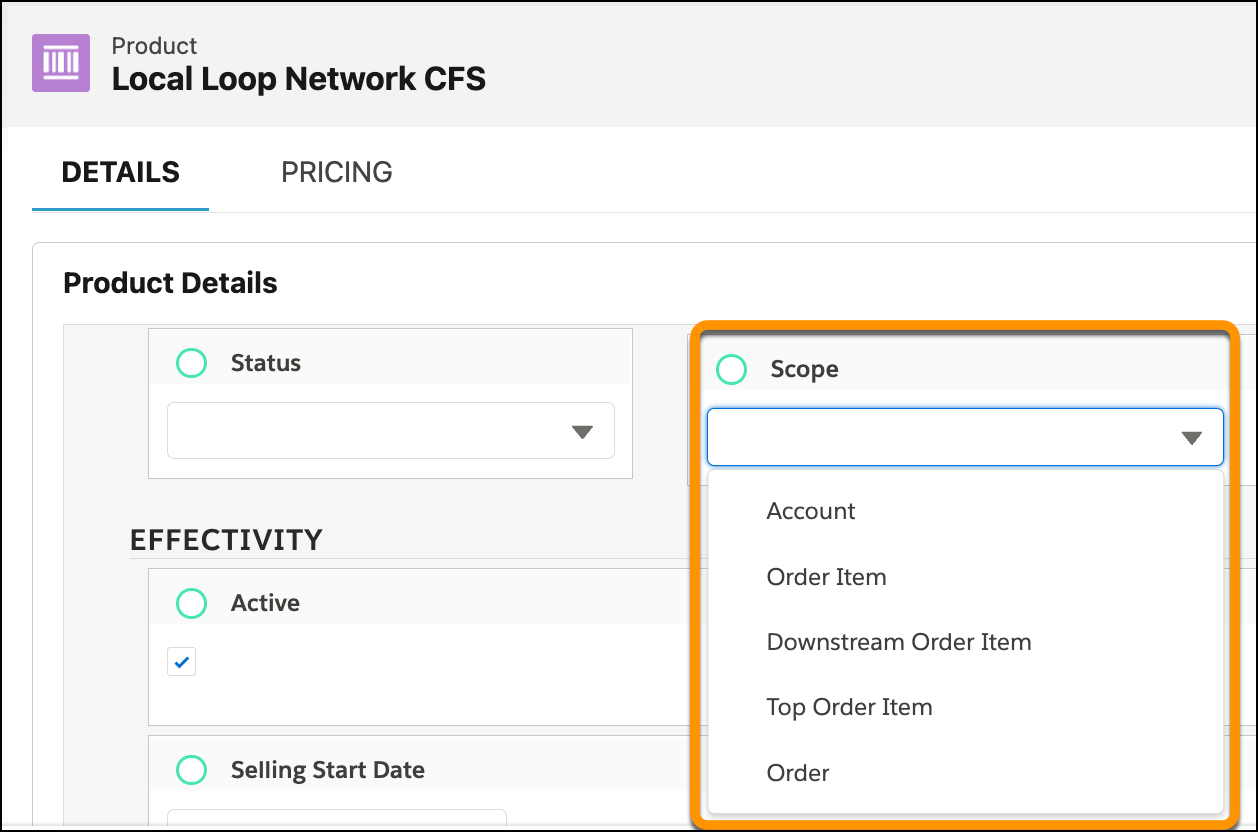
The Scope field appears for all products, whether they are commercial or technical. However, Order Management considers Scope only for technical products because they are used in decomposition results.
If there is no Scope field, then you can add one. Add a vale: Relies On to the Scope field in the Product2 object. See Add or Edit Picklist Values.
In Order Management Standard and Plus, Scope has these picklist values:
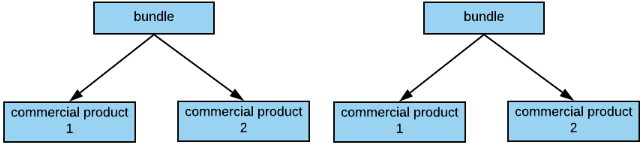
For all examples, assume that a customer ordered two bundles in the same order:
Parent and Child Product Scope
If one technical product is set as a child item for another technical product, then their scopes are set accordingly.
A child product scope cannot be broader than the parent product scope.
|
Parent Product Child Product |
Account |
Order |
Top Order Item |
Order Item |
Downstream Order Item |
|---|---|---|---|---|---|
|
Account |
✓ |
X |
X |
X |
X |
|
Order |
✓ |
✓ |
X |
X |
X |
|
Top Order Item |
✓ |
✓ |
✓ |
X |
X |
|
Order Item |
✓ |
✓ |
✓ |
✓ |
X |
|
Downstream Order Item |
✓ |
✓ |
✓ |
✓ |
✓ |
Incorrect setup results in incorrect decomposition results.