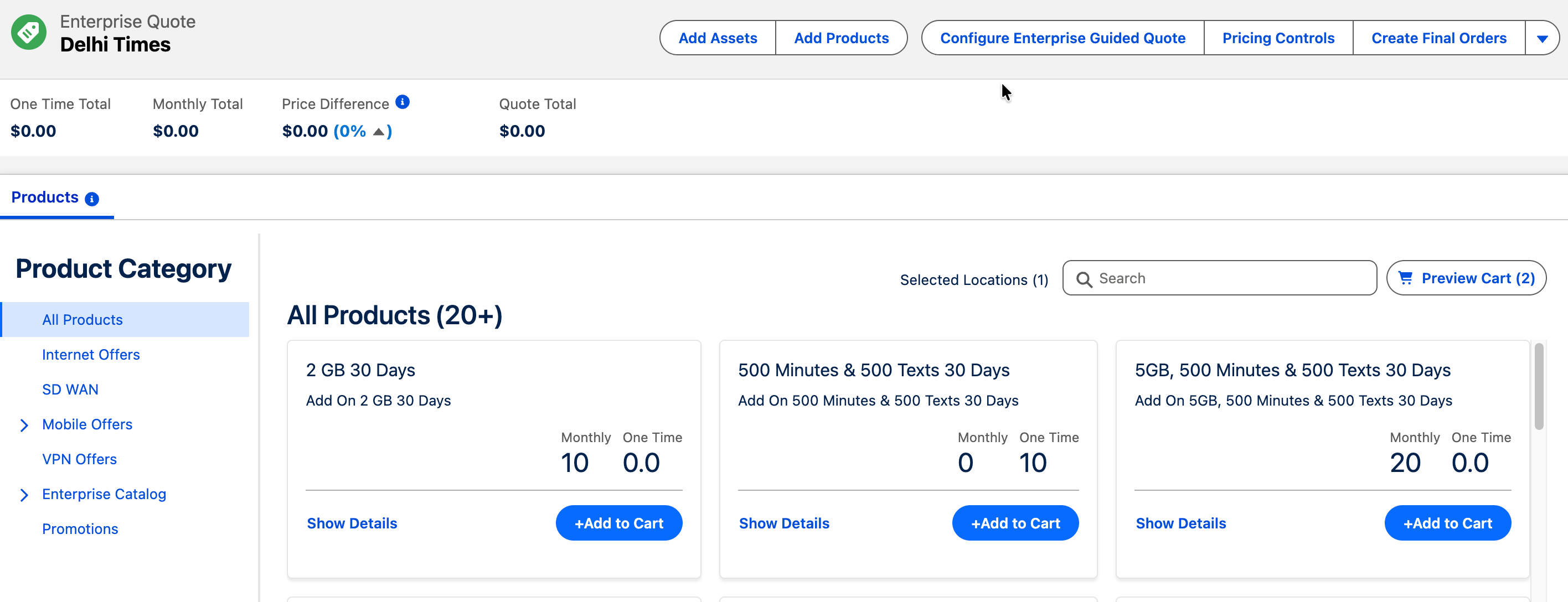
Manage product catalog categories and offer details, which display inline pricing characteristics such as monthly recurring charges and one-time charges.
 This feature is part of the Communications Cloud managed package.
-
Catalog-based browsing
-
Relevant promotions
 Note On the Add Products page, promotions only appear in the Promotions section, regardless of the catalog that they belong to.
- Check Location-Based Serviceability
In your range of product offerings, some products might be available in some but not all locations. The availability of products could vary depending on certain prerequisite conditions, which could themselves depend on geographical location. Location-based serviceability allows you to check if selected products are available in all of the required locations. - Offer Configuration
After you have selected offers, you can configure them. - Assign Offers and View Summary
Learn how to assign offer configurations to one or more groups, quote members, or order members.
Check Location-Based Serviceability
In your range of product offerings, some products might be available in some but not all locations. The availability of products could vary depending on certain prerequisite conditions, which could themselves depend on geographical location. Location-based serviceability allows you to check if selected products are available in all of the required locations.
-
Click and expand the More Options
 menu, and select
Check Serviceability.
menu, and select
Check Serviceability.
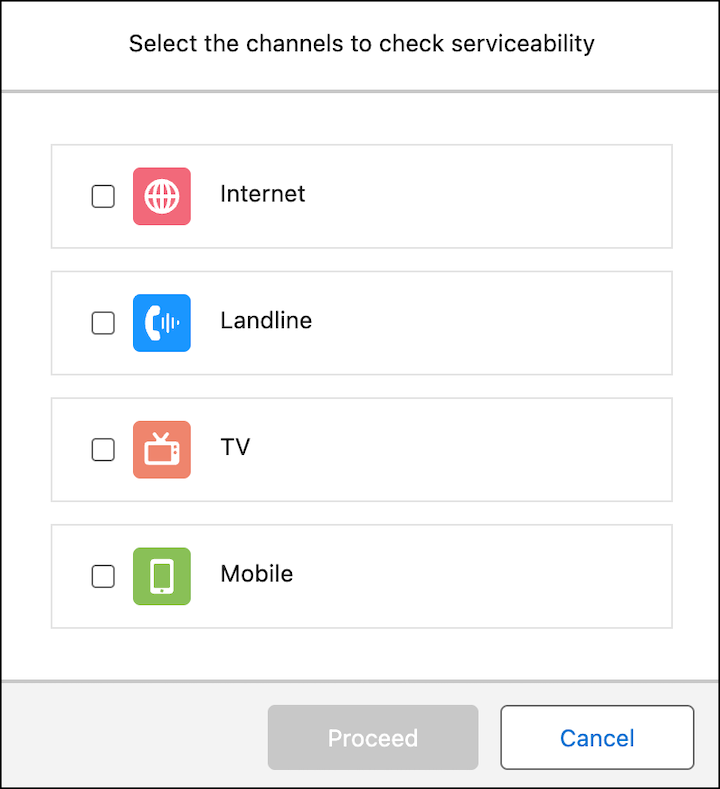
- Select services in the Select the services for serviceability check dialog box, and click Proceed.
-
You can customize the services that appear in the Select the
services for serviceability check dialog box:
-
In the App Launcher, search and click Vlocity
Cards under Items.
The Layouts & Cards page appears.
- Expand b2bSampleAppCard and then click the latest active version.
-
Disable the Activate toggle button to
temporarily deactivate the card.
This step allows you to configure Layout Session Variables.
- Find and configure the layout session variable b2bProductFamily.
- When you're done configuring the layout session variable, enable the Activate toggle button to reactivate the card.
-
In the App Launcher, search and click Vlocity
Cards under Items.
See Also:
Offer Configuration
After you have selected offers, you can configure them.
The Configuration subtab provides:
-
Quote-level, order-level, and offer-level pricing
-
Inline attributes display and configuration
NoteEmpty read-only attributes are hidden in Enterprise Sales Management. However, attributes hidden by catalog configuration rules in the Enterprise Sales Quote interface display a placeholder label to maintain context.
-
Real-time validation with a visual error indicator
-
Applies offer configuration updates to all quote members, order members, or groups.
Assign Offers and View Summary
Learn how to assign offer configurations to one or more groups, quote members, or order members.
After you select and configure offers, you can:
-
Assign offer configurations to one or more groups or enterprise quote members or enterprise order members and the offer configuration will be priced and validated together
-
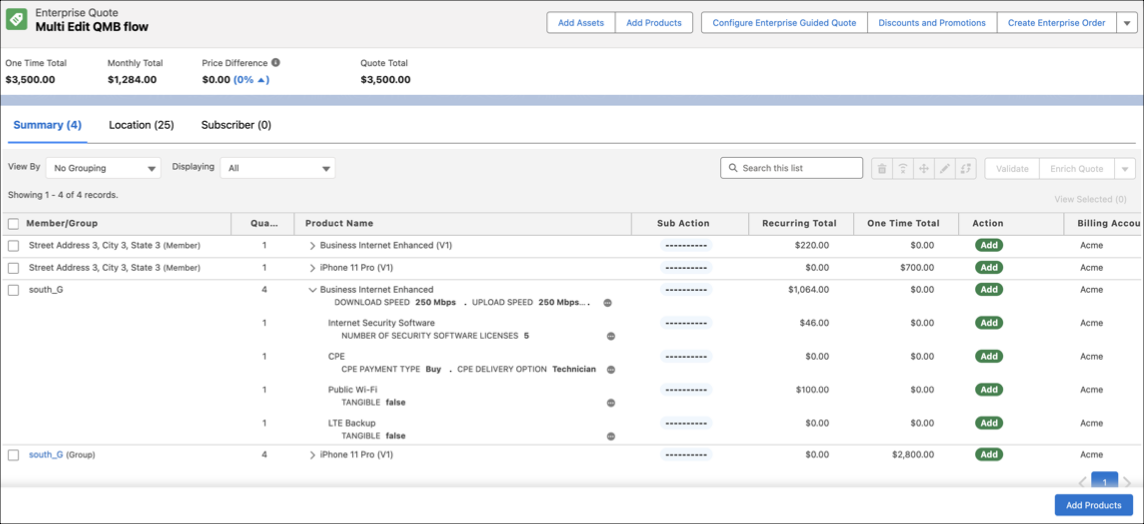
View aggregate- and instance-specific offers, such as:
-
Mobile solutions, where aggregate quantities are quoted for the same set of offers
-
Network solutions, where the locations are required first to consider serviceability and pricing
-
-
View and filter items and pricing by member or product groupings
-
Expand and collapse group-level details
Note To prevent accidental removal, the Summary tab prompts for confirmation when you delete a Quote Line Item (QLI) in an Enterprise Sales quote.