
From Spring '21 and later, complex conditions are enabled by default, so you don't need to create the custom setting described in this topic. For earlier releases than Spring '21, you must create the custom setting.
Before you can create complex conditions in Order Management, you first must create and enable a new setting: Feature.EnableComplexConditions. You can create complex conditions for orchestration scenarios, orchestration items, push events, and decomposition relationships.
To enable complex conditions in Custom Settings, follow these steps:
- In Lightning Experience, click the gear icon, then select Setup from the menu.
- In the Quick Find box, type Custom Settings, then click Custom Settings.
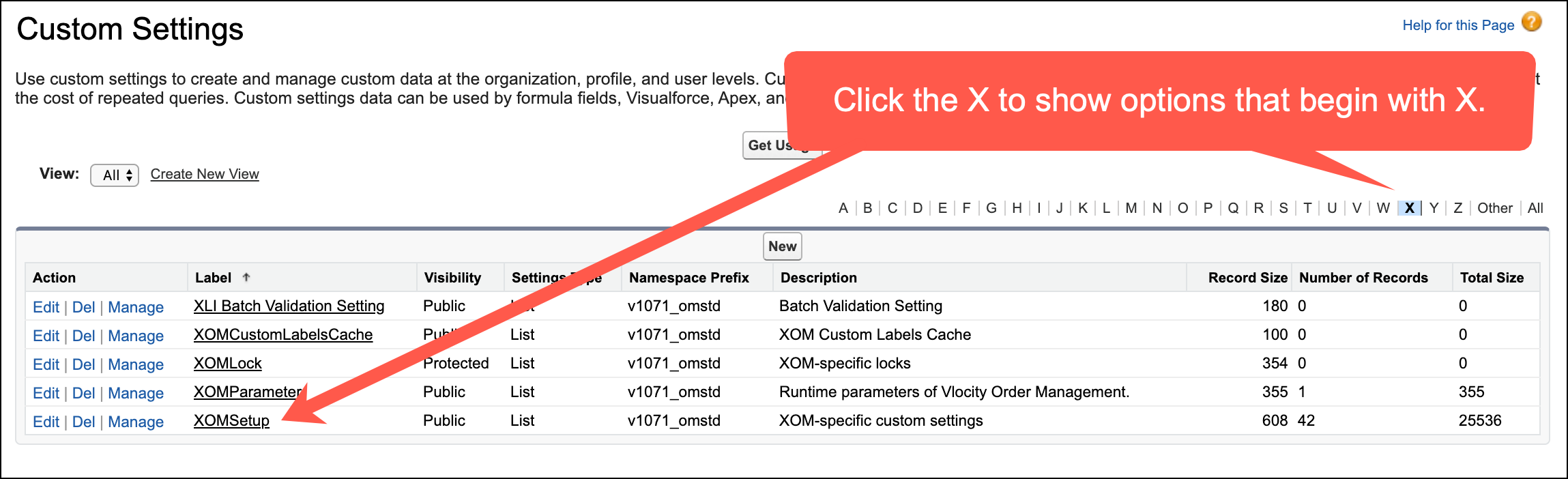
- Find XOMSetup, and click the Manage link next to it. If you don't see XOMSetup, then click the X from among the letters at the top of the screen to filter out most of the options.
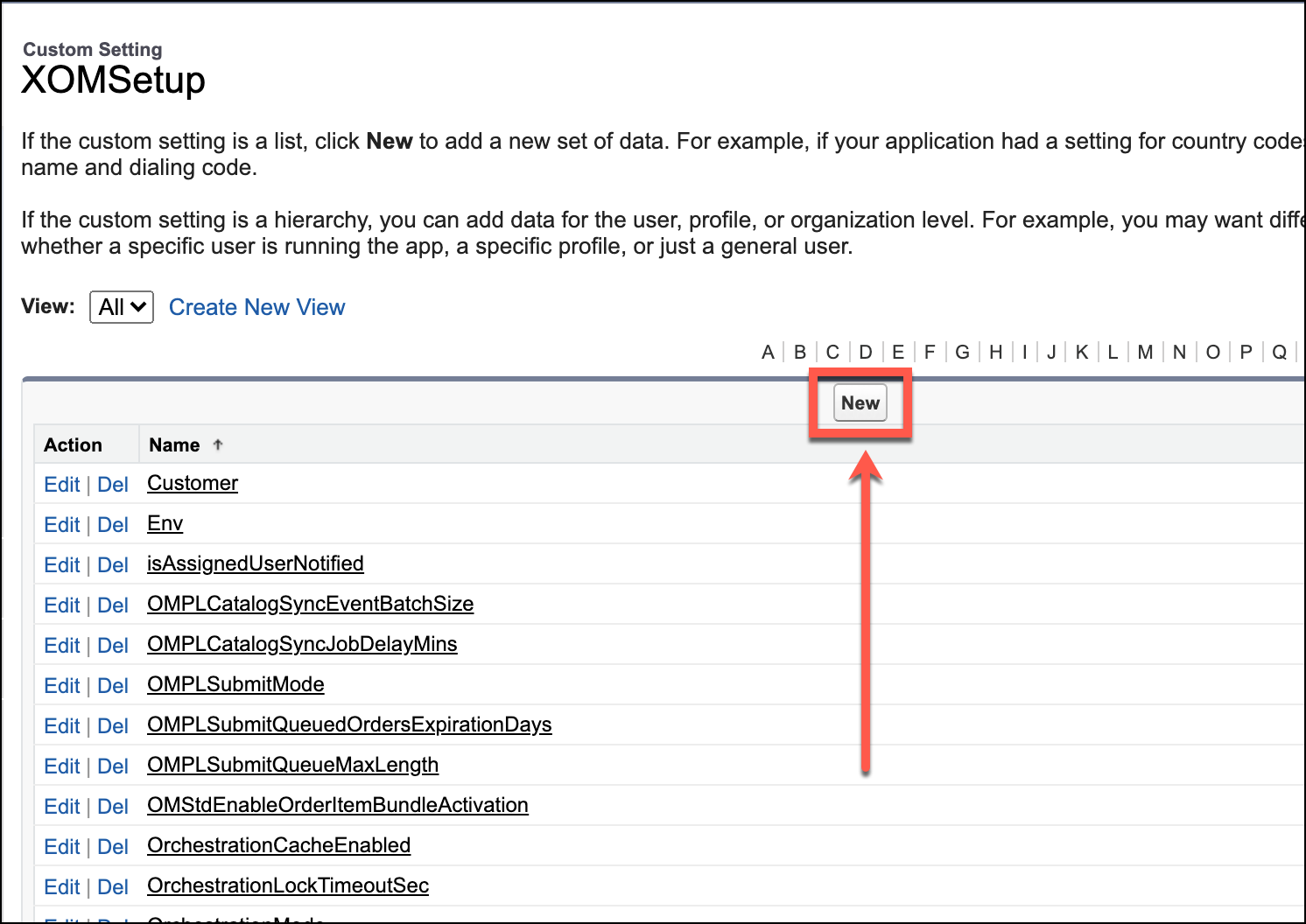
- Click the New button near the top of the XOMSetup page.
- Enter the following information in the fields:
-
In the Name and Key fields, type or paste
Feature.EnableComplexConditions -
In the Value field, type or paste
true
-
- Click Save.
The complex conditions custom setting is created and enabled. You can now create conditions for orchestration scenarios, orchestration items (see Orchestration Item Conditions), push events, and decomposition relationships.