To enable multiple decimal places in usage-based pricing, you must change the cpq-base-grid template. The changes applied to the grid template apply to all its child templates. Additionally, this template sets the correct decimal separator based on the customer location and currency and displays the appropriate decimal separator when calculating the Monthly Recurring Charges (MRC) and Non-Recurring Charges (NRC).
For calculating charges on products, typically, two decimal places are used in the calculations. But, in the Industries CPQ Cart, you can use additional decimal places for calculating one-time and recurring charges of your products in usage-based pricing. This feature is useful in calculating the prices of products marked with four decimal places.
For example, a customer wants to purchase 10 GB Internet data for which you apply charges based on per-unit price. If the per-unit charge is .0020 Cents per MB, you can calculate the data charges accurately using the additional decimal places.
- Clone the cpq-base-grid Template.
- Clone the cpq-base-grid Layout.
- Enable the cpq-base-grid-currency-filter Layout.
Clone the cpq-base-grid Template
As the first step to enable multiple decimal places in usage-based pricing, clone the cpq-base-grid template.
- Log into Salesforce.
-
Go to the Vlocity App Launcher, search for Vlocity
Templates and open it.
The Vlocity templates page opens.
- Search for cpq-base-grid template and expand it.
-
Click on a version that you want to clone.
The cpq-base-grid template opens.
-
Click Clone.
The Clone Template dialog box is displayed.
- Enter a name for the clone template, for example, cpq-base-grid-currency-filter.
- Enter a name in the Author field.
-
Click Clone.
A confirmation message appears saying that the template is cloned successfully.
-
In the cloned template container, click the JS
tab and copy and paste the following code:
// Override default currency filter to support 4-digits vlocity.cardframework.registerModule.filter("currency", ['$rootScope', 'ISO_CURRENCY_INFO', function($rootScope, ISO_CURRENCY_INFO) { // Filter defaults const defaultCurrencyCode = 'EUR'; const defaultFraction = 2; return function (input, currencyInfo) { if (input === undefined || input === null || input === '') { return '';} let fraction = defaultFraction; if (String(input).includes('.')) { const fractionStr = String(input).split('.').pop(); // when the fraction is more then 2 digits and those digits are not 0s then display these digits in the UI// otherwise display as a normal currency (2 digits) if (fractionStr.length > 2 && fractionStr.substr(2) !== '00') { fraction = 4; } } const isoCurrencyCode = (currencyInfo && currencyInfo.expression) || ($rootScope.vlocity && $rootScope.vlocity.userCurrency) || defaultCurrencyCode; const currencySymbol = (currencyInfo && currencyInfo.isSymbol && currencyInfo.expression) || ISO_CURRENCY_INFO[isoCurrencyCode].text; const currencyDecimal = ISO_CURRENCY_INFO[isoCurrencyCode].decimal ? ISO_CURRENCY_INFO[isoCurrencyCode].decimal : '.'; const currencyGroup = ISO_CURRENCY_INFO[isoCurrencyCode].group ? ISO_CURRENCY_INFO[isoCurrencyCode].group : ',' const [number, decimalFraction] = parseFloat(input).toFixed(fraction).split('.'); return currencySymbol + ' ' + number.replace(/(\d)(?=(\d{3})+(?!\d))/g, '$1' + currencyGroup) + currencyDecimal + decimalFraction; }; }]); -
Click Save.
The cloned template now has the four-digit currency calculation information.
Clone the cpq-base-grid Layout
As the second step to enable multiple decimal places in usage-based pricing, clone the cpq-base-grid-layout.
- On the Vlocity App Launcher, search for Vlocity Cards and open it.
- Search for cpq-base-grid and click on the arrow to expand it.
- Click on a cpq-base-grid layout version.
-
Click Clone.
- Enter a name in the Layout Name field, for example, cpq-base-grid currency filter.
- Select Layout in the Layout Type field.
- Enter a name in the Layout Author field.
- Click Save.
- In the Template field, select the template that you cloned in the previous procedure, for example, cpq-base-grid-currency-filter.
-
Save the layout.
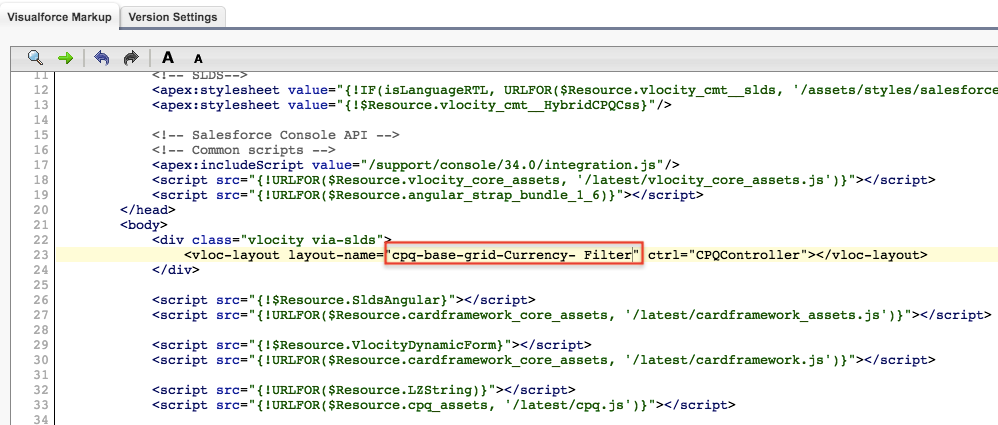
To enable additional decimal places in calculations, you must specify the layout name that you cloned in the Visualforce HybridCPQ page.
Enable the cpq-base-grid-currency-filter Layout
As the second step to enable multiple decimal places in usage-based pricing, enable the cpq-base-grid-currency layout in the Visualforce HybridCPQ page.
- Go to Setup.
- In the Quick Find box, enter Visuaforce.
- Click Visualforce Pages in the search results.
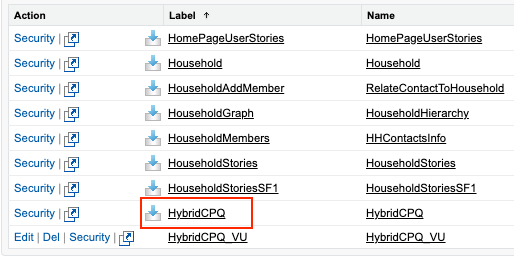
- Find the HybridCPQ page. To narrow down your search, click on the alphabet 'H'.
-
Click HybridCPQ.
The Visualforce HybridCPQ page opens.
-
To update the layout name, replace
cpq-base-gridwith the layout name you cloned for the currency filter, for example, cpq-base-grid-currency-filter. - Click Save.