
When you create an orchestration scenario, you associate the previously created commercial offer or technical product with the orchestration plan using rules that are applied at runtime. For example, execute this orchestration plan if the product = X and the action on the product is Add.
To create an orchestration scenario, follow these steps:
- In the Orchestration Plan Definitions tab, click the name of the orchestration plan definition you have previously created.
- In the Orchestration Scenarios section, click the New Orchestration Scenario tab.
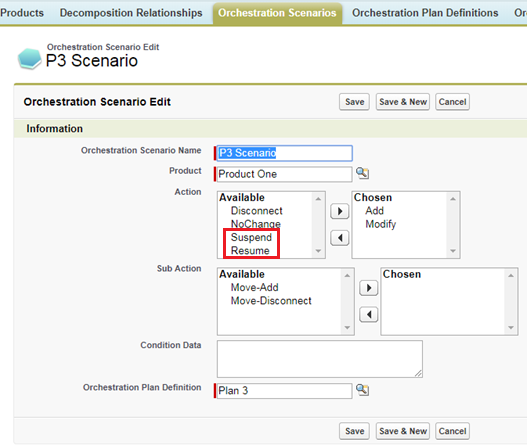
- Enter the following values:
Name: Enter a title for the scenario, for example, Smartphone Scenario
Product: Enter the name of the product you have previously created, for example, Smartphone Product
Action: Add
In Order Management Plus, you can also use the Suspend and Resume actions to suspend a customer's service, for example, for non-payment, then restore the service once the customer's account is paid.
-
Click Save.
 Note Condition data that you add in the Condition Data field is case-sensitive.
- Use an Attribute or Field in the Scenario Condition in Order Management
In Order Management Plus, you can use complex expressions for initiating an orchestration plan through an orchestration scenario by using a field or attribute.