After you add a list of locations or subscribers to an enterprise quote or enterprise order, you can organize locations and subscribers into groups.
 This feature is part of the Communications Cloud managed package.
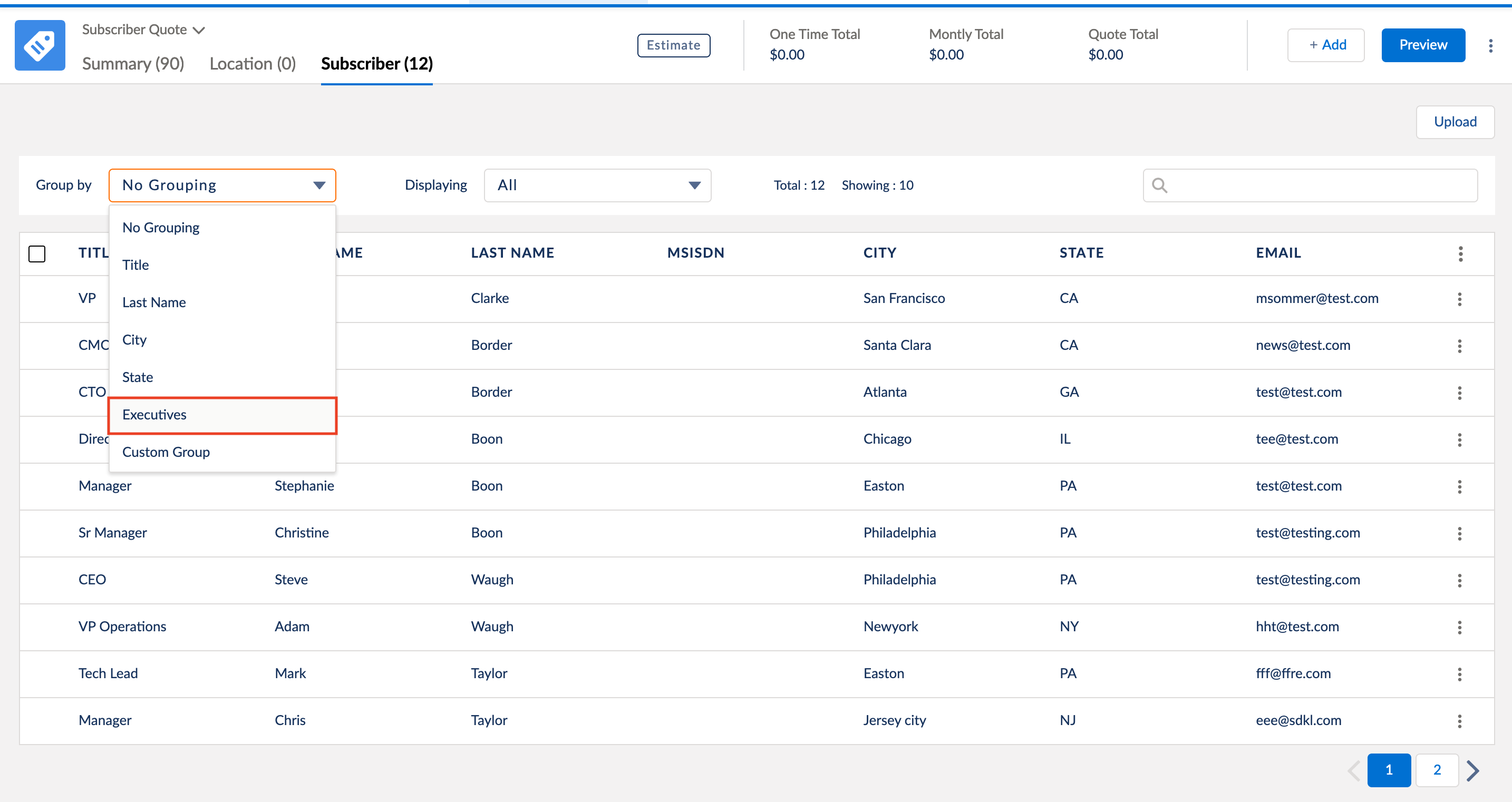
On the enterprise quote page or enterprise order page, you can view locations or subscribers grouped based on various default criteria. For example, you can group locations by city, state, or postal code, and you can group subscribers by city, state, last name, or job title. However, you might want to create your own groups to further simplify your quote or order process. For example, you might want to group all the locations in a few states into a single group, or you might want to group subscribers based on their job titles. In such cases, you can create a custom group.
The following instructions describe how to create a group of subscribers, but you can also similarly create groups of locations.
- On the enterprise quote page or enterprise order page, go to the Subscriber tab.
- Use one of the default grouping options to view subscribers in groups, if required, or select No Grouping.
-
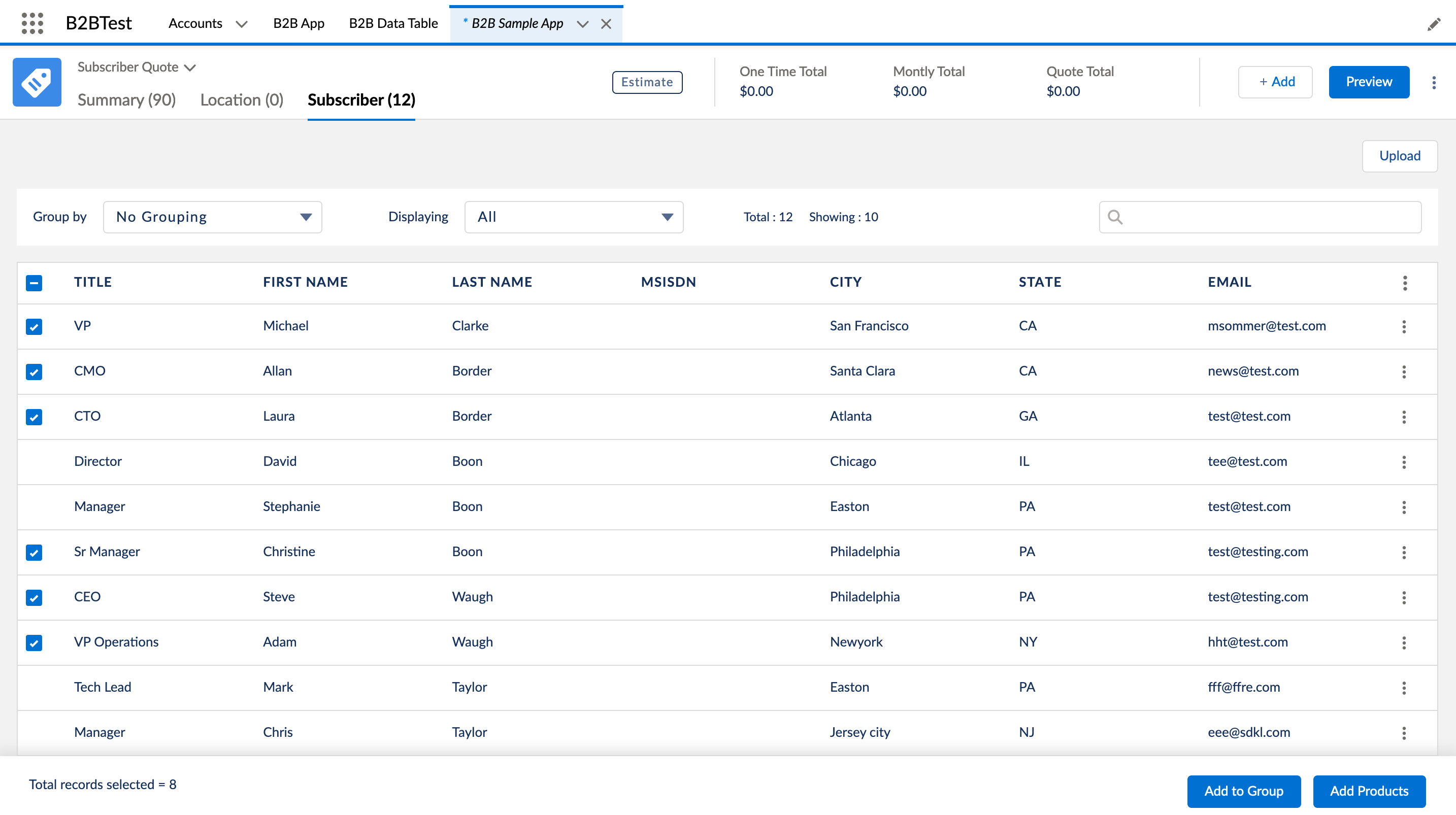
Select the checkbox for each subscriber or each group that you want to add to a group. If you select a group, all entries in that group are selected.
The Add to Group button appears only when you select the checkbox for at-least one subscriber/group.
 Note
NoteIf you don't select the checkbox for even one subscriber/group, then you can see Create Group instead of Add to Group. You can click Create Group to create a group with an expected member count. For more information, see Create a Group with an Expected Member Count.
- Click Add to Group. The Add to Group dialog box appears.
- Click Create a New Group, enter a unique name, and click Save.
- To view the subscribers grouped according to the new group, select the new group from the Group by menu.