
Configure the Product Designer to display the correct page layout and compact layout so that product administrators can use all the features.
-
Assign a Page Layout to the profile and record type:
-
Go to Setup → Object Manager → Product → Page Layouts → Page Layout Assignment.
-
Click Edit Assignment.
-
Assign the Product Console Layout to System Admin or other profiles for the Product and other record types.
-
Click Save.
-
Repeat this step to also assign page layouts for the following objects:
Label (from Object Manager)
Page Layout to Select
Vlocity Attribute
Vlocity Attribute Detail Layout
Vlocity Attribute Category
AttrCategory_ProductConsole Layout
Offer Migration Plan
Vlocity Offer Migration Plan Layout
Project
Project Layout
-
- Set up the Compact Layouts (Highlights panel):
-
Assign the Create New Product and
Generate Report buttons to the list view:
-
Go to Setup → Object Manager → Product → List View Button Layout → List View.
-
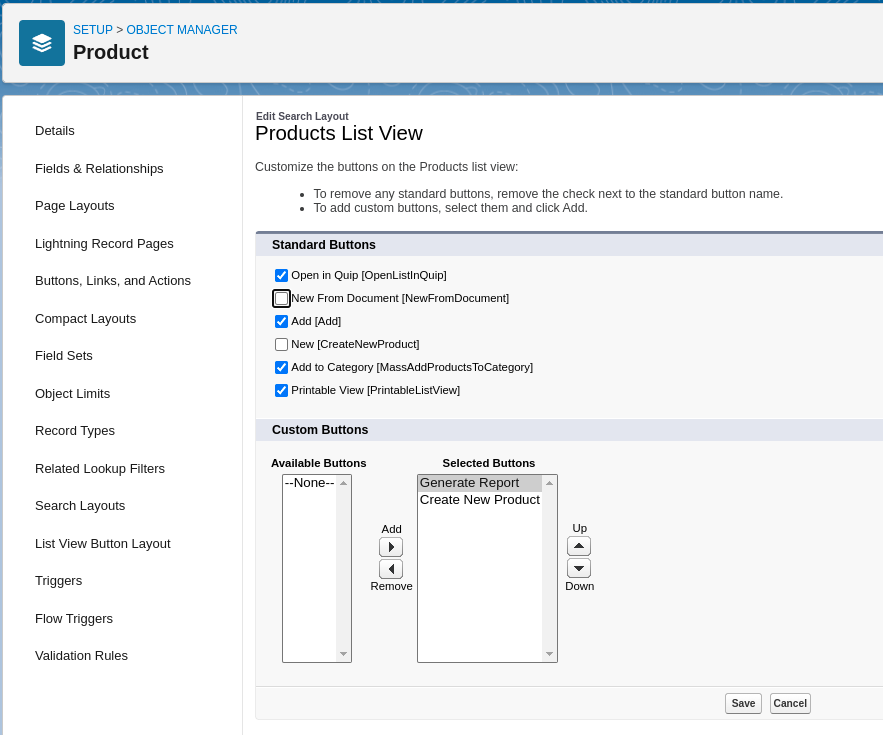
Click the associated drop-down for List View and click Edit. The Product List View page appears.
-
Under Standard Buttons, uncheck New [CreateNewProduct] and New From Document [NewFromDocument].
-
Under Available Buttons, select Create New Product and Generate Report and add them to the Selected Buttons list.
-
Click Save.
-
-
Ensure you can see the Delete button on the Highlights panel of the Products
page:
-
Go to Setup → Object Manager → Product → Page Layouts → Product Console Layout.
-
If you see Override the predefined actions link under Salesforce Mobile and Lightning Experience Actions, then click Remove all the existing actions.
-
In the layout panel at the top, click Mobile and Lightning Actions.
-
Verify that the following Quick Actions appear in the Salesforce Mobile and Lightning Experience Actions section. If not, drag the following Quick Actions from Mobile & Lightning Actions onto the Salesforce Mobile and Lightning Experience Actions section.
Object Name
Page Layout
Quick Action Label (Action Name)
Comment
Product
Product Console Layout
Delete (Product2.Product_Delete)
Generate All References (Product2.ProductDetailsReport)
New Version (Product2.New_Version)
Release Product (Product2.Product_Release)
Version History (Product2.Version_History)
Add these Versioning-related buttons to the layout when the Versioning feature is enabled. These buttons do not need to be exposed in non-versioning orgs.
-
Click Save.
-