---
schema_version: "1"
id: 7cabeb0fc74bdc6132745cf61f864c056aa4a9ed9a2cb23335ad9af9f574b151
title: Run the Context Definition Job
collection: admin
version: current
locale: en-us
portal_url: https://docs.salesforce.com/admin/current/en-us/ind/264-0-0/comms_running_the_context_definition_job.md
canonical_url: https://help.salesforce.com/s/articleView?id=ind.comms_running_the_context_definition_job.htm&release=264.0.0&type=5
source_site: help.salesforce.com
content_type: documentation
content_hash: 7b2ca5b2958498efcb9ac877b2901c62d8b447d7d8ba20ea56e80c74e7db891d
description: A one-time job within Industries CPQ extends the standard sales transaction context to create a custom context definition specifically for DRO.
products:
- Communications
- Media
- Energy and Utilities
release: "264"
---
# Run the Context Definition Job
A one-time job within Industries CPQ extends the standard sales transaction context to create a custom context definition specifically for DRO.
### Required Editions
Available in: Lightning Experience
Available in: Enterprise, Unlimited, and Developer Edition.
User Permissions Needed
Set of permissions to run the Context Definition Job:
RevenueLifecycleManagementAddOn

Note
In CME Interoperability orgs, when you map the CMESalesTransaction context in the DRO Settings page, you need to select two nodes: Fulfillment Asset State Period and Fulfillment Asset State Period Attribute.
Before you begin, make sure that these conditions are true and all necessary licenses are active in the org. Ensure that the standard Sales Transaction Context is available.
The steps are to extend the standard sales transaction.
1. When you have the licenses and the CME-DRO setting is available, you can see these jobs.
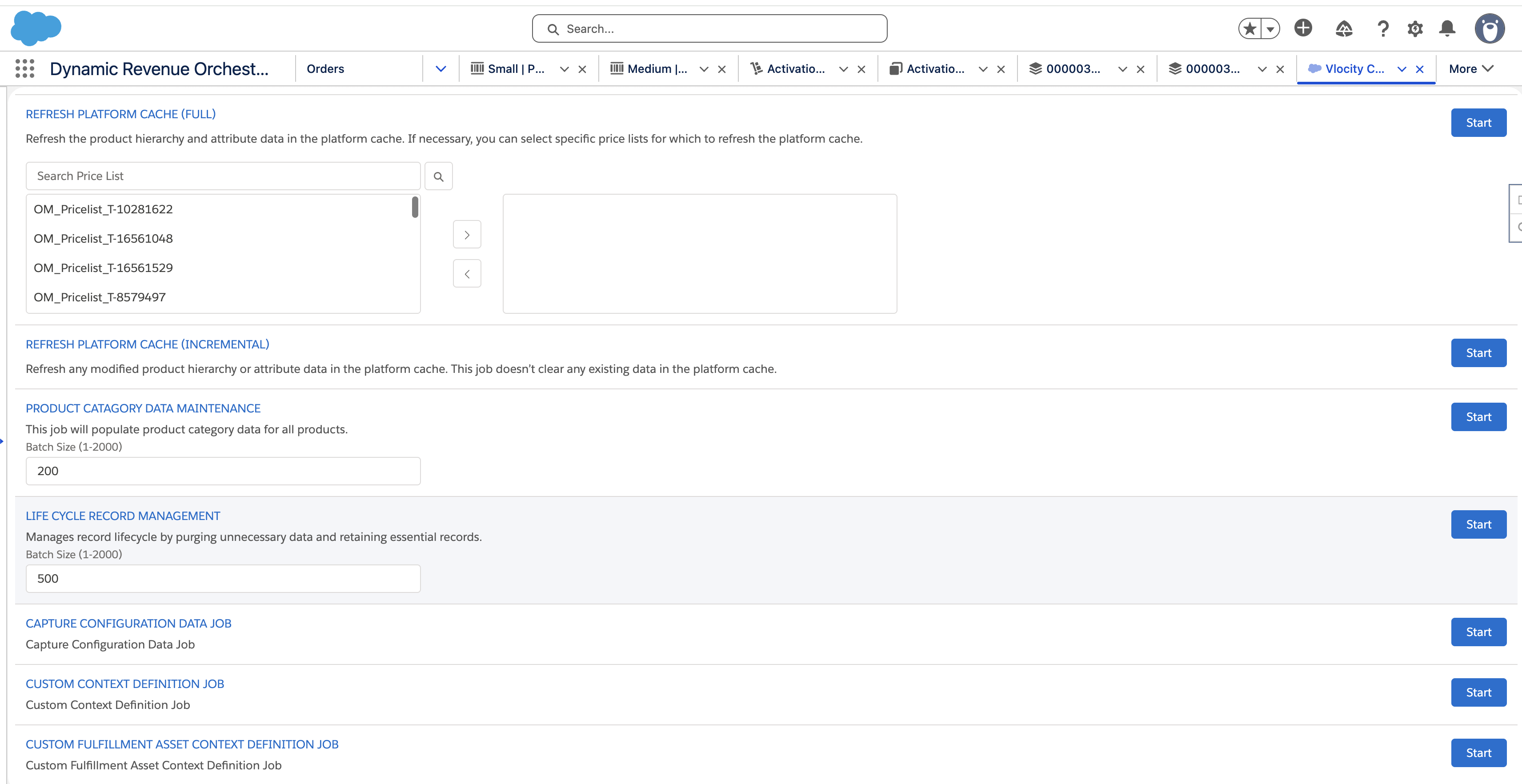
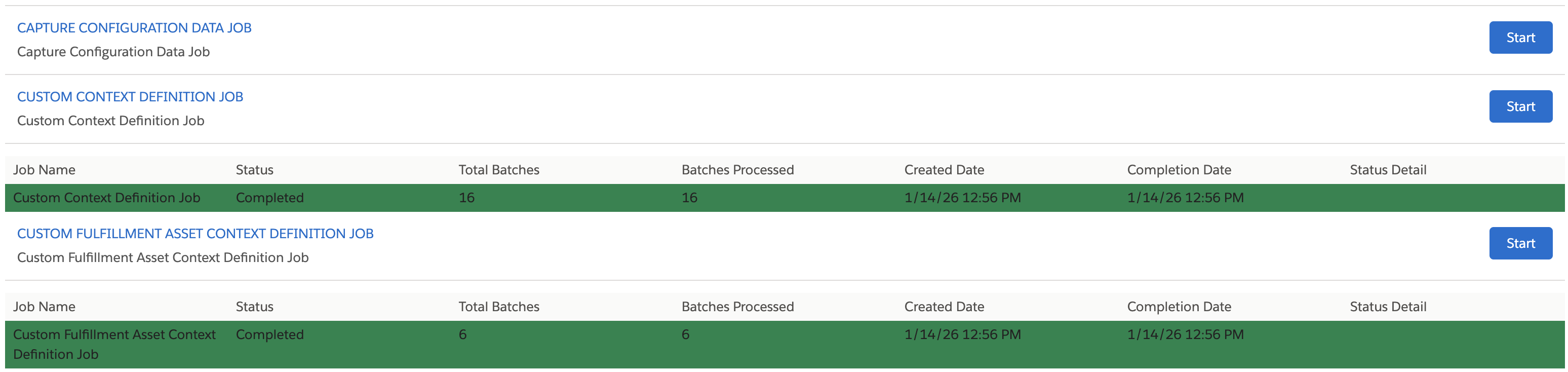
2. Proceed to enable these jobs:
1. Capture Configuration Data Job
2. Custom Context Definition Job
3. Custom Fulfillment Asset Context Definition
3. From the Setup, search and find **Context Service**, and select **Context Definition**.
4. On this page, open the Context Definition Details.
5. Ensure the CMESalesTransaction and context definition is available as shown here:
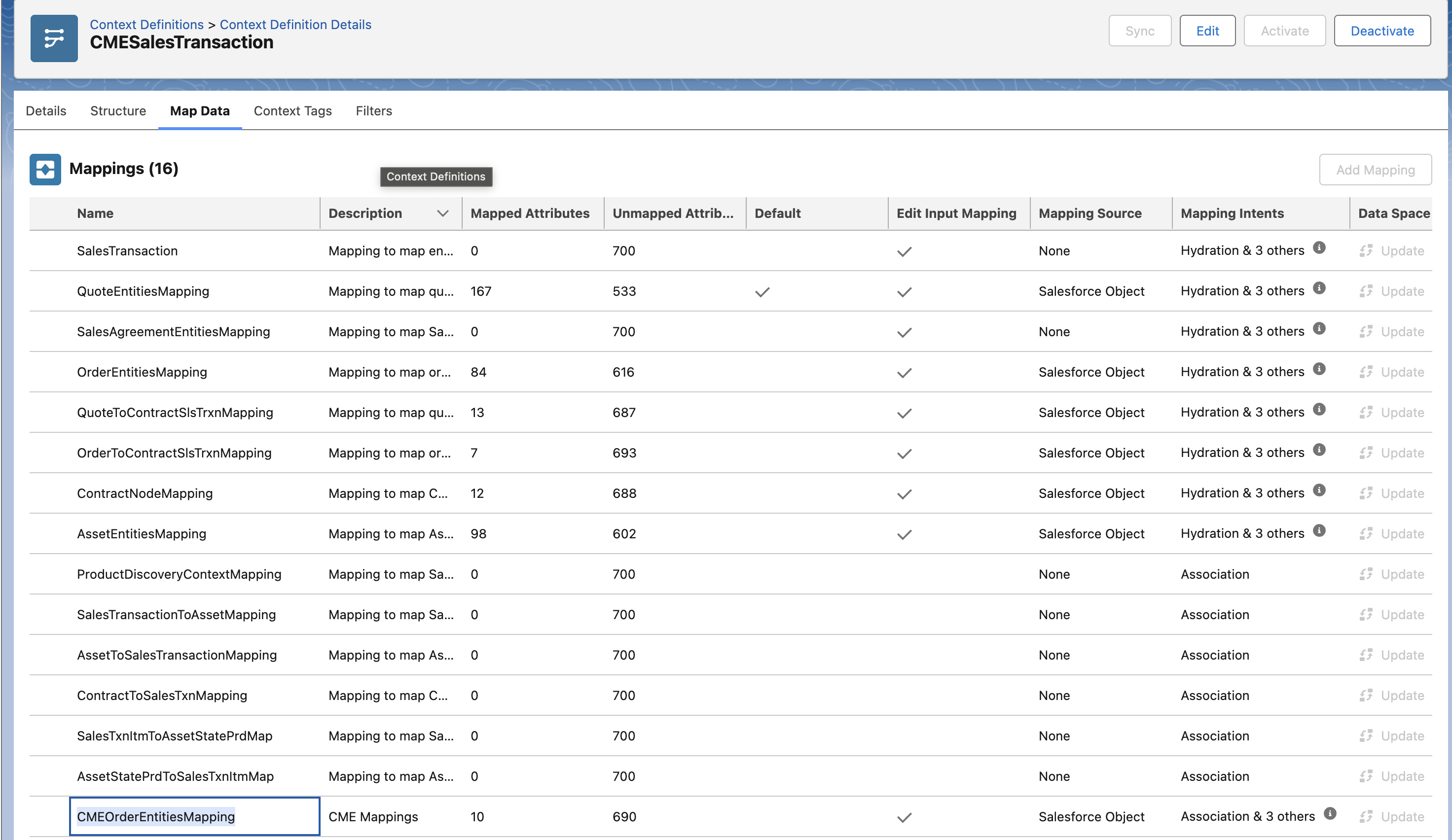
6. Activate Context Definition before moving to the next steps.
7. Steps to set up Sales Transaction Context for DRO:
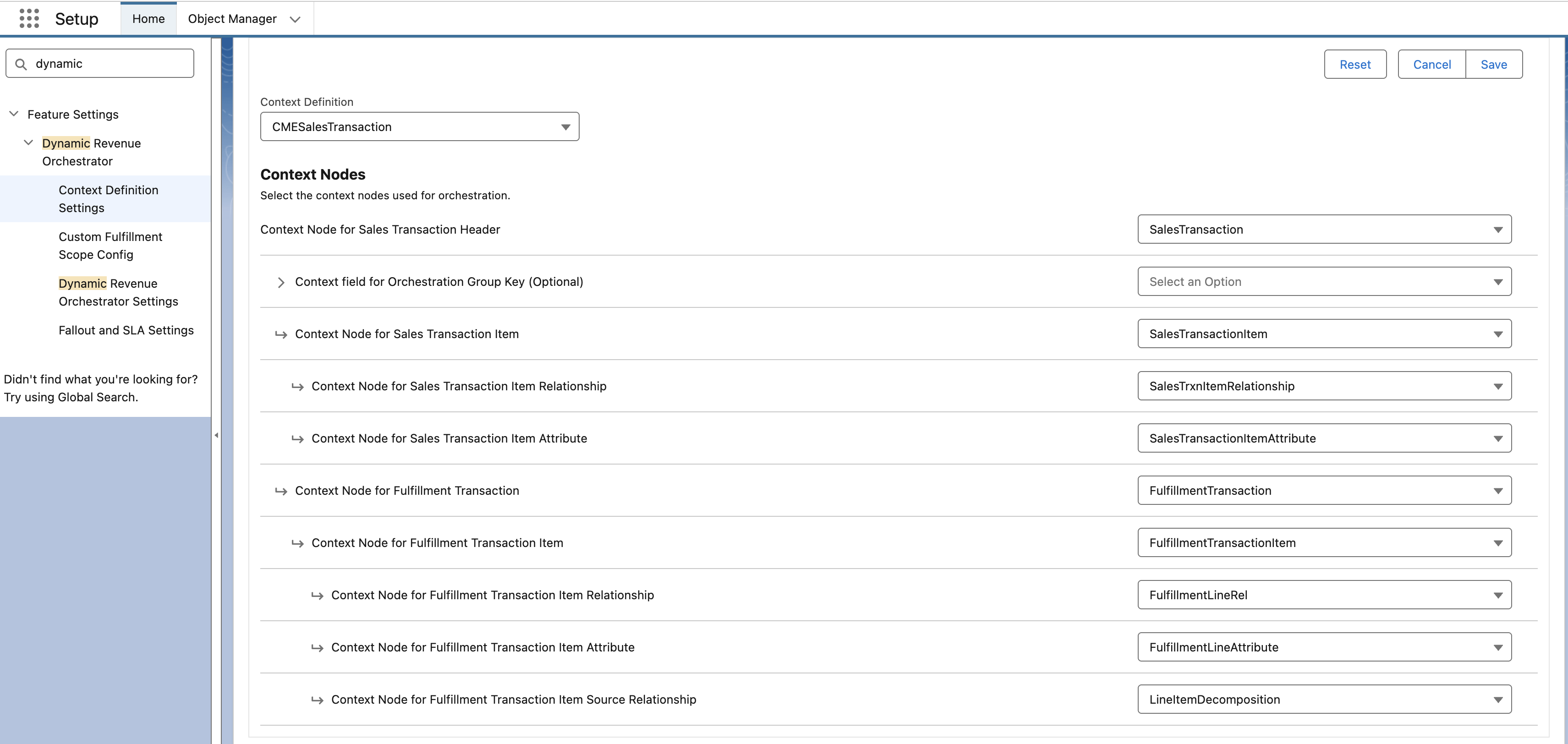
1. From the Setup, search and find **Dynamic Revenue Orchestrator.**
2. Go to Context Definition Settings and update the fields as shown here: