
You can migrate context rules from one environment to another, for example from a Sandbox environment to a Production environment.
You can also migrate context rules using IDX Workbench. See
The migration process migrates all data related to context rules, including:
-
Functions
-
Context Actions
-
Context Dimensions
-
Context Scopes
-
Object Level Rules
-
Rule Sets
You can migrate context rule data using the DataPack Export functionality, which is invoked by the URL to the DataPack Home Visualforce page.
The following input parameters must be appended to the URL:
-
DataPack name [ Rule | ContextDimension ]
-
Record ID for a rule or context dimension
For example:
apex/DataPacksHome?exportDataPackType=<data-pack-name>&exportData=<record-ID>
Example URL for context rule export:
apex/DataPacksHome?exportDataPackType=Rule&exportData=a2b46000000dsxM
Example URL for context dimension export:
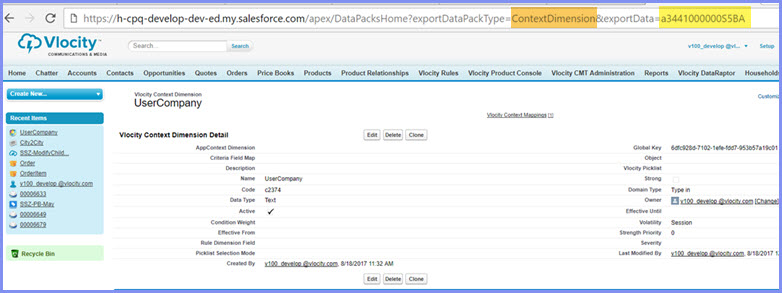
apex/DataPacksHome?exportDataPackType=ContextDimension&exportData=a3441000000S5BA
You must export each context rule and context dimension individually. Once exported, you can create a multi-pack to bulk import all context rules and context dimensions at the same time.

At this time, the export of multiple context rules or context dimensions is not supported.
To migrate context rules, perform the following tasks:
- Export Context Rules
- Export Context Dimensions
- Create a MultiPack
- Import the MultiPack with Context Rules and Context Dimensions to a Different Environment
Export Context Rules
You must export each context rule individually as a JSON file. After exporting all rules, you can bulk import them to another environment using a DataPack.
This task is a step in the Migration of Context Rules Between Environments process.
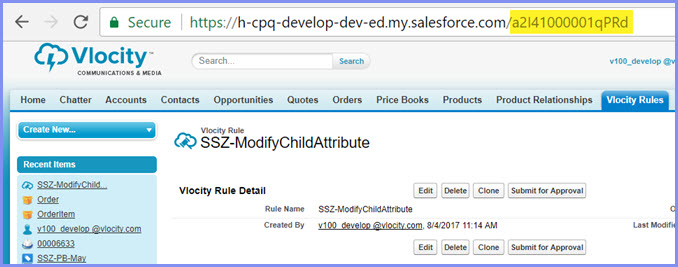
- In the All Tabs page, click the Vlocity Rules link.
- Create a view that displays only context rules.
- Click the name of a rule you wish to export.
- In the browser URL line, copy the ID of the context rule.
- Append the ID to the rule export URL. The URL format is:
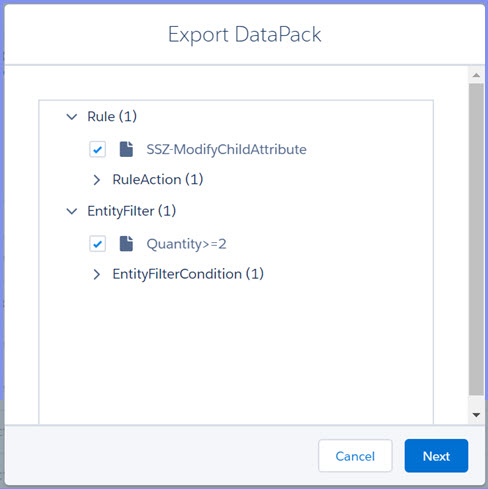
- Click Enter. The Export DataPack dialog box appears.
- Click Next, Next.
- Enter the name for the context rule.
-
Click Done.
A JSON file is downloaded to your Downloads folder.
- Repeat Steps 1 - 9 for each additional context rule you wish to export.

Export Context Dimensions
You must export each context dimension individually as a JSON file. After exporting all context dimensions, you can bulk import them to another environment using a DataPack.
This task is a step in the Migration of Context Rules Between Environments process.
-
In the All Tabs page, click the Vlocity
Context Dimensions link.
The Vlocity Context Dimensions pages displays all existing context dimensions.
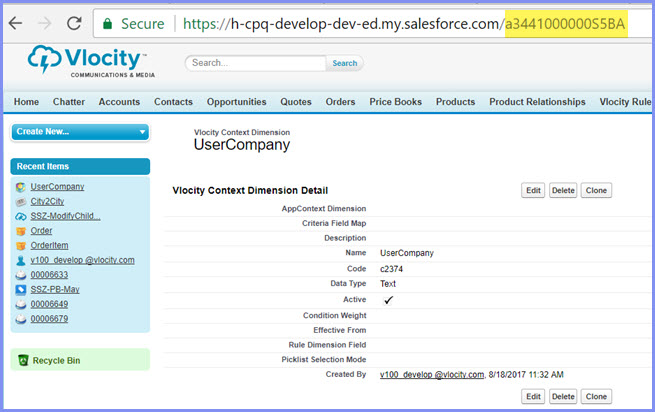
- Click the name of a context dimension you wish to export.
- In the browser URL line, copy the ID of the context dimension.
- Append the ID to the rule export URL. The URL format is:
- Click Enter.
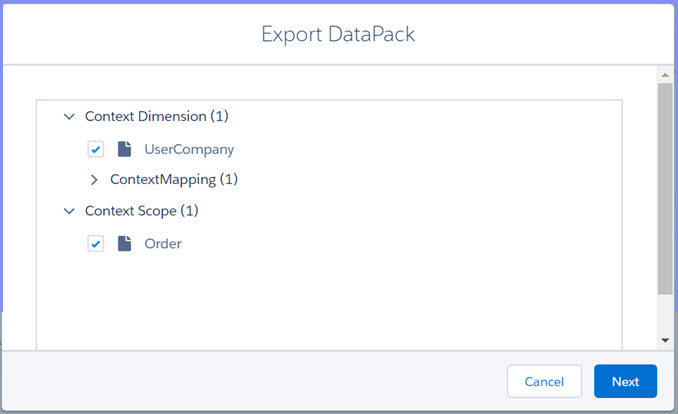
- Click Next, Next.
- Enter the name for the context dimension.
-
Click Done.
A JSON file is downloaded to your Downloads folder.
- Repeat Steps 1 - 8 for each additional context dimension you wish to export.
Create a MultiPack
Once you have exported all context rules and context dimensions, to import all rules and dimensions to another environment at the same time, create a multipack.
This task is a step in the Migration of Context Rules Between Environments process.
-
In the source environment, the All Tabs page, click the Vlocity
DataPacks link.
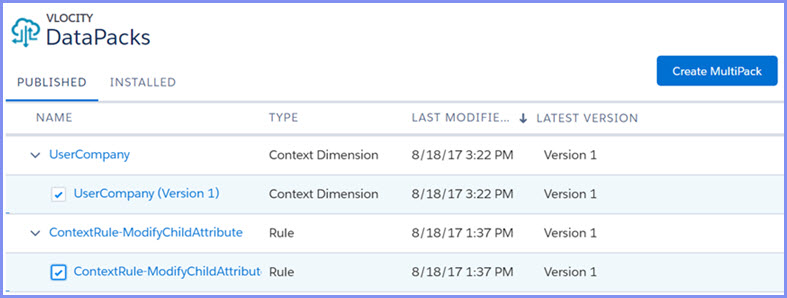
For each context rule and context dimension, a data pack is created and listed in the Vlocity DataPacks page. Use the Last Modified column to view a list of recently created datapacks.
- Click each data pack you wish to import to expand it and select the checkbox.
- Click Create MultiPack.
-
Enter the name for the multipack and click Next,
Next, and Done.
A JSON file with the same name is created and downloaded to your Downloads folder.
Import the MultiPack to a Different Environment
Once you have created a multipack with Context Rules and Context Dimensions, you can import it to a different environment.
This task is a step in the Migration of Context Rules Between Environments process.
- In the source environment, the All Tabs page, click the Vlocity DataPacks link.
- Click the Installed tab.
- Click Import From File.
- Browse to the location of the multipack JSON file, which is located in the Downloads folder by default.
- Select the file.
- Click Next, Next, Next, and Done.