
Adjust pricing for multiple products on the summary tab of your enterprise quote page or enterprise order page.
Required Editions
 This feature is part of the Communications Cloud managed package.
| Available in: Lightning Experience |
| Available in: Enterprise, Performance, Unlimited, and Developer Editions |
To make bulk pricing adjustment:
- On the Summary tab of your enterprise quote page or enterprise order page, select the products you want to bulk update the prices for.
-
Click Bulk Adjust Price in the overflow menu.
The Bulk Adjust Price dialog box shows the One Time tab by default. To adjust monthly recurring prices for the selected products, select the Monthly tab.
-
Choose one price adjustment method from the Adjust By dropdown menu.
The available price adjustment methods are Percentage, Absolute Amount, and Adjustment Code.
- To adjust price by an absolute amount, type a minus sign before the pricing adjustment value in the Discount Value textbox. If you’re giving a percentage discount, type a minus sign before the percentage value. For example, for 50% off, enter "-50". For $20 off, enter "-20".
-
Click Add.
You can apply multiple pricing adjustments.
-
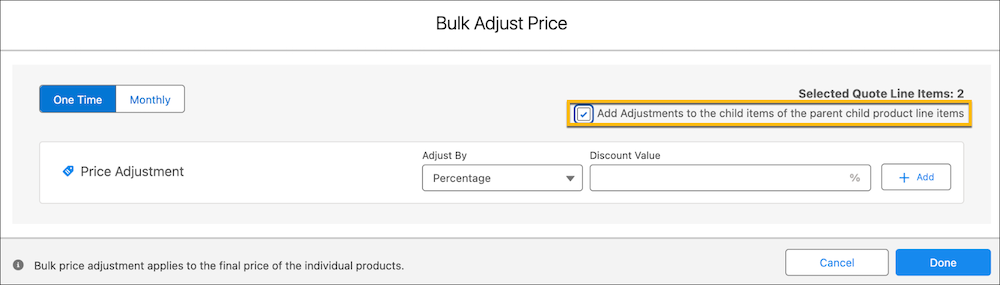
To adjust prices for the child items associated with the root product, select
Add Adjustments to the child items of the parent child product
line items.
-
When you're done entering pricing adjustments, click Done.
Price adjustments are only applied if all selected products have one-time or recurring pricing charges set up. If a product is missing a pricing charge, the price adjustment for that product won't be applied.
 Note Price change is an asynchronous process. We'll send you a notification when the process finishes.
