---
schema_version: "1"
id: 5b1165b0e17e004050e1b8ee2a467be2d3aeb5f055e6bcb863149fd2f9aecab9
title: Handling Custom Events and Creating Modals in LWC
collection: admin
version: current
locale: en-us
portal_url: https://docs.salesforce.com/admin/current/en-us/ind/264-0-0/comms_handling_custom_events_and_creating_modals_in_lwc.md
canonical_url: https://help.salesforce.com/s/articleView?id=ind.comms_handling_custom_events_and_creating_modals_in_lwc.htm&release=264.0.0&type=5
source_site: help.salesforce.com
content_type: documentation
content_hash: bc5b41f3a5119f9cc4e9ad4835b6a1914ce241be1e4db213a0f8da53c05a4c0c
description: This topic explains how to handle custom events in Salesforce Lightning Web Components (LWC) and create modals that are triggered by these events. You'll learn how to write LWC code to listen for events, trigger actions, and display modals in response to those events.
products:
- Communications
- Media
- Energy and Utilities
release: "264"
---
# Handling Custom Events and Creating Modals in LWC
This topic explains how to handle custom events in Salesforce Lightning Web Components (LWC) and create modals that are triggered by these events. You'll learn how to write LWC code to listen for events, trigger actions, and display modals in response to those events.
## Sample LWC Code
This LWC code listens for custom events and performs actions such as displaying a modal.
`import { LightningElement, track, api } from 'lwc'; import pubsub from 'vlocity_cmt/pubsub'; export default class CpqCartSampleCustomEventHandler extends LightningElement { @api recordId; @track isShowModal = false; connectedCallback() { // Register event listeners pubsub.register('cpq_cart_custom_action', { lineItemAction1: this.handleEvent01.bind(this) }); pubsub.register('cpq_cart_custom_action', { event02: this.handleEvent02.bind(this) }); } disconnectedCallback() { // Unregister event listeners pubsub.unregister('cpq_cart_custom_action', { lineItemAction1: this.handleEvent01.bind(this) }); pubsub.unregister('cpq_cart_custom_action', { event02: this.handleEvent02.bind(this) }); } showModalBox(currentCartId) { if (currentCartId == this.recordId) { this.isShowModal = true; } } hideModalBox() { this.isShowModal = false; } // Event handler for lineItemAction1 handleEvent01(event) { console.log('lineItemAction1 received:', event.cartId); console.log('Record received:', event.lineItem); this.showModalBox(event.cartId); } // Event handler for event02 handleEvent02(event) { console.log('Event02 received:', event.cartId); console.log('Record received:', event.lineItem); this.showModalBox(event.cartId); } }`
This code listens for two custom events, lineItemAction1 and event02, using the pubsub library, triggers actions such as logging event details, and displays a modal popup by setting`isShowModal` to true.
## Modal Template
This template defines the modal popup that appears when an event is triggered.
`
Proceed with Custom Action
Modal/Popup in Lightning Web Component (LWC) Demo
`
The modal is displayed when `isShowModal` is set to true. It includes a header, body, and footer, and uses Salesforce Lightning Design System (SLDS) styles for consistent appearance. The modal can be closed with a button that triggers the `hideModalBox` function.
## Metadata for the LWC
This metadata file exposes the LWC in Salesforce and defines where it can be added.
` 60.0truevlocity_cmtlightning__RecordPagelightning__AppPagelightning__HomePage`
This metadata file allows the LWC to be used within various Lightning pages (Record Page, App Page, and Home Page) in Salesforce.
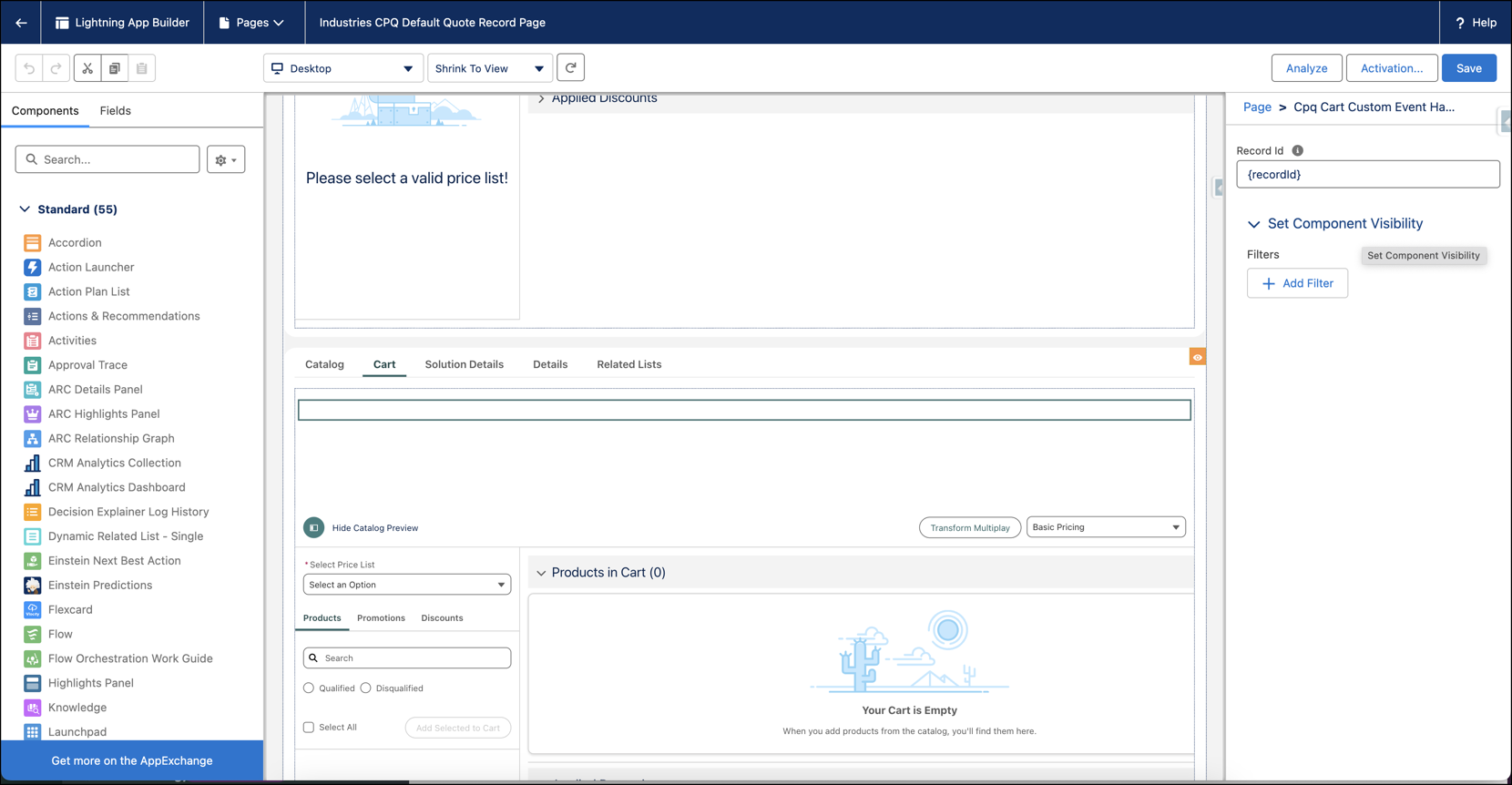
You can add the new LWC to the CPQ Cart page by dragging it from the Components section in the left pane.