
In context rules, when you need rules to evaluate complex criteria, you can create a function.
You might want to count records, looking for a certain threshold because, for example, a customer with more than two mobile phone assets is eligible for the family data plan promotion. Or, you might want to know if a certain type of record exists in a data set, returned as a Boolean value (true/false); for example, has the account participated in a campaign in the last 12 months? Because information like this does not exist as a single field on an object, functions enable you to insert custom logic to create advanced rule criteria. Creating rules using functions allows complete flexibility and control, but also requires Apex code.
Functions invoke Apex classes and methods. When you create the function, you can define multiple input arguments and a single output argument that will be passed to and from the Apex class and method. Over time, you can build a library of functions that can be reused for a variety of different purposes and for different context rules.
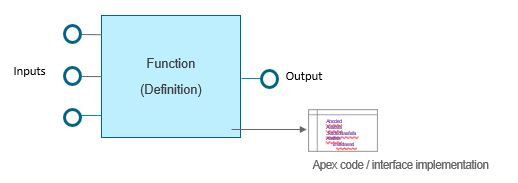
Functions are used in context mappings or in rule conditions. When functions are used in context mappings, the function output becomes the context mapping value and is compared by the rules engine to the rule condition values, which are set by the context dimension, just like when you create a context mapping to a field on an object.
However, when functions are used in rule conditions, the output from the function is compared to a static value in the rule condition. The other context rule components (such as context dimension) can be used as input arguments.
In some cases, you might want to create a context rule to evaluate the product or promotion that the context rule has been applied to.
For example, you might want to prevent customers who have used a promotion from using it again. To do this, you can create a function that uses the CurrentRuleObjectId variable as an input argument.
Creating Functions
You can create a custom function from an Apex class and use the function in rules.
- Create your Apex class and note the Apex class name and the method name. For more information on working with Apex classes, see Salesforce's Apex Developer Guide.
- Create a function definition in Custom Metadata.
- In Setup, go to Custom Metadata Types.
- Click Manage Function Definitions.
- In Function Definitions, Click New.
-
Enter the following information:
Label
Value
Description
Name
String value
The function name will be displayed in the list on the Functions Definitions tab.
Function Definition
String value
The unique function name used by the API and managed packages, and which you use in formulas. The name must begin with a letter and use only alphanumeric characters and underscores. The name cannot end with an underscore or have two consecutive underscores.
Class Name
String value
The Apex class containing the method that implements the logic for the function.
Method Name
String value
The name of the method in your Apex class that implements the logic for the function.
-
Create a function.
-
In Vlocity Product Console under Rules, click the create icon next to Function.
-
In the New Function dialog, enter the following information:
Property
Values
Description
Name
String value
The name of the function. You cannot use spaces in the name of a function due to requirements from the rule parsing engine.
Code
String value
The code of the function.
Description
String value
Describe the purpose of the function. It's also helpful to note the inputs and output.
Implementation Name
String value
The name of the method in your Apex class that implements the logic for the function.
Output Mode
Single
Used to specify whether the output will be a single value or multiple values.
Currently, only single output values are supported.
Active
Click to select
Must set as active to be used at runtime.
Effective From Date
Select a date
The start date of the period during which the function will be effective.
Effective Until Date
Select a date
The end date of the period during which the function will be effective.
-
- Click Save.
-
Create function arguments.
 Note
NoteYou can create multiple input arguments but a single output argument. The names of the arguments are not passed to the Apex class. Instead, the sequence of the input arguments is used to identify each argument within the Apex code. After the argument sequence has been set, do not change it without editing the corresponding Apex class accordingly.
- In the left sidebar, click Function Arguments.
- In the Function Arguments facet, click New Argument.
-
In the General Properties window, enter the following information:
Property
Value
Description
Sequence
Numeric value
The sequence of the argument. Salesforce recommends using a 10, 20, 30 ... numbering sequence to allow for easy insertions in future. The sequence specified for each argument must match the sequence of arguments expected by the Apex class specified in function's Implementation Name property.
Argument Name
String value
The name of the argument.
Function argument names cannot contain spaces.
Direction
-
Input
-
Output
Input specifies the argument that will be passed to the function as input. You can define multiple input arguments.
Output specifies the argument that will be passed to the function as output. You can only define one output arguments.
Data Type
-
Text
-
Number
-
Date
-
DateTime
-
Boolean
Specifies the data type of the argument.
Domain Type
-
Picklist
-
Object Lookup
-
Type in
-
Context Dimension
Specifies the domain type of the input argument.
-
If you select Picklist and specify a Vlocity Picklist here, the picklist values are displayed next to the Picklist radio button when you create a rule condition or a context mapping later.
-
If you select Object Lookup and then specify an object in the Object field here, you can select a record from that object when you create a rule condition or a context mapping later.
-
If you select Type in, you can type in a value when you create a rule condition or a context mapping later.
-
If you select Context Dimension, you can specify a context dimension to pass as input to the function when you create a rule condition or a context mapping later.
Select Context Dimension as the Domain Type when using the CurrentRuleObjectId variable.
Object
String value
Used with Domain Type of Object Lookup. Specifies the API name of the sObject to lookup.
Vlocity Picklist
Select a picklist using the Vlocity Picklist Lookup dialog.
Used with Domain Type of Picklist. Specifies the picklist to use as input to the function.
Picklist Selection Mode
-
Single
-
Multiple
Used with domain type of picklist. Specifies whether the user is allowed to pick one value from the picklist or multiple values.
-
-
Click Save.
Add as many arguments as needed to support the function's implementation class, then create the context mapping or rule condition that uses the function.