
To use the versioning feature in Product Designer and CPQ, you must update the product data and enable the feature.
Before You Begin
To use Vlocity Product Designer, you must update existing objects to use only the General Properties facet. See Upgrade Existing Object Types for use in Product Designer.
This flow chart summarizes the decisions and steps for preparing product data and enabling versioning.
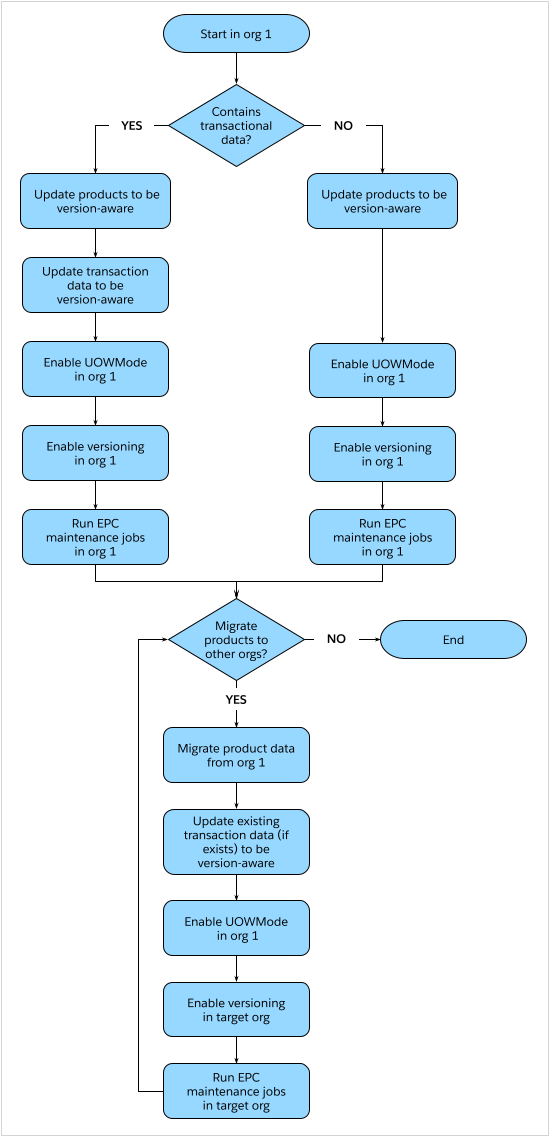
Versioning is supported only in the Vlocity Product Designer and Vlocity Pricing Designer. You can't use it in Vlocity Product Console.

You can't reverse the versioning changes to existing product data. These data changes are required to enable and use versioning.
-
Update transactional data if it exists or if you're upgrading.
Warning For Product2, object types, and picklists, you must set the Lifecycle Status to Released before enabling versioning. If you don't, the released products aren't displayed in the Cart after you enable the versioning feature. You can't run the Lifecycle Update Status job after versioning is enabled.
- From the Vlocity CMT Administration app, click Upgrade Jobs.
- For the Lifecycle Update Status job, select Product2 from the Object To Upgrade list.
- Set Lifecycle Status to Released.
- (optional) To change Lifecycle Status to Released for select products, use the Filter records by fields.
- Click Start.
- After the job finishes for Product2, repeats steps b-e with Object Type selected for Object To Upgrade and then with Picklist selected.
-
Run the Populate Reference Time (CatalogItemReferenceDateTime__c) job for existing XLIs.
 Note
NoteThis job doesn't update assets imported from external sources and their asset-based XLIs. You must populate the Reference Time (CatalogItemReferenceDateTime__c) for those imported assets and XLIs. It can't be run after Versioning is enabled.
-
From the Vlocity CMT Administration app:
- Click CPQ Configuration Setup.
- For UseAssetReferenceIdForParentAndRoot, click the pencil icon, and set it to true.
- For UOWMode, click the pencil icon, and set it to true.
-
Add the fields Version Label, Effective From, Effective Until, and Lifecycle Status to the page layout.
- From the Object Manager settings for vlocity object or object type, go to Page Layouts.
- Choose Vlocity_EPC_Object_Class_Layout page layout.
- From the Vlocity_EPC_Object_Class_Layout, drag and drop the Version Label , Effective From, Effective Until, and Lifecycle Status fields to the Vlocity Object or Object Type Detail section.
- From the Vlocity CMT Administration app, click Enable Features in the Custom Settings column, and for Versioning, verify that it's enabled. You can't disable versioning after enabling it.
-
From the Vlocity CMT Administration app, click Maintenance Jobs, and run the following jobs in the listed order to update the catalog data.
-
Product Hierarchy Maintenance
-
Clear Managed Platform Cache
-
Refresh Platform Cache (Full)
-
Populate API Cache
After you start a job, the status of the job is displayed. You can also view the status of all running jobs in Setup. From Setup, in the Quick Find box, enter Apex Jobs, and then select Apex Jobs.
-
-
To migrate the catalog to production or to a sandbox org, complete these steps:
- In the destination org, go to in Vlocity CMT Administration > Upgrade Jobs, and run the Populate Product Hierarchy Group Key Path job.
- Run the Populate Reference Time (CatalogItemReferenceDateTime__c) job for assets imported from external sources and those asset-based XLIs.
- Before importing products from other orgs, validate their overlapping versioning dates.
- Create the GlobalKeysToVersionDates.csv file with the global keys, versioning start dates, and versioning end dates for product versions that will be imported.
- In Setup, upload the file to the Static Resource folder.
- Run the Pre-Import Validate VersioningDate job.
- Repeat steps 2-6 in the destination org.
To add the Create Version and Version History buttons to the product and picklist pages, see Configure Product Designer for Salesforce Industries Communications, Media, and Energy. You must complete these steps in each org.
Fix Released Status for Versioning Enablement
If you didn't set Lifecycle Status to Released before enabling Versioning, you can't disable Versioning or update Lifecycle Status for products, picklists, and objects.
-
Run the following query to check if any product, Vlocity picklist, or
Vlocity objects have Lifecycle Status to Released.
If the query returns 0, continue with the procedure to correct the versioning if it's enabled. If all products, picklists, and objects are in the Released state, don't continue with the procedure.
select count(Id) from Product2 where vlocity_cmt__LifecycleStatus__c = 'Released' - From the Vlocity CMT Administration app, click Enable Features in the Custom Settings column, and for Versioning, verify that it's enabled. You can't disable versioning after enabling it.
-
From the Vlocity CMT Administration app, click Upgrade
Jobs, and run the Lifecycle Update Status job three times (one
time each for products, picklists, and objects) with Lifecycle
Status set to Released.
- For the Lifecycle Update Status job, select Product2 from the Object To Upgrade list.
- Set Lifecycle Status to Released.
- (optional) To change Lifecycle Status to Released for select products, use the Filter records by fields.
- Click Start.
- After the job finishes for Product2, repeats steps a-d with Object Type selected for Object To Upgrade and then with Picklist selected.
- Run the query in step 1 to verify Lifecycle Status to Released for products, picklist, and object types.
- From the Vlocity CMT Administration app, click Enable Features in the Custom Settings column, and for Versioning, verify that it's enabled. You can't disable versioning after enabling it.
-
From the Vlocity CMT Administration app, click Maintenance
Jobs, and run the following jobs in the listed order to update
the catalog data.
-
Product Hierarchy Maintenance
-
Clear Managed Platform Cache
-
Refresh Platform Cache (Full)
-