---
schema_version: "1"
id: 735ee568c9c8560ebf496926d9c8888741331ceee78e79cea37b779cd1ce9979
title: Enable CME - DRO Interoperability
collection: admin
version: current
locale: en-us
portal_url: https://docs.salesforce.com/admin/current/en-us/ind/264-0-0/comms_enable_dro_in_an_org.md
canonical_url: https://help.salesforce.com/s/articleView?id=ind.comms_enable_dro_in_an_org.htm&release=264.0.0&type=5
source_site: help.salesforce.com
content_type: documentation
content_hash: 43a5780a3f2a0588519b85ea24cc21558cce5f19c1b9fa4d4760badc89db9bb3
description: This configuration activates the Dynamic Revenue Orchestrator (DRO) and Inflight features for managing complex order fulfillment and mid-stream changes. It grants necessary user permissions for designing and applying workflows while enabling CME DRO Interop.
products:
- Communications
- Media
- Energy and Utilities
release: "264"
---
# Enable CME - DRO Interoperability
This configuration activates the Dynamic Revenue Orchestrator (DRO) and Inflight features for managing complex order fulfillment and mid-stream changes. It grants necessary user permissions for designing and applying workflows while enabling CME DRO Interop.
### Required Editions
Available in: Lightning Experience
Available in: Enterprise, Unlimited, and Developer Edition.
User Permissions Needed
Set of permissions required for CME-DRO Setup:
RevenueLifecycleManagementAddOn
The steps to add permissions and setup DRO in the customer's org.
1. Log in to the org.
2. In Setup, find and select **Dynamic Revenue Orchestrator**.
3. On its Settings page, turn on DRO and then turn on **Inflight**.
4. From Setup, in the Quick Find box, enter Users, and select the user.
5. Select the permission set for the user and assign the listed permissions:
1. DRO Admin User
2. Fulfillment Designer
3. Fulfillment Manager or Operator
4. Save Transactions and Fulfillment User
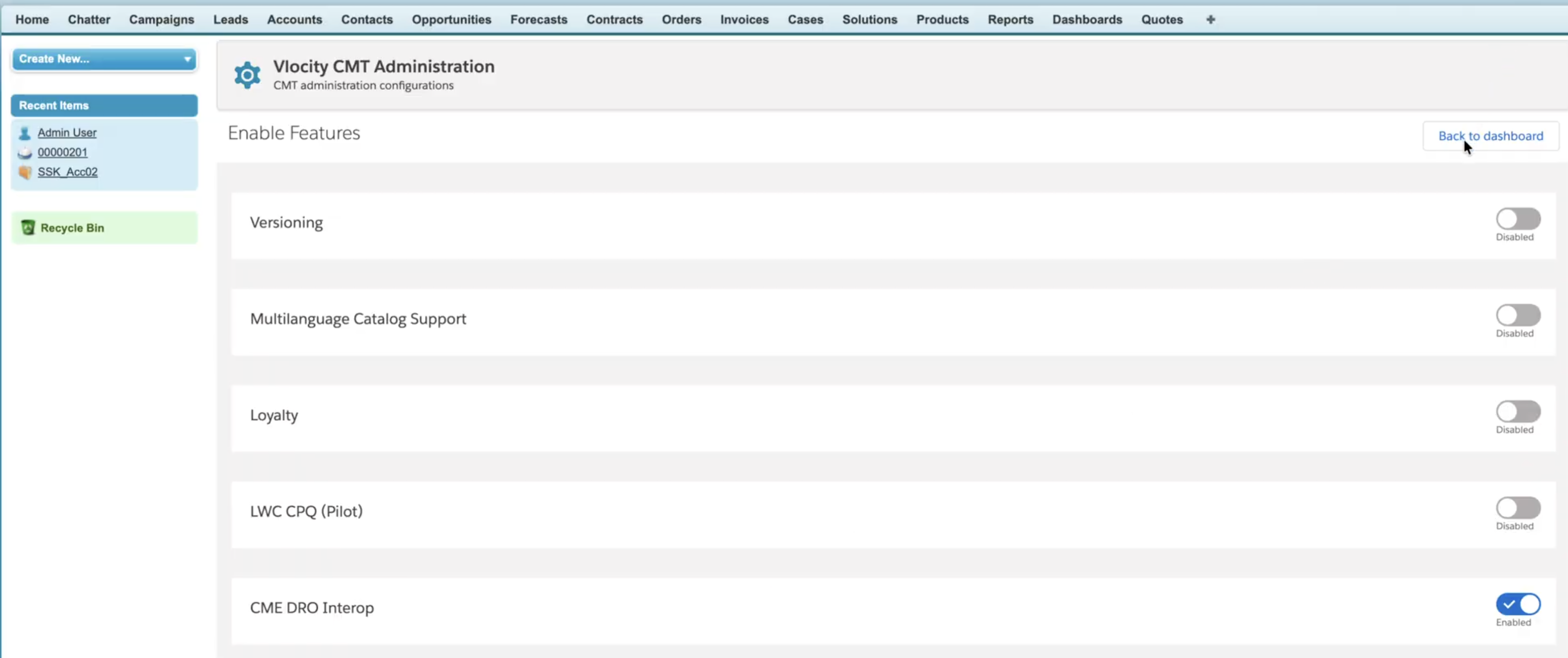
6. Go to the **Vlocity CMT Administration** tab and click **Enable Features**.
7. Find and select **CME DRO Interop** setting.