Similar to the way you define a price for a product, you can define costs for a product. Adjustments and overrides do not apply to costs.
Before You Begin
Before you configure costs, you must define pricing elements for the costs first. See Creating a Pricing Element for Costs.
The base price and virtual price fields do not apply to costs and are ignored at runtime.
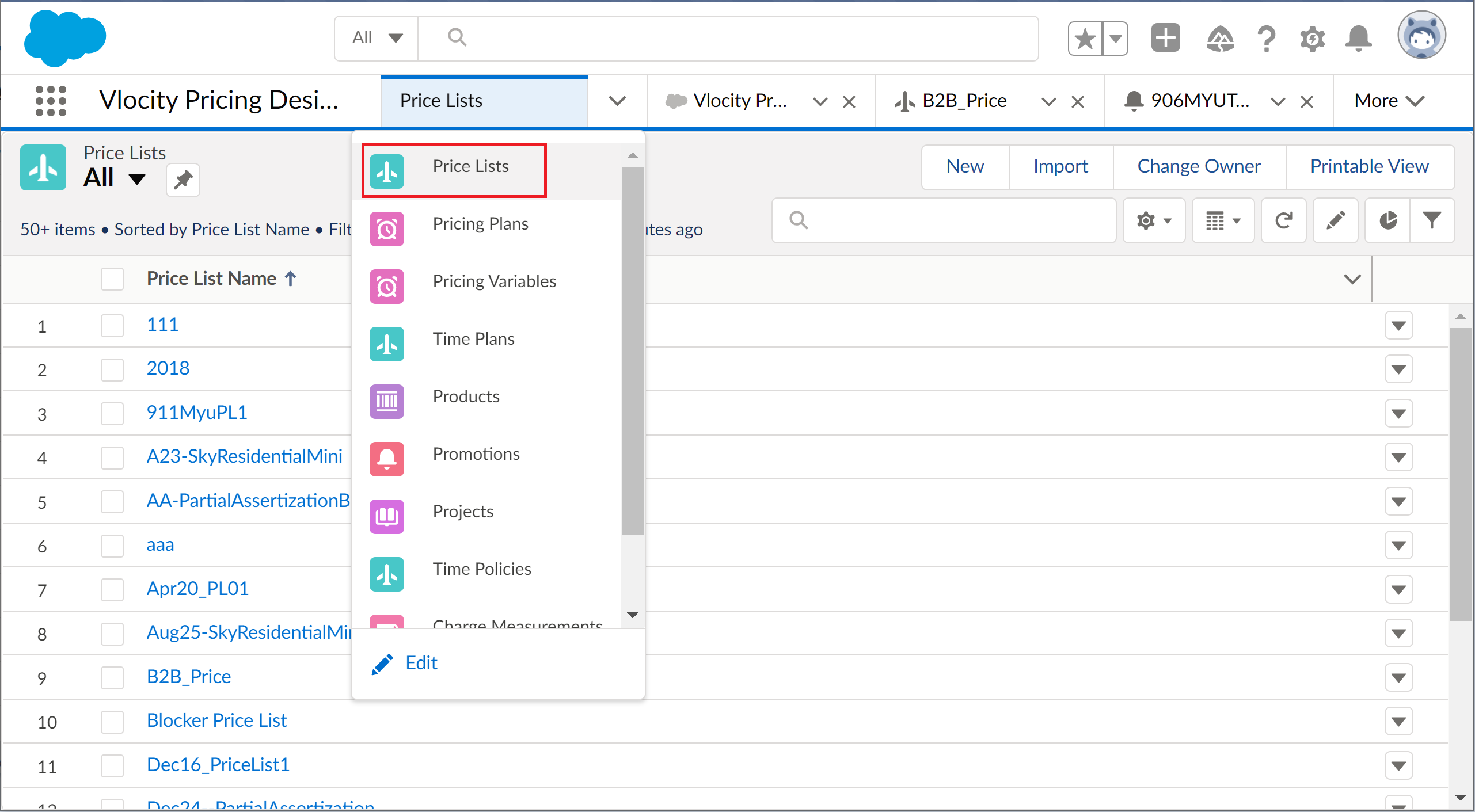
- From the App Launcher, click Vlocity Pricing Designer.
- Click Price Lists from the navigation menu.
- Click a price list from the Price List Name column.
- Click the Costs tab.
- Click the New Cost button.
-
Enter the following information in the New Cost panel. Fields marked with an asterisk are required.
Field
Dedscription
General Properties
Product
Search for the product to which the new cost applies.
Display Name
Type a display name for the product.
Effective Date
Effective From
Enter the Effective From date and time for the cost. This is the date the cost becomes active. If you don't enter a date, the current date is set as the Effective Start Date. This field must have a set date.
Effective To
Enter the Effective To date and time for the cost. This is optional. If you choose an effective to date, the cost doesn't apply after that date. The end date can be empty, or you can select a date. The Effective To must be greater than or equal to Effective From.
Active
Mark the costs as Active so it can be evaluated by the pricing service.
Pricing Details
Charge Type
Select a charge type:
-
Recurring: If selected, set the Recurring Frequency.
-
One-time
-
Usage: If selected, set the usage unit of measure (Usage UOM).
Amount
Enter a numerical value.
Currency
The default currency is set to USD.
Recurring Frequency
Appears if you choose the recurring charge type. Select the frequency to find pricing variables that match the frequency to associate with the pricing element. Indicates the frequency of the recurring charge. The options are Daily, Weekly, Monthly, Yearly.
-
- Click Done.