
Creating a Qualification Rule to Disable Pricing Adjustments
In some implementations, you might want to prevent users from making manual pricing adjustments. You can configure the card templates of Industries Cart to remove this capability, or you can create a context rule to not allow pricing adjustments.
To create a new qualification context rule set to not allow pricing adjustments, follow these instructions.
For this rule to disable pricing adjustments, it must be the only context rule for pricing adjustments in your org. To conditionally disable pricing adjustments, you must specify additional context rule conditions to restrict its scope, such as account SLA or order originating channel.
Verify the Adjustment Virtual Context Scope
You must use the AdjustmentData virtual context scope for your rule. If this context scope does not exist, create it. For more information about creating context scopes, see Creating Context Scopes. For more information on virtual context scopes, see Virtual Context Scopes.
Create the Context Rule
To create a context rule and rule conditions to evaluate the AdjustmentValue context dimension and context mapping:
-
In Vlocity Product Console in the Rules area, next to Rules, click Create
 .
.
-
In the New Rule dialog box, enter the following information.
Property
Value
Description
Name
No Pricing Adjustments Rule
The name of the context rule
Code
NO_PRICING_ADJ_RULE
The code by which you will refer to this context rule. Rule code is used when creating custom expressions. For more information, see Expression Modes and Custom Expressions.
Description
This rule ensures no pricing adjustments are allowed.
Describes the purpose of the context rule.
Expression Mode
n/a
Not needed.
Expression
n/a
Not needed.
Failure Message
n/a
This message is not currently displayed in Industries Cart.
Active
Click to select
Only active context rules will be evaluated the context rule service.
Effective Start Date
[today's date]
Specifies the start date of the period during which rules can use the context mapping.
Effective End Date
n/a
Not needed.
-
Click Save.
-
In the sidebar, click Rule Conditions.
-
In the Rule Conditions facet, click Add Condition.
-
Select Simple.
-
Enter the following information in the General Properties window.
Property
Value
Description
Code
RC-ADJVALUE
The code by which you will refer to this rule condition.
Context Dimension
Select the AdjustmentValue context dimension using the Context Dimension Lookup dialog box.
Specifies the context dimension to use with this rule condition.
Operator
==
Specifies the operator the context rule service uses to compare the Value property to the context mapping.
Value
0
Specifies the value the context rule service uses to compare to the context mapping.
Fail Level
n/a
Fail Level is not implemented currently in Industries Cart.
Failure Message
n/a
This message is not currently displayed in Industries Cart. Instead, set the failure message on the rule set. For more information on failure messages, see Failure Messages.
-
Click Save.
Create the Rule Set
Create a qualification rule set for the AdjustmentValue context rule.
-
In Vlocity Product Console under Rules, next to Rule Sets, click Create
.
-
In the New Rule Set dialog box, enter the following information.
Property
Value
Description
Name
No Pricing Adjustments Rule Set
The name of the rule set. This name is displayed in rule selection dialog boxes and in related lists when assigned to products, promotions, price lists, price list entries, and pricing adjustment objects.
Rule Type
Qualification
Pricing adjustment rules must be of type Qualification.
Rule Purpose
n/a
This field is not currently used by the rules engine.
Expression Mode
n/a
Not needed
Expression
n/a
Not needed
Failure Message
Manual pricing adjustments are not allowed.
This message is displayed as a toast message in Industries Cart. For more information, see Failure Messages.
Header Rule
n/a
Not needed
Effective Start Date
Select a date
The start date of the period during which the rule set will be effective.
Effective End Date
Select a date
The end date of the period during which the rule set will be effective.
-
Click Save.
-
In the left sidebar, click Children Rules.
-
In the Children Rules facet, click New Child Rule. The General Properties window appears.
Property
Value
Description
Rule
Select the No Pricing Adjustments Rule context rule using the Entity Filter Lookup dialog box.
Specifies the child context rule to include in the rule set.
Sequence
10
Specifies the child rule sequence. Use a sequence of 10, 20, 30, etc. to allow for easier sequence changes in future.
Action Taken
Do Not Qualify
By specifying Do Not Qualify as the Action Taken, the rules engine will not allow users to apply pricing adjustments of 0 or any other amount.
Context Action
n/a
Not needed.
-
Click Save.
This procedure creates the pricing adjustment qualification rule set. The next step is to assign it to the pricing adjustment virtual object. For details, see Qualification Rules for Pricing Adjustments - Assigning or Deleting to the AdjustmentData Virtual Object.
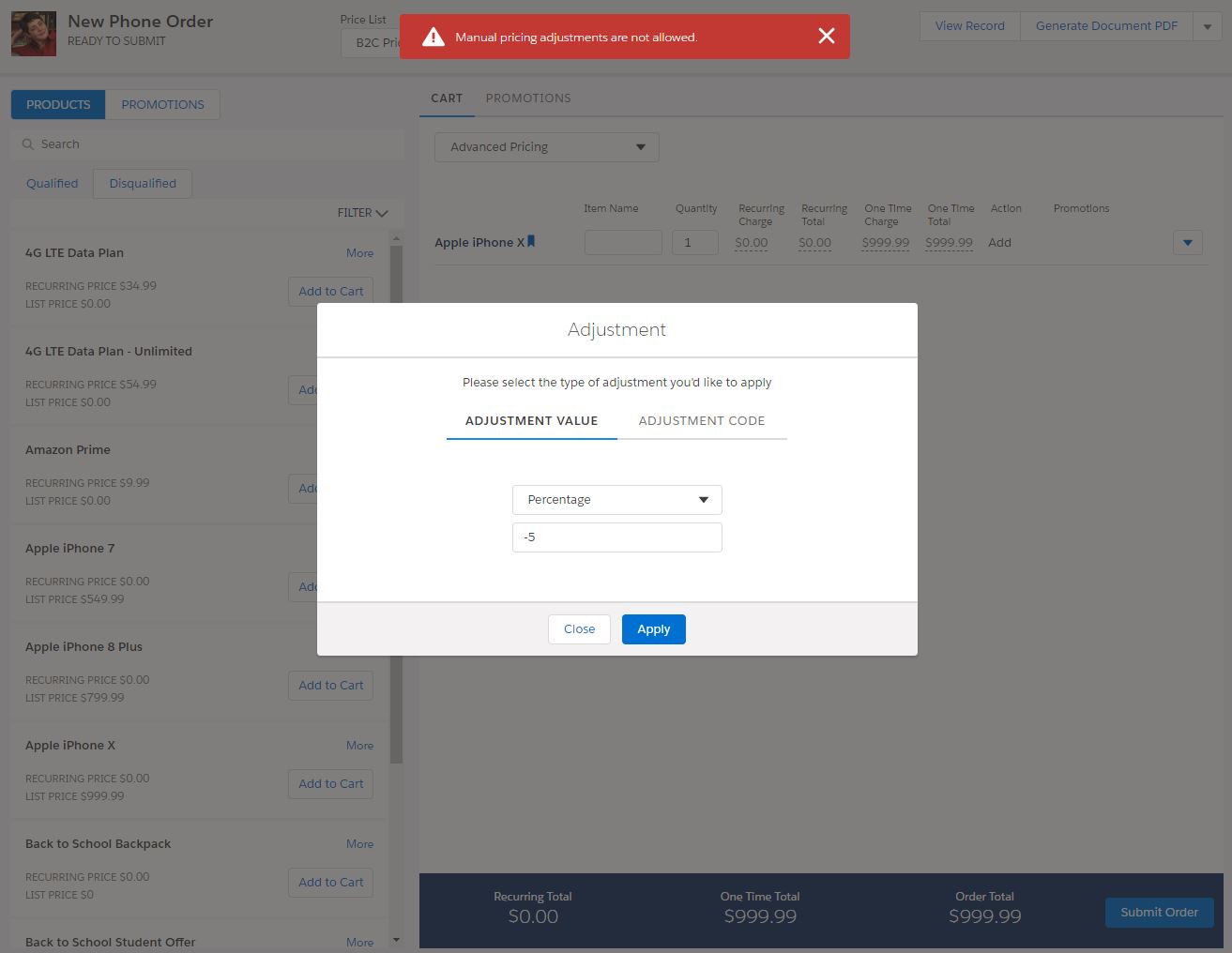
After this rule set is assigned, you can test its functionality in Industries Cart with an order, quote, or opportunity. Enter any value in the Adjustment Value text entry box, and verify that a toast message is displayed, as shown in the screenshot below.
Create the Context Dimension and Context Mapping to the AdjustmentData Virtual Object
To create a context dimension with a context mapping to the AdjustmentData virtual object for the rule:
-
In Vlocity Product Console, in the Rules
area, next to Context Dimension, click Create
.
-
On the New Context Dimension tab, enter
the following information.
Property
Value
Description
Name
AdjustmentValue
The name of this context dimension.
Code
DIM_ADJVALUE
The code of this context dimension.
Description
Context dimension mapped to AdjustmentData.AdjustmentValue
Specify the purpose of this context dimension.
Condition Weight
n/a
This property is not used for context rules for pricing adjustments.
Data Type
Text
Data type of this context dimension.
Domain Type
Type in
Describes how rule condition values appear when creating a rule condition.
Object
n/a
Not needed since the Domain Type is Type in.
Vlocity Picklist
n/a
Not needed since the Domain Type is Type in.
Picklist Selection Mode
n/a
Not needed since the Domain Type is Type in.
Active
Click to select
Only active context dimensions will be evaluated by the rules engine.
Effective From Date
[today's date]
Specifies the start date of the period during which rules can use the context dimension.
Effective Until Date
n/a
Not needed.
- Click Save.
- In the left sidebar, click Context Mappings.
- In the Context Mappings facet, click New Context Mapping.
-
In the New Context Mapping dialog box,
enter the following information.
Property
Value
Description
Context Scope
Select the AdjustmentData virtual context scope using the Context Scope Lookup dialog box.
Specifies the context scope that is linked to this context mapping.
Context rules for pricing adjustments must use the AdjustmentData virtual context scope.
Initialization Policy
Always Reinitialize
Specifies how frequently context mapping values are refreshed in the session cache.
Context rules for pricing adjustments must Always Reinitialize .
Initialization Type
Source Expression
Specifies where to retrieve the data that will be used to compare to the rule condition.
Source Expression
AdjustmentValue
Specifies the name of attribute on the AdjustmentData virtual object. For more information, see The AdjustmentData Virtual ObjectAdjustmentData Virtual Object
Sequence
10
Specifies the context mapping sequence. To allow for sequence changes, specify 10, 20, 30, and so on.
Active
Click to select
Only active context mappings will be evaluated by the rules engine.
Effective From Date
[today's date]
Specifies the start date of the period during which rules can use the context mapping.
Effective Until Date
n/a
Not needed.
- Click Save.
