
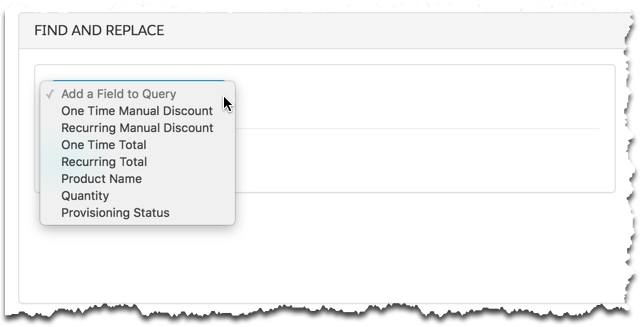
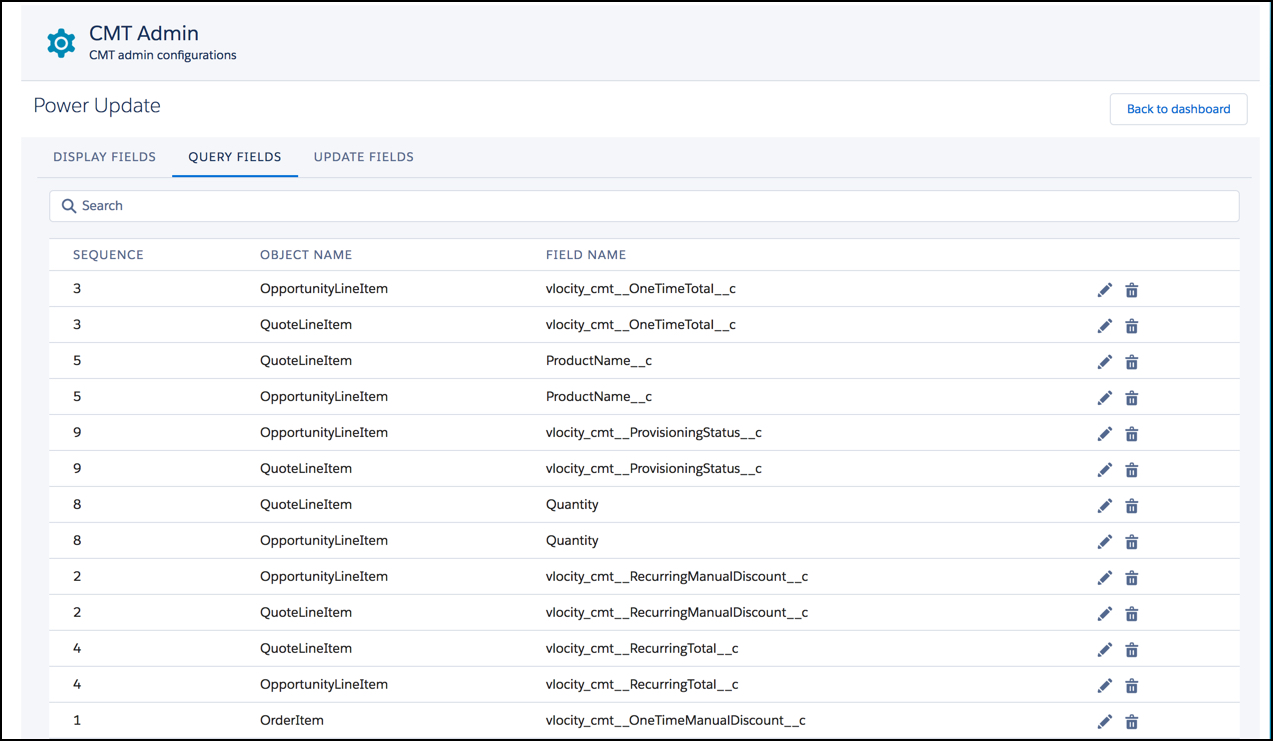
Query fields are the picklist options in the Power Update Query panel. In the images below, each of the picklist values in the Query panel corresponds to the fields in the Power Update Query Fields tab.
The Query panel supports SOAP type string, Double, and Boolean values.
-
One Time Manual Discount corresponds to the OpportunityLineItem, OrderItem, and QuoteLineItem vlocity_cmt__OneTimeManualDiscount__c fields.
-
Recurring Manual Discount corresponds to the OpportunityLineItem, QuoteLineItem, and OrderItem vlocity_cmt__RecurringManualDiscount__c fields.
-
One Time Total corresponds to the OpportunityLineItem, QuoteLineItem, and OrderItem vlocity_cmt__OneTimeTotal__c fields.
-
Recurring Total corresponds to the OpportunityLineItem, QuoteLineItem, and OrderItem vlocity_cmt__RecurringTotal__c fields.
-
Product Name corresponds to the OpportunityLineItem, QuoteLineItem, and OrderItem ProductName__c fields.
-
Quantity corresponds to the OpportunityLineItem, QuoteLineItem, and OrderItem Quantity fields.
-
Provisioning Status corresponds to the OpportunityLineItem, QuoteLineItem, and OrderItem vlocity_cmt__ProvisioningStatus__c fields.
To create query fields:
- On the Vlocity CMT Administration Power Update tab, click Query Fields.
- At the bottom of the page, click Add.
- In the first red box, enter the sequence in which the picklist item should appear.
- From the picklist, select the object in which the field appears.
-
Click the Action icon
 .
.
The Field Selection dialog box opens.
- Select the field that contains the information to display.
- Click Save.

