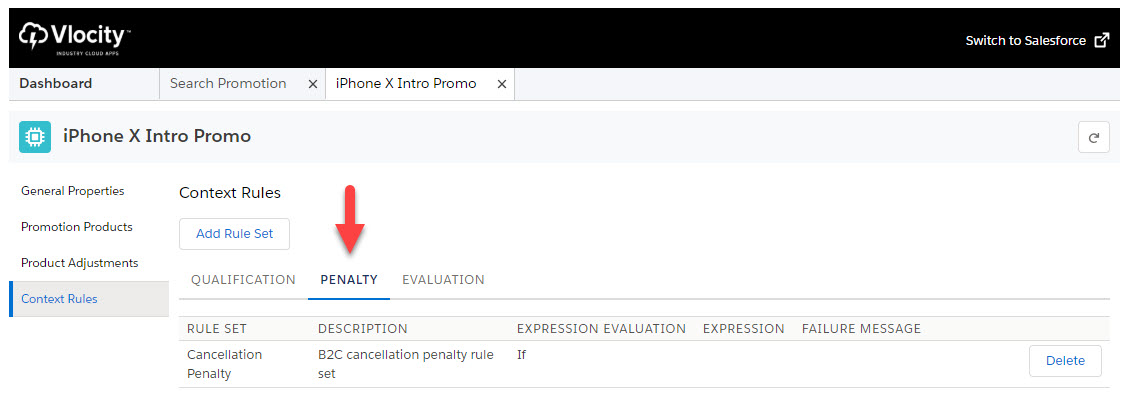
Create penalty rule sets in Vlocity Product Console using reusable context rule components.
For more information on context rule sets, see Creating Rule Sets.
To create new penalty context rule sets, perform the following steps:
- Choose a context scope to use for your rule. If the context scope does not exist, create it. For more information on creating context scopes, see Create Context Scopes.
- Choose a context dimension to use for your rule. If the context dimension does not exist, create it. For more information on creating context dimensions, see Create Context Dimensions.
- Choose a context rule to use in your rule set. If the context rule does not exist, create it. For more information on creating context rules, see Context Rules.
-
Create a penalty rule set.
- In Vlocity Product Console under Rules, click the create icon next to Rule Set.
-
In the New Rule Set dialog, enter the following information.
Property
Value
Description
Name
String value
The name of the rule set. This name is displayed in rule selection dialogs and in related lists when assigned to promotions.
Rule Type
Penalty
The rule type property controls how the rules are used in Industries Cart.
Rule Purpose
n/a
This field is not currently used by the rules engine.
Expression Mode
If Else If | If
Expression Mode is used when there are multiple context rules contained in the rule set. It describes how the rules engine compiles the child context rules into a logical expression. For more information, see Child Rules and Expression Modes. The
AND,OR, andCustomExpression Modes are not used with penalty rule sets.Expression
-
Use AND and OR operators to create custom expression
-
Refer to child context rules using rule codes
-
Use spaces to delimit each rule code
-
Use parentheses to sequence order of operations for the expression
-
Expressions are case-sensitive
Expression is not used with penalty rule sets.
Expression is used when Expression Mode is
Custom, to enable you to specify a custom logical expression. For more information, see Child Rules and Expression Modes.Failure Message
n/a
Failure messages are not used with penalty rules.
Header Rule
Select a context rule using the Header Rule Lookup dialog.
Enables you to specify a Header Rule for the rule set. For more information, see Header Rule.
Effective Start Date
Select a date
The start date of the period during which the object level rule is effective.
Effective End Date
Select a date
The end date of the period during which the object level rule is effective.
-
- Save your work.
- In the sidebar, click Children Rules.
- n the Children Rules facet, click New Child Rule.
-
Enter values for each property.
Property
Value
Description
Rule
Select a context rule using the Entity Filter Lookup dialog.
Specifies the child context rule to include in the rule set.
Sequence
10 | 20 | 30 ...
Specifies the child rule sequence. Salesforce recommends using a sequence of 10, 20, 30, etc. to allow for easier sequence changes in future.
Action Taken
Policy Action
Since this is a Penalty context rule, the Action Taken should be Policy Action or No Action.
Context Action
Select a context action using the Context Action Lookup dialog.
Specifies the context action to use when the Action Taken is set to Policy Action.
- Click Save.
This procedure creates a new penalty rule set. The next step is to assign it to a promotion or to use it to create an object level rule for contracts.
Penalty Rules - Assigning to or Deleting from a Promotion
You can assign penalty rules to and delete penalty rules from promotions.
Penalty Rules - Deleting from a Promotion
To delete a penalty context rule for a promotion:
-
In Vlocity Product Console, under Product Management, find the promotion to which you want to assign a rule set.
-
Click the PROMOTION NAME or the edit icon to open the promotion for editing.
-
In the left sidebar, click Context Rules.
-
In the Context Rules facet, click the PENALTY tab to view the penalty rule list.
-
In the penalty rule list, find the context rule you want to delete, and click the Delete button in the right side of the table row for that context rule.
-
In the Delete Rule Set dialog, click Delete.
Penalty Rules - Assigning to a Promotion
To assign a penalty context rule to a promotion:
- In Vlocity Product Console, under Product Management, find the promotion to which you want to assign a rule set.
- Click the PROMOTION NAME or the edit icon to open the promotion for editing.
- In the left sidebar, click Context Rules.
- In the Context Rules facet, click Add Rule Set. The Add Rule Set dialog opens.
- In the Add Rule Set dialog, search for and select the context rule you want to assign.
-
In the Add Rule Set dialog, click
Save.
The context rule you assigned to the promotion appears in the Context Rules facet PENALTY list.
- In the Context Rules facet, click the PENALTY tab to display the list of assigned penalty rules.